AI Image Edit Tutorial: Same Face, New Outfit and Place in 4 Minutes

13 chapters
- 00:00One portrait, one coat, one place
- 00:17Open Image Edit
- 00:24All 14 editing models in short
- 01:40Choose Minimax H3 Image Edit
- 01:44Add references: Picture 1, 2 and 3
- 02:06Seed: random or repeatable
- 02:14Write the prompt: what to take, what to keep
- 02:36Resolution, aspect ratio, number of images, price
- 03:00Generate
- 03:06The result, checked at 100%
- 03:22Follow-up: change only the coat
- 03:38The second result
- 03:48More examples and guides
A short Proxima Image Edit tutorial: what each of the 14 editing models is for, how to add reference images as Picture 1, 2 and 3, how to write the prompt, and what every setting does. With Minimax H3 a portrait, a coat and a café become one realistic photo.
Key takeaways
- Start with Minimax H3 Image Edit: up to 16 references, 8 credits at 1K, 15 at 2K and 30 at 4K, references included.
- The order of references matters: call them Picture 1, Picture 2 and Picture 3 in the prompt.
- Say what to take from each picture and what must stay: face, freckles, hair.
- For a follow-up, use your result as the new Picture 1 and change just one thing.
- The full price in credits is always on the Generate button before you start.
What you will make
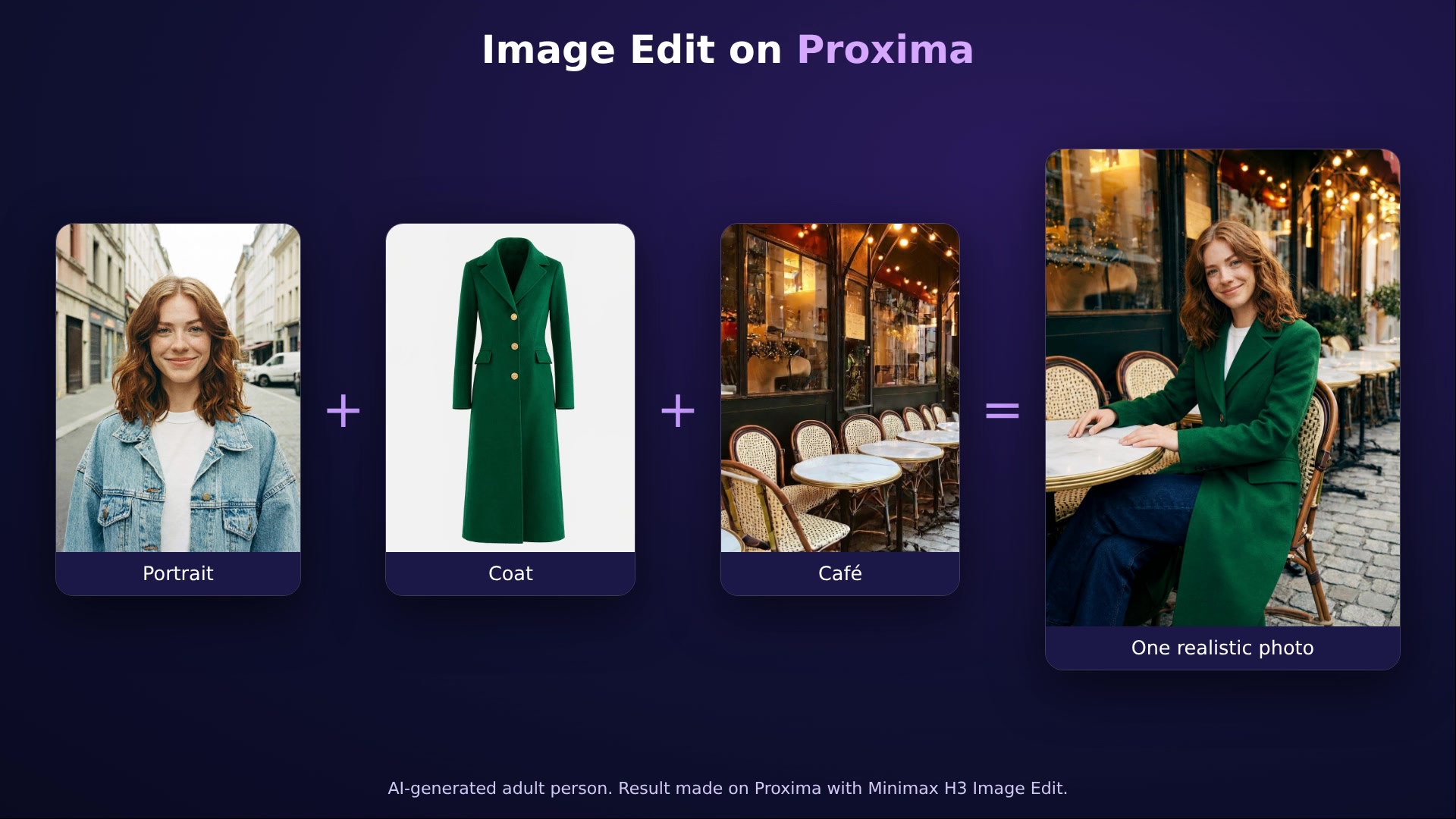
In the video one AI-generated portrait, a coat and a café terrace become a single realistic photo. Then a second edit changes only the colour of the coat. Both edits use Minimax H3 Image Edit at 2K. The waiting time is cut; the results are real.
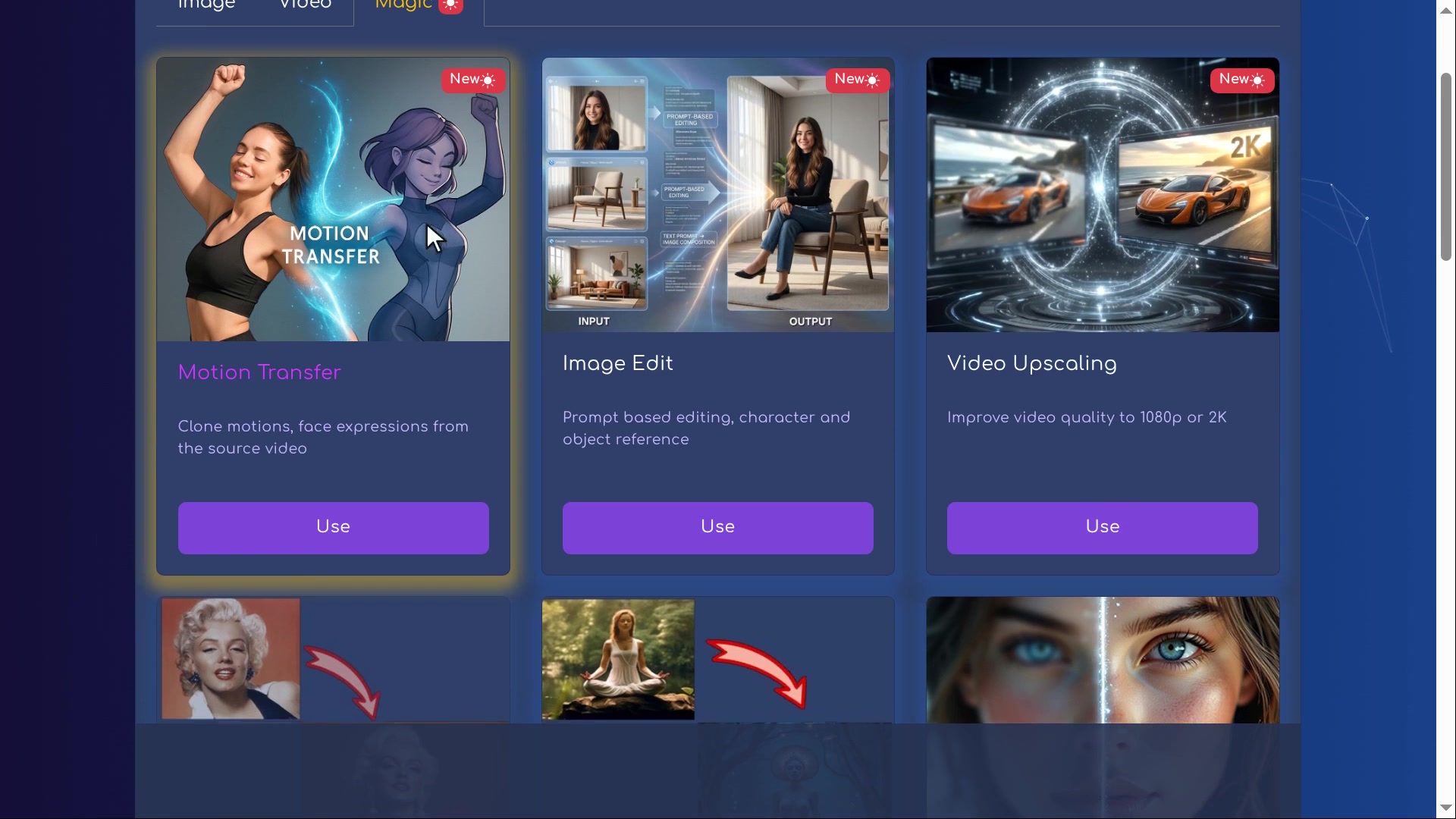
Open Image Edit
Click Start Generating on the home page, open the Magic tab and choose Image Edit.
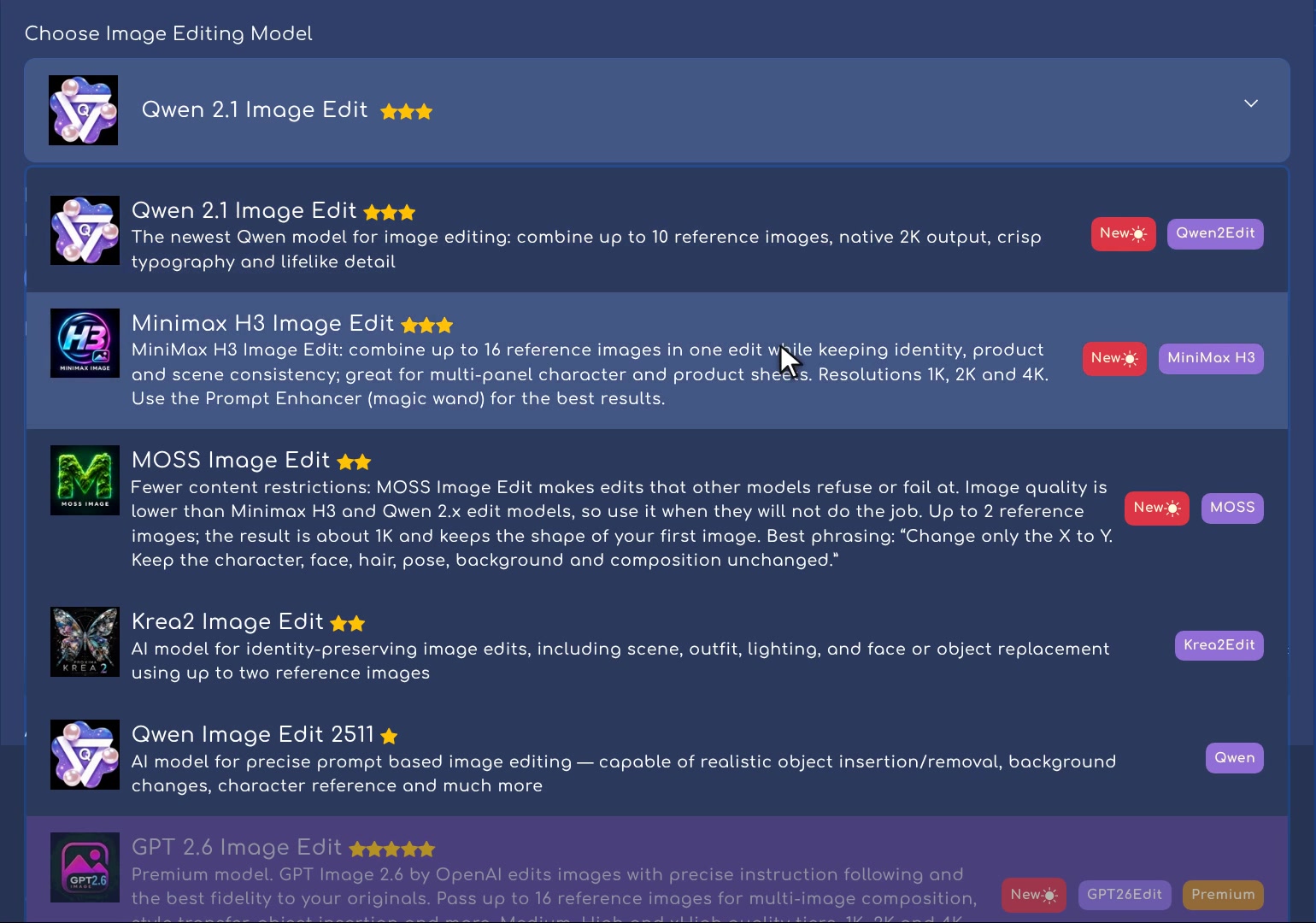
The 14 editing models in a few words
These models work with free credits:
- Minimax H3 Image Edit: the place to start. Up to 16 references, consistent people and products, from 8 credits.
- Qwen 2.1 Image Edit: a strong all-rounder with LoRAs and up to 10 references.
- MOSS Image Edit: one clear change that other models refuse or get wrong. Lower quality, up to 2 references.
- Krea 2 Image Edit: keeps identity, up to 2 references.
- Qwen Image Edit 2511: adds or removes objects and changes backgrounds.
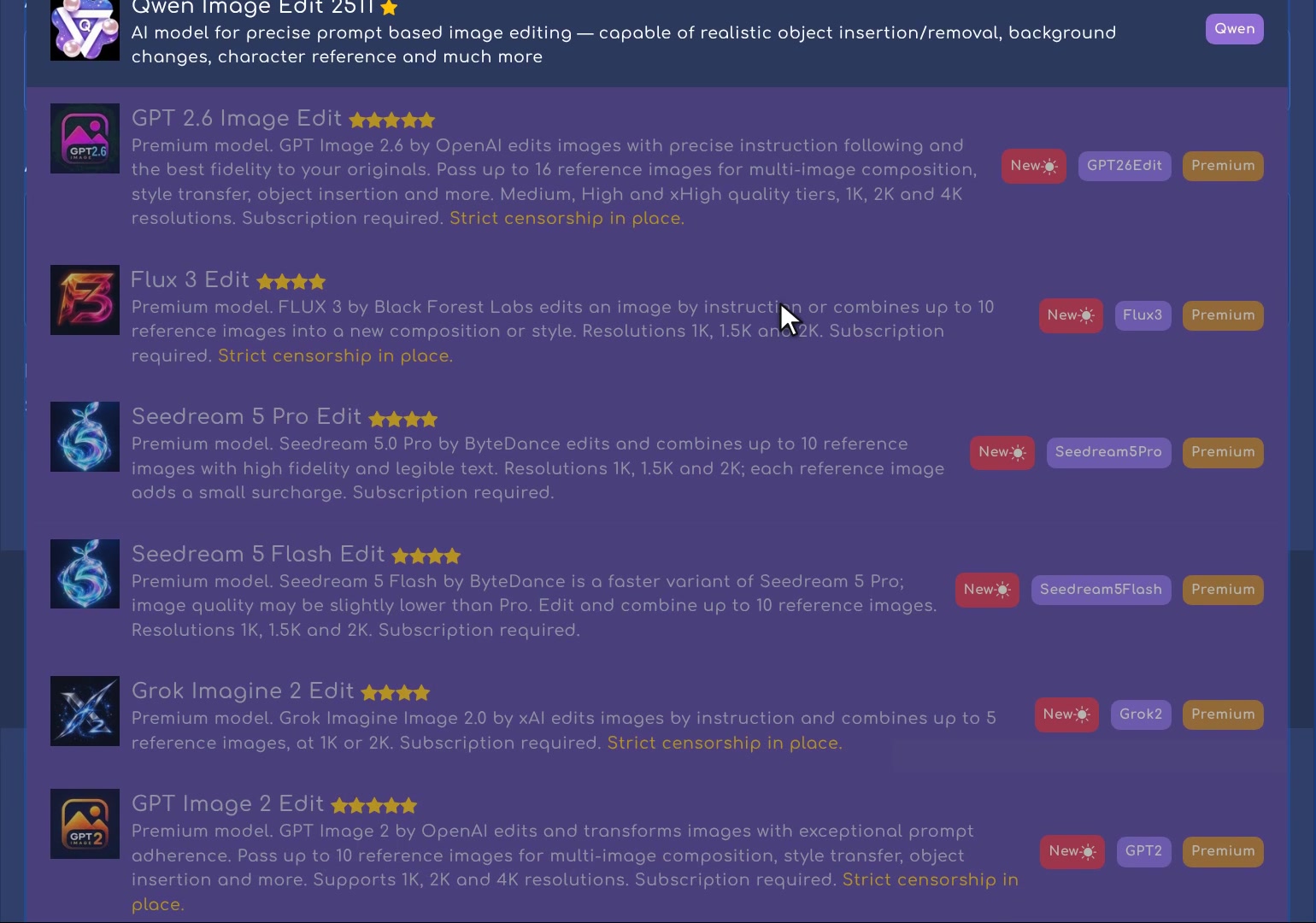
Premium models need a subscription:
- GPT 2.6 Image Edit: follows detailed instructions, up to 16 references.
- Flux 3: combines up to 10 images into a new composition or style.
- Seedream 5 Pro: high fidelity and legible text. Seedream 5 Flash is the faster variant; its quality may be slightly lower.
- Grok Imagine 2: combines up to 5 references. Grok Imagine: photorealistic and stylized edits.
- GPT Image 2: follows prompts closely, up to 10 references.
- Nano Banana 2: respects composition and lighting.
- Seedream 4.5: output up to 4K.
Prices and limits for every model: which AI image edit model to choose.
Add references in the right order
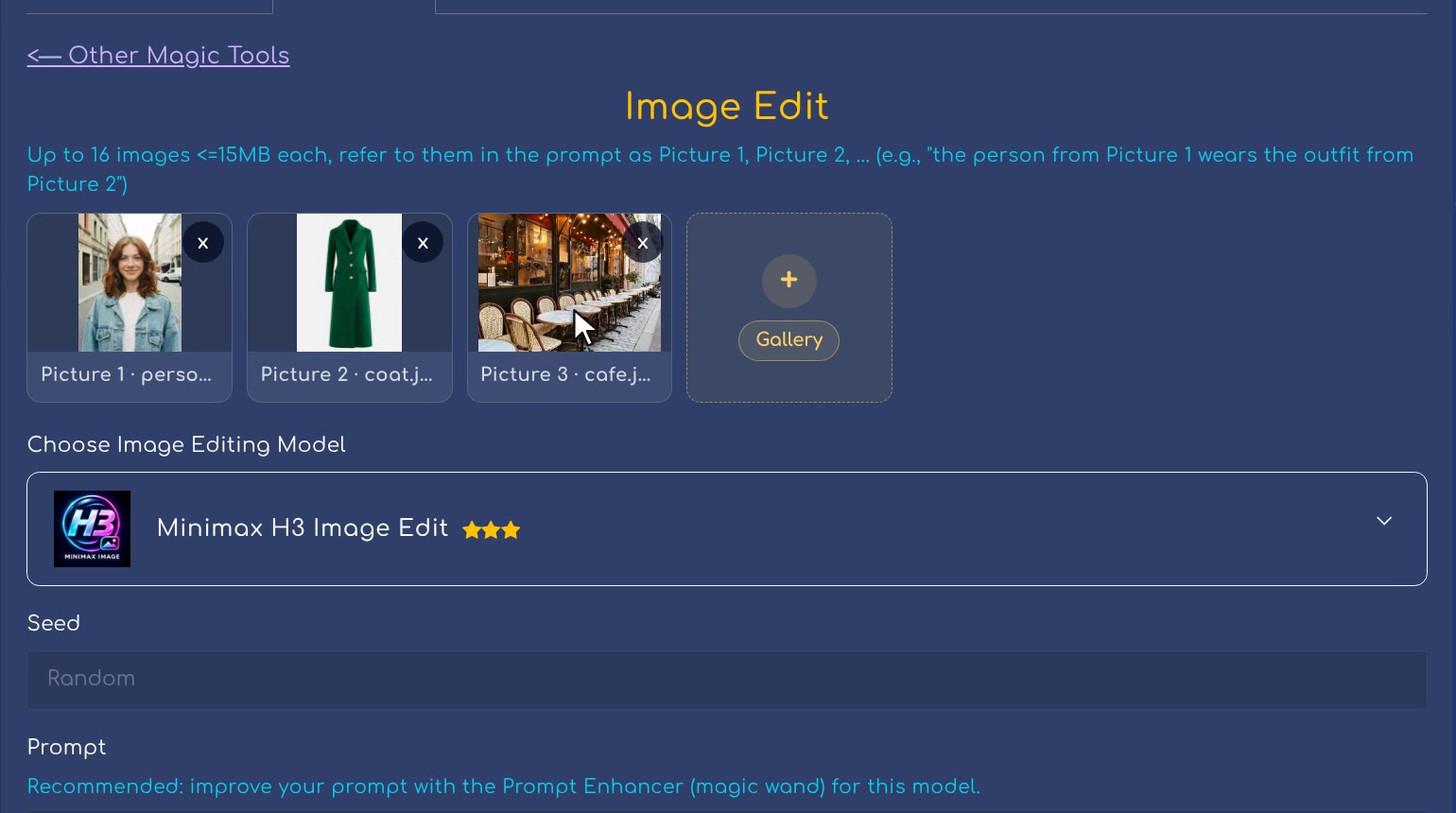
Click + to upload a file or Gallery to pick an image you already made. Minimax H3 numbers them: here Picture 1 is the person, Picture 2 the outfit and Picture 3 the place. You use these numbers in the prompt.
Write the prompt
First say what to take from each picture, then what must stay. This is the exact prompt from the video:
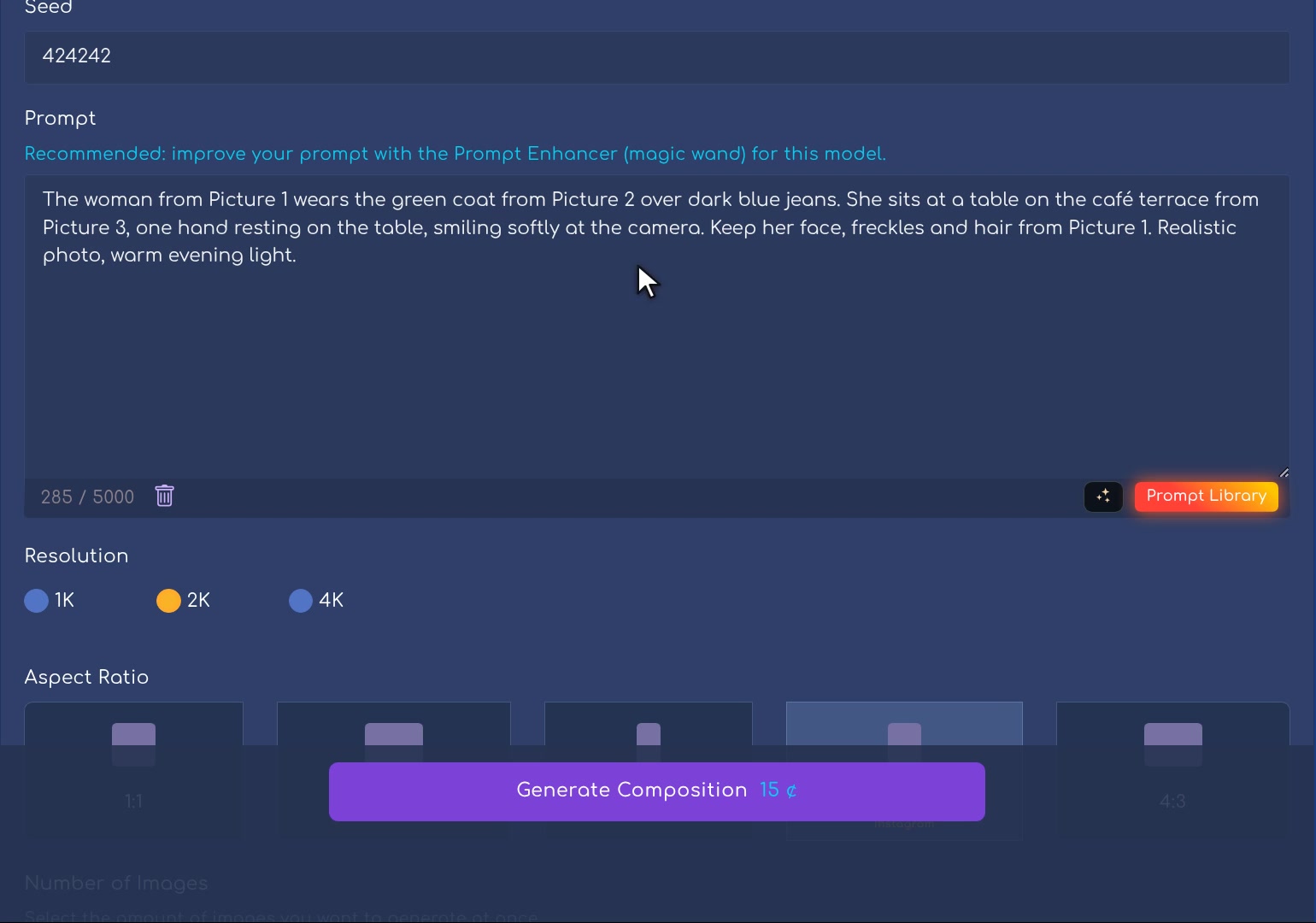
The woman from Picture 1 wears the green coat from Picture 2 over dark blue jeans. She sits at a table on the café terrace from Picture 3, one hand resting on the table, smiling softly at the camera. Keep her face, freckles and hair from Picture 1. Realistic photo, warm evening light.
Settings and price
- Seed: empty for a random result, or a number to repeat one. The video uses 424242.
- Resolution: 1K for 8 credits, 2K for 15, 4K for 30 per image with Minimax H3.
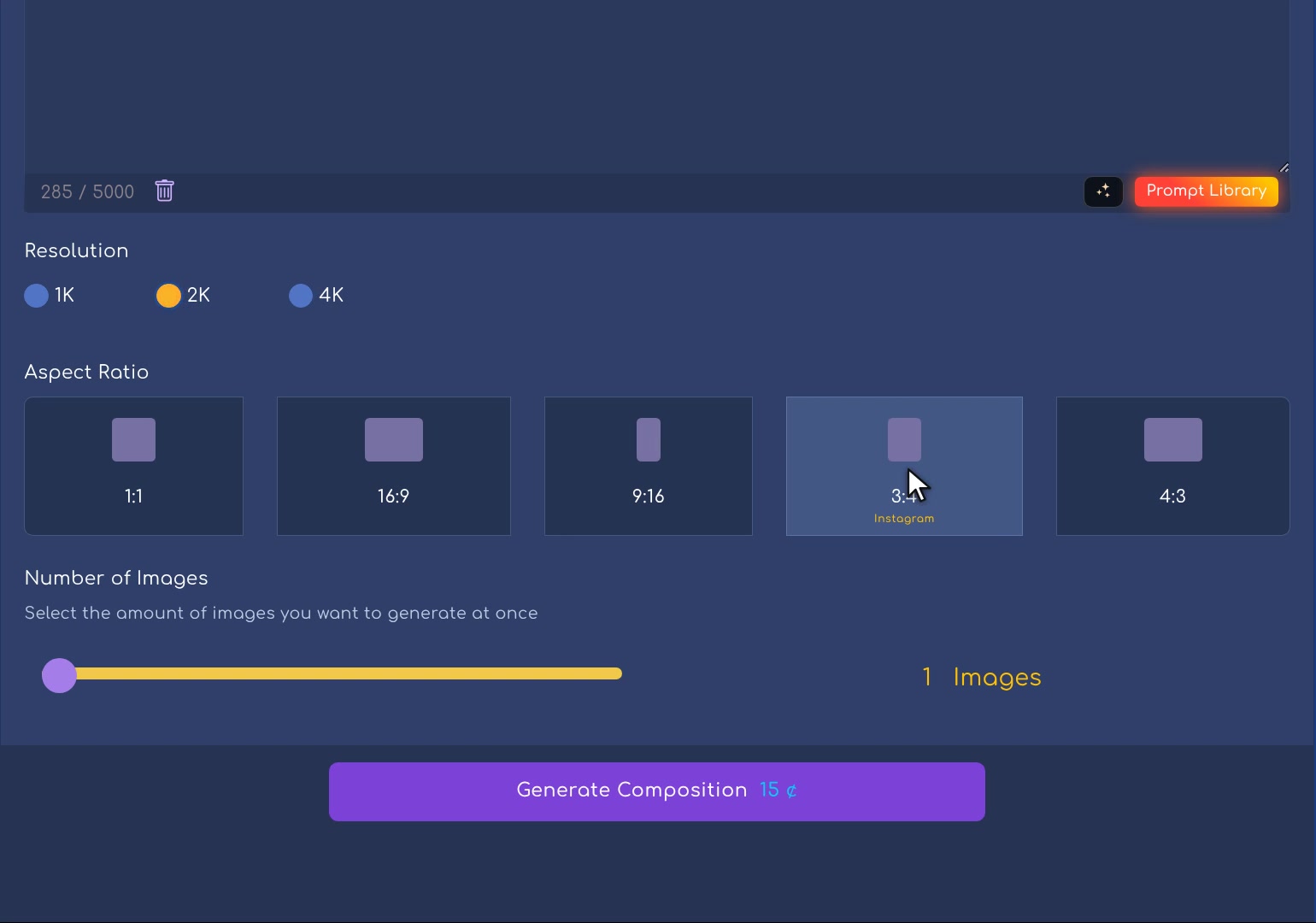
- Aspect ratio: 1:1, 16:9, 9:16, 3:4 or 4:3. The video uses 3:4.
- Number of images: one or two at once. Two images double the price.
Check the result
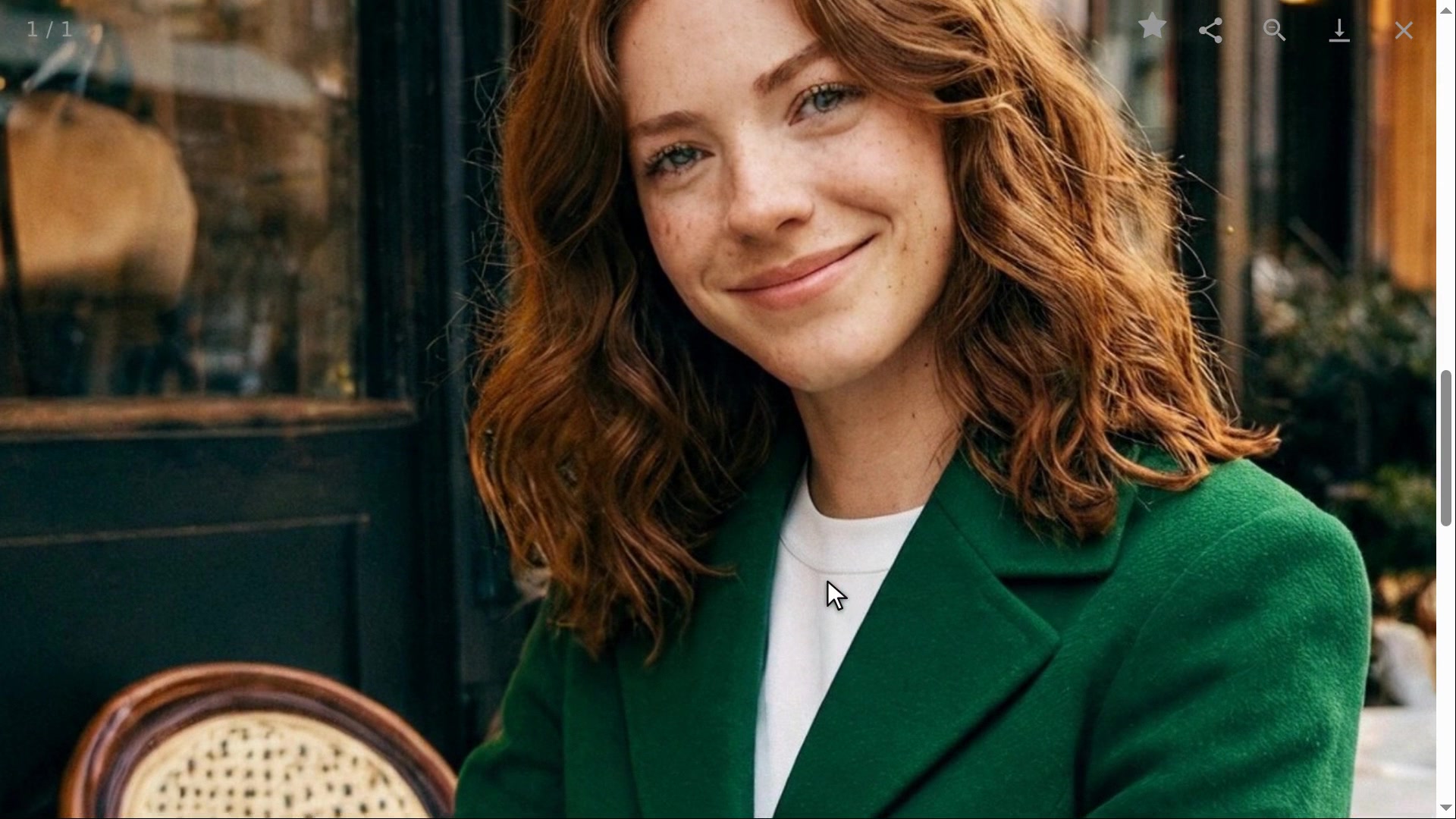
Click the picture to open it, zoom to actual size and look at the face, the hands and the fabric. The arrow at the top downloads the image.
Make a follow-up edit
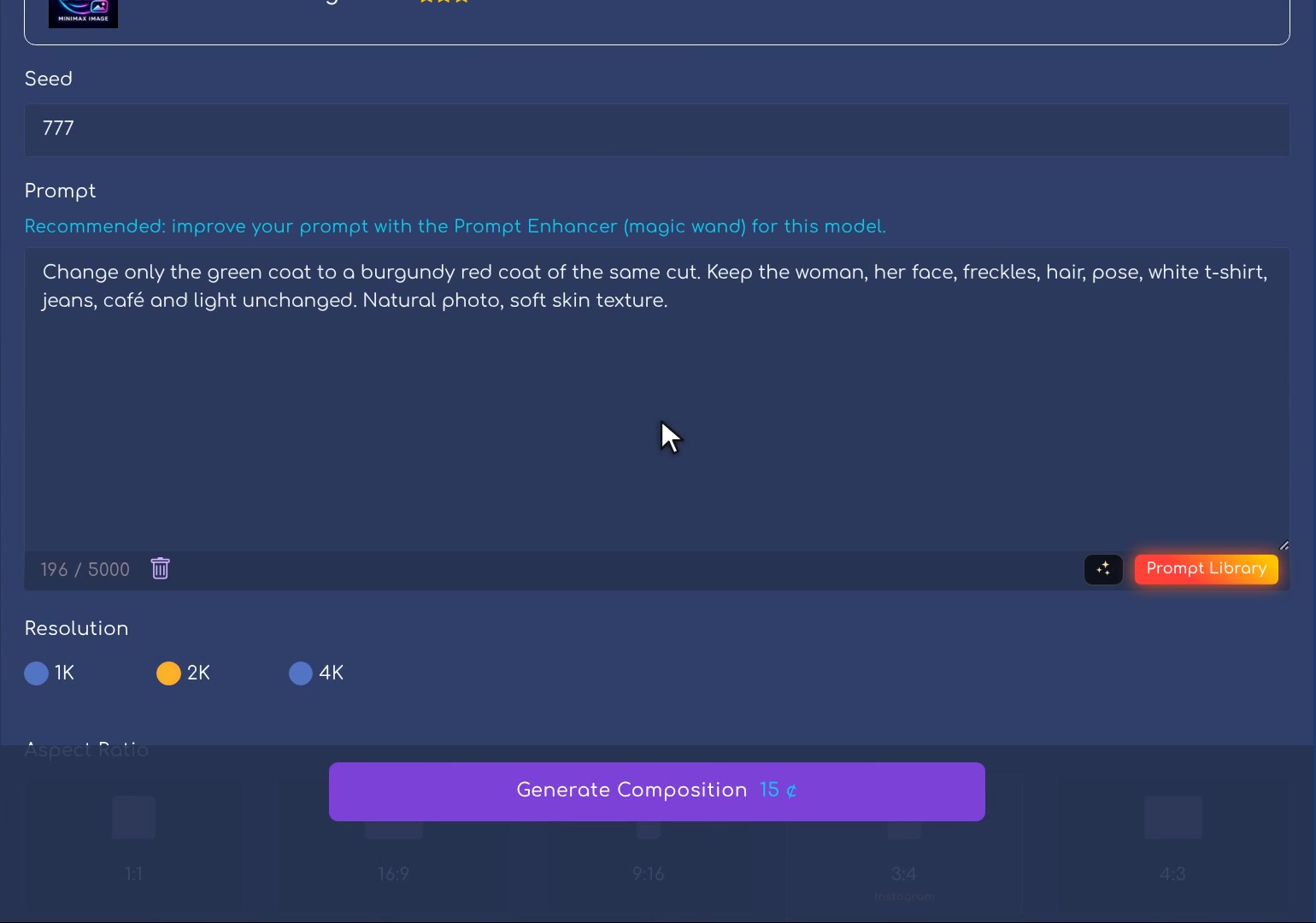
Remove the old references, add your result as the new Picture 1 and change just one thing:
Change only the green coat to a burgundy red coat of the same cut. Keep the woman, her face, freckles, hair, pose, white t-shirt, jeans, café and light unchanged. Natural photo, soft skin texture.
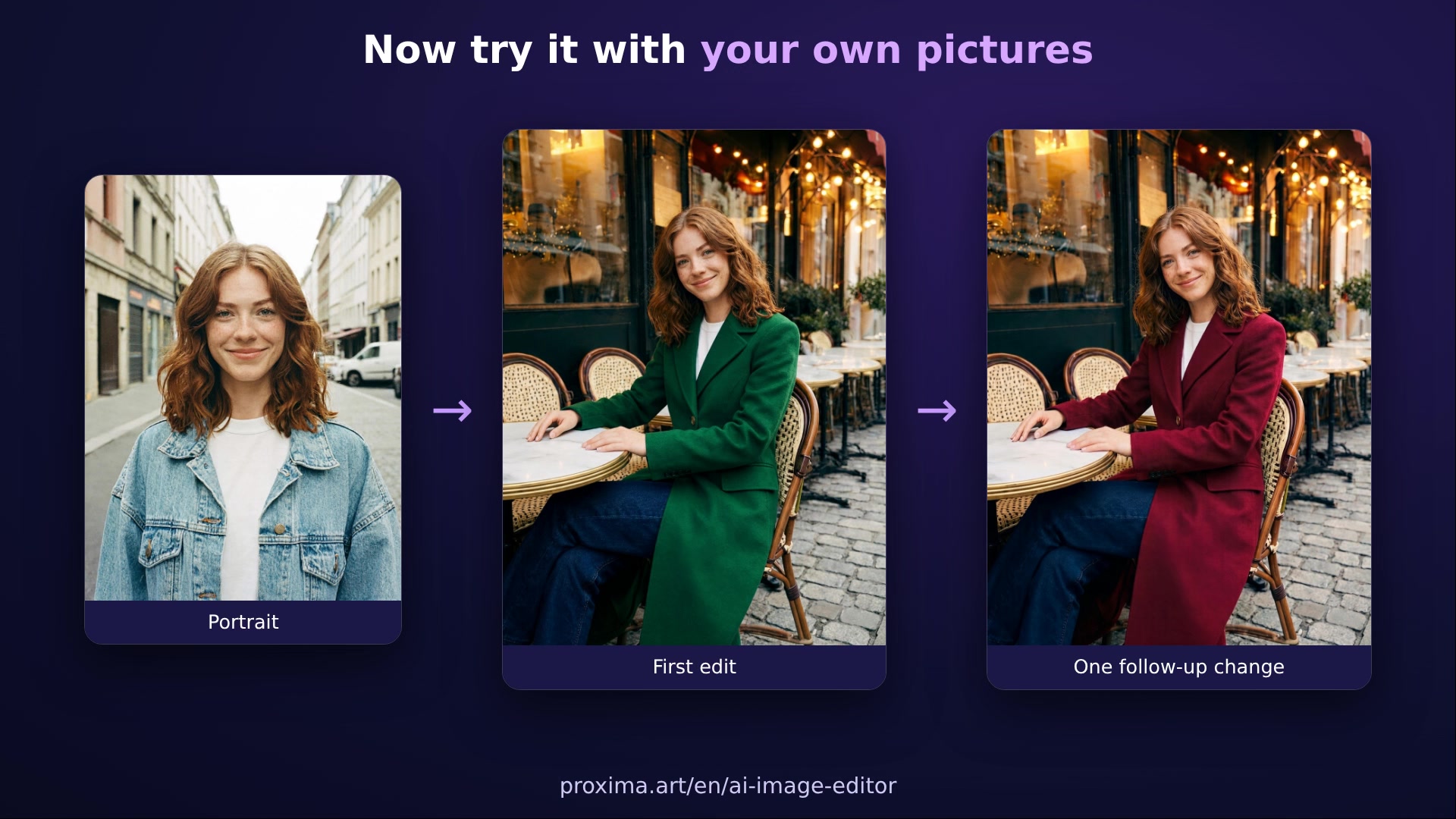
Both results were selected: while preparing the video we tried a few other prompts and kept the ones that worked best.
Step by step
-
Open Image Edit
Click Start Generating on the home page, open the Magic tab and click Use on Image Edit.
-
Choose Minimax H3 Image Edit
Open Choose Image Editing Model and pick Minimax H3 Image Edit.
-
Add the references in order
Click + to upload files or Gallery to pick images you made here. Add the person first, then the outfit, then the place.
-
Set the seed (optional)
Leave it empty for a random result, or type a number. The same seed with the same inputs and settings repeats the result.
-
Write the prompt
Say what to take from Picture 1, Picture 2 and Picture 3, then what must stay, for example the face, freckles and hair.
-
Pick resolution, shape and number of images
Choose 1K, 2K or 4K, an aspect ratio and one or two images. The price on the button updates with every change.
-
Generate and check
Click Generate Composition. Open the result, view it at actual size and look at the face, hands and fabric.
-
Make one follow-up change
Remove the old references, add your result as Picture 1 and describe one change, with the rest unchanged.
Try it yourself
Image editor
Shown at 00:17Change outfits, backgrounds and scenes with words.
100 free credits every day — no card needed.
FAQ
How long does an edit take?
The waits are cut out of the video. In our recording the edits with Minimax H3 took about one to two minutes each; the time depends on load and settings.
How much did the edits in the video cost?
Each edit shown cost 15 credits: Minimax H3 at 2K, one image. 1K costs 8 credits and 4K costs 30. References are not charged with this model. Prices can change, so check the Generate button.
How many reference images can I use?
Up to 16 with Minimax H3 and GPT 2.6, up to 10 with Qwen 2.1, GPT Image 2, Flux 3 and Seedream 5 Pro and Flash, up to 5 with Grok Imagine 2, and up to 2 with MOSS and Krea 2.
Is the person in the video real?
No. The portrait is AI-generated. Only edit photos of real people with their consent.
Will I get exactly the same picture with the same seed?
In our recording the same seed, references, prompt and settings gave an identical image again. Changing any of them, or a later model update, can change the result.
What if the face or clothes drift?
Name that detail in the part of the prompt that says what to keep, and run the edit again. Compare every result with Picture 1.
Full transcript
Read the full transcript (≈ 600 words)
00:00 One portrait, one coat, one place ▶ play from here
What if you could take one portrait, one coat, and one place, and turn them into a single realistic photo? Welcome to Proxima! Today I'll show you Image Edit. We'll add reference pictures, choose a model, and make this photo together.
From the home page, click Start Generating, open the Magic tab,
00:17 Open Image Edit ▶ play from here
and choose Image Edit.
00:24 All 14 editing models in short ▶ play from here
First, the model. There are fourteen editing models in this list, so let's go through them quickly. Qwen 2.1 is a strong all-rounder. It takes up to ten references, and it works with LoRAs, small add-on models for style.
Minimax H3 is where I'd start. Up to sixteen references, consistent people and products, and prices from eight credits. MOSS is for one clear change that other models refuse or get wrong. The quality is lower, and it takes two references.
Krea 2 preserves identity, with up to two references. Qwen Image Edit 2511 adds or removes objects, and changes backgrounds. Below are the premium models. They need a subscription.
GPT 2.6 follows detailed instructions precisely. Flux 3 combines up to ten pictures into a new composition. Seedream 5 Pro offers high fidelity and legible text. Flash is its faster variant, and the quality may be slightly lower.
Grok Imagine 2 combines up to five references. GPT Image 2 is excellent at following your prompt. Grok Imagine does photorealistic and stylized edits. Nano Banana 2 respects composition and lighting.
And Seedream 4.5 goes up to 4K. For our photo, let's choose Minimax H3.
01:44 Add references: Picture 1, 2 and 3 ▶ play from here
Now the references. Click the plus to upload a file, or Gallery to pick an image you already made here. Let's add the portrait first, then the coat, and then the café. Each picture gets a number.
Picture 1 is the person, Picture 2 is the outfit, and Picture 3 is the place. The order matters, because we'll use these numbers in the prompt.
02:06 Seed: random or repeatable ▶ play from here
The seed is optional. Leave it empty for a random result, or type a number, so you can come back to the same result with the same settings.
02:14 Write the prompt: what to take, what to keep ▶ play from here
Here's the prompt. Say what to take from each picture. The woman from Picture 1, the coat from Picture 2, and the café from Picture 3. Then say what must stay.
Here, it's her face, her freckles, and her hair. This magic wand can rewrite a short prompt into a more detailed one. Ours is clear enough, so let's keep it.
02:36 Resolution, aspect ratio, number of images, price ▶ play from here
Next, the resolution. 1K costs 8 credits, 2K costs 15, and 4K costs 30. 2K is plenty for us. The aspect ratio sets the shape.
Three by four suits a portrait. And here, you can make two images at once. The full price is always on the button. It's fifteen credits, and with this model, references are free.
03:00 Generate ▶ play from here
Let's generate! The wait was a minute or two, so I've cut it out of the video.
03:06 The result, checked at 100% ▶ play from here
And here she is! The same woman, in the green coat, at our café. Click the picture to see it larger. Always check the face, the hands, and the fabric before you keep it.
And this arrow downloads your image. Now, a small follow-up.
03:22 Follow-up: change only the coat ▶ play from here
Let's remove the old references, and add our result as the new Picture 1. This time, we change just one thing. The green coat becomes burgundy, and everything else stays. Generate again.
I've cut this wait, too.
03:38 The second result ▶ play from here
A new coat, and the same woman, pose, and café. If something drifts, add it to the keep part of your prompt, and run it again. For more examples, and a comparison of all the models,
03:48 More examples and guides ▶ play from here
read our AI Image Editor guides. Now try it with your own pictures. See you in the next tutorial!
Related tutorials
More tutorials on YouTube
Watch our lessons one after another and get the new ones first.