Examples below were generated on Proxima with AI-generated adult subjects. They show individual results, not a quality guarantee. Prices checked on 22 November 2026; the Generate button is authoritative. Confirm your email for the full daily free-credit allowance.
Minimax H3 Image Edit on Proxima: 16 References, from 8 Credits
Short answer: Minimax H3 Image Edit is a low-cost image editor on Proxima. It edits a photo from a plain-language instruction, combines up to 16 reference images in one result, keeps the same face across new scenes and has no strict content filter. It costs 8 credits at 1K, 15 at 2K and 30 at 4K per image — references are free — and works with the 100 free credits you get every day.
Minimax H3 Image Edit at a Glance
| Price per image | 8 credits at 1K, 15 at 2K (default), 30 at 4K |
|---|---|
| Reference images | Up to 16, no extra charge per reference |
| Images per run | 1 or 2 |
| Resolutions | 1K, 2K, 4K |
| Aspect ratios | The ratio choices shown in the editor; 4:5 is not available for H3 |
| Prompt helper | Magic wand rewrites your instruction using the images; Prompt Library |
| Seed | Optional, to repeat a result |
| Content filter | No strict filter; Proxima Terms of Use apply |
| LoRAs | Not supported (use Qwen 2.1 or Krea 2) |
| Subscription | Not needed — free daily credits work |
Where to Find It on Proxima
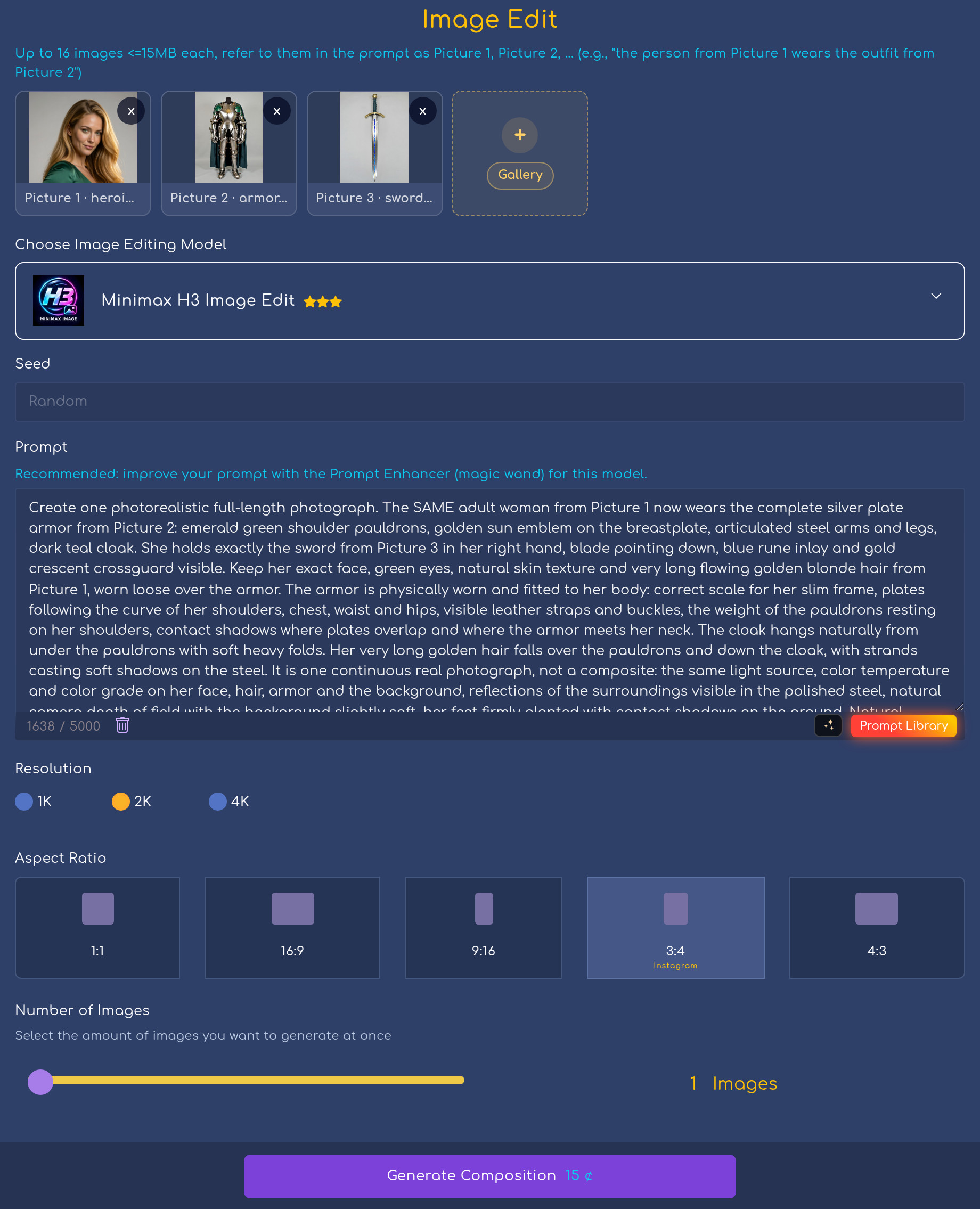
Open Create → Images / Video → Magic → Image Edit and pick Minimax H3 Image Edit in the model list. The form changes to the H3 layout: a reference area for up to 16 images, the prompt with the magic wand, a seed field, resolution and the number of images. The price on the Generate button updates as you change the resolution.
Step by step
-
Open Image Edit
Sign in to Proxima, open Create → Images / Video, switch to the Magic tab and click Use on Image Edit.
-
Select Minimax H3 Image Edit
Open Choose Image Editing Model and click Minimax H3 Image Edit. The hint above the form changes to "Up to 16 images".
-
Add the reference images
Click + to upload photos or Gallery to pick images from your Proxima library. The order matters: the first image is Picture 1, the second Picture 2 and so on. Put the person or the main image first.
-
Write the instruction
Say what changes and what stays, and refer to the images by number: "The woman from Picture 1 wears the coat from Picture 2. Keep her face and hair from Picture 1."
-
Improve the prompt (optional)
Click the magic wand next to the prompt: it looks at your images and rewrites a short instruction into a detailed one. Read it and correct anything you do not want.
-
Choose resolution and number of images
Pick 1K (8 credits), 2K (15 credits, default) or 4K (30 credits) and 1 or 2 images per run. Enter a seed if you want to repeat a result later.
-
Generate and review
Click Generate Composition; the price is on the button. Compare the result with Picture 1 and, if a detail drifted, add it to the "Keep…" part of the prompt and run again.
Example 1: Four References, One Picture
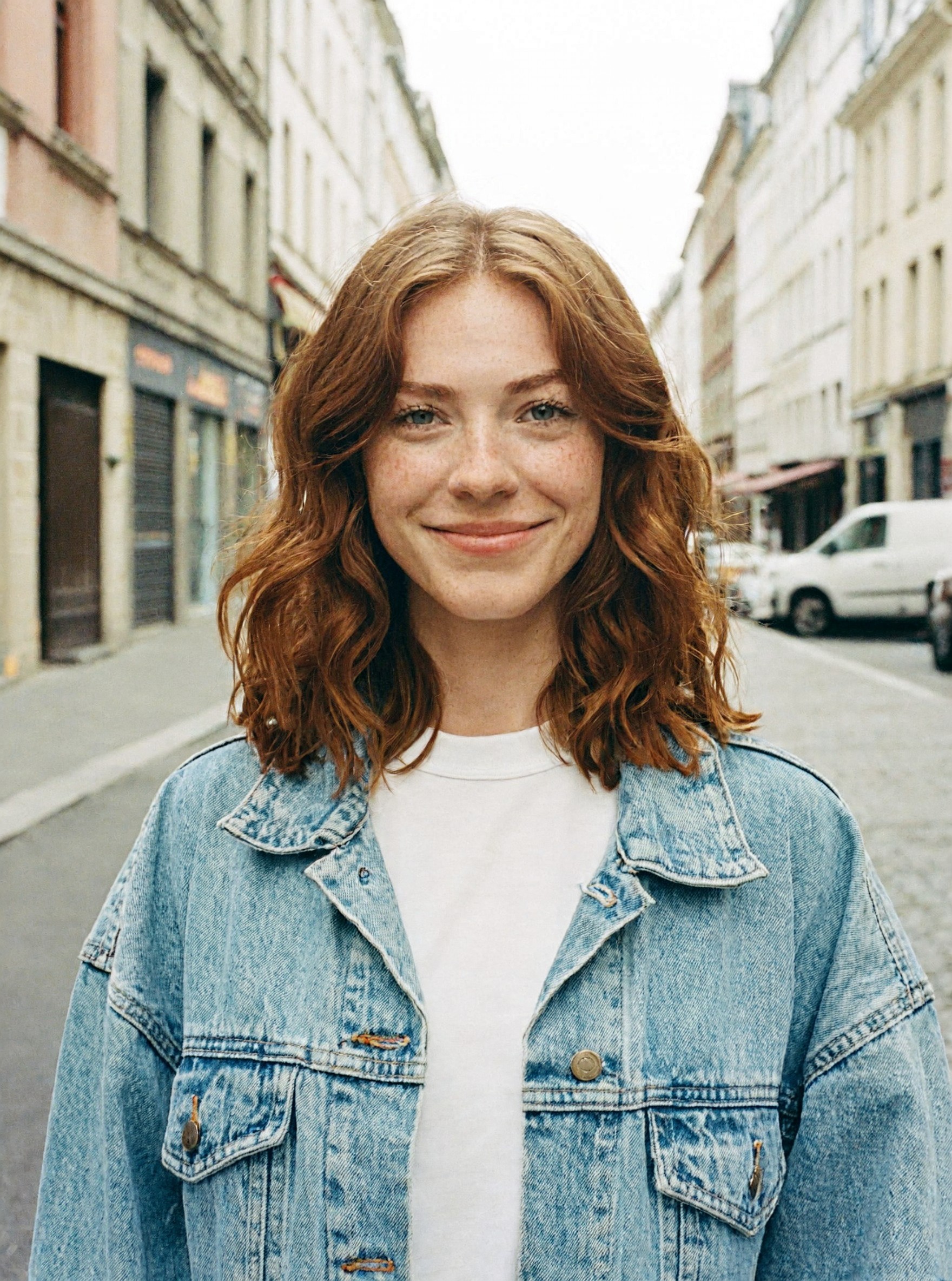
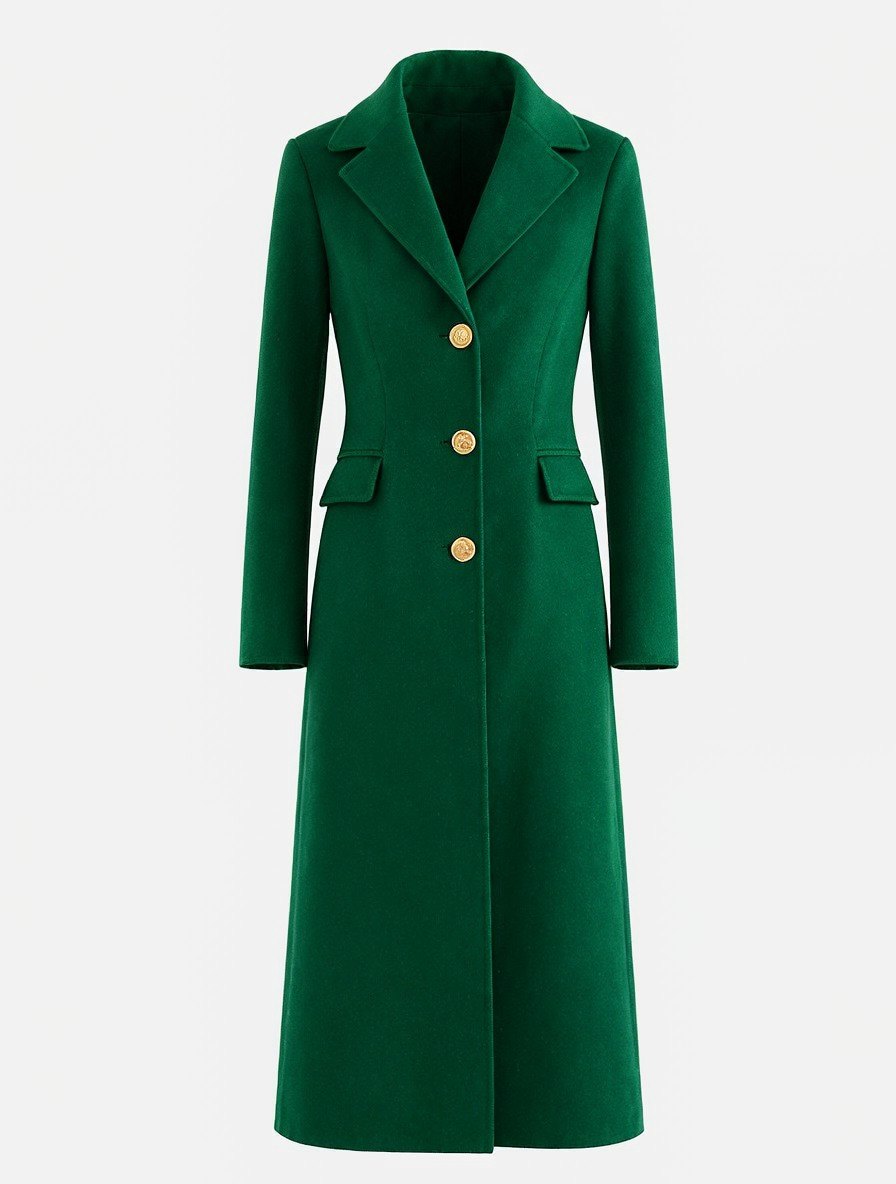
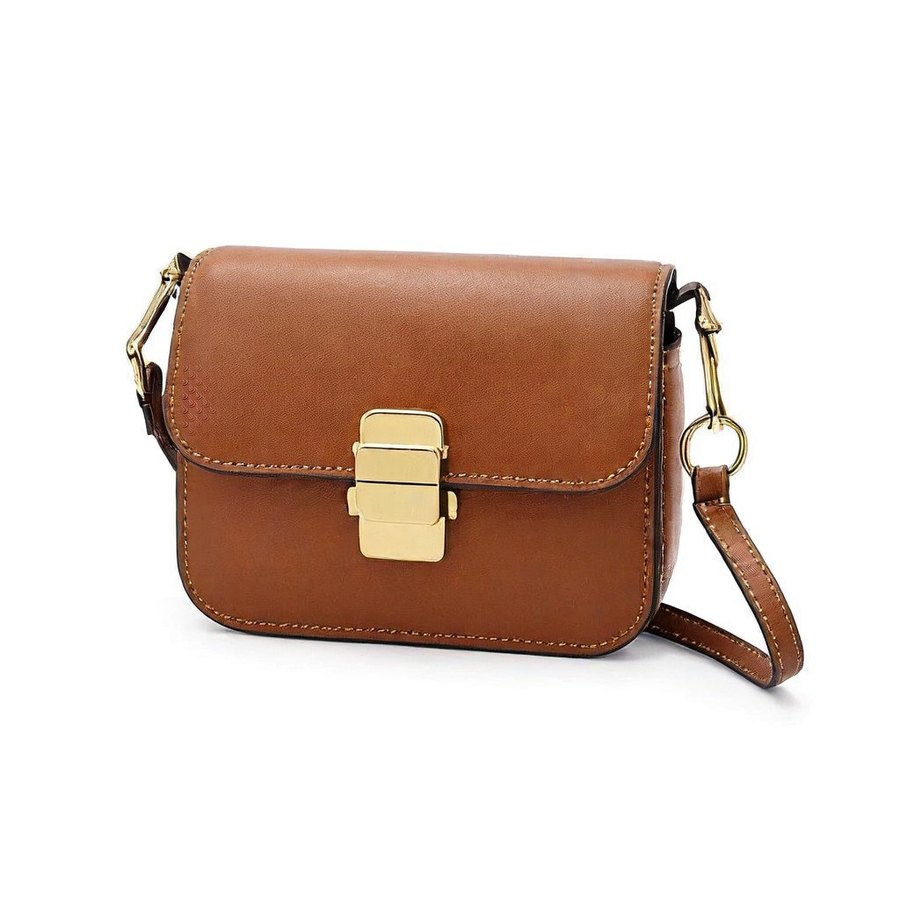
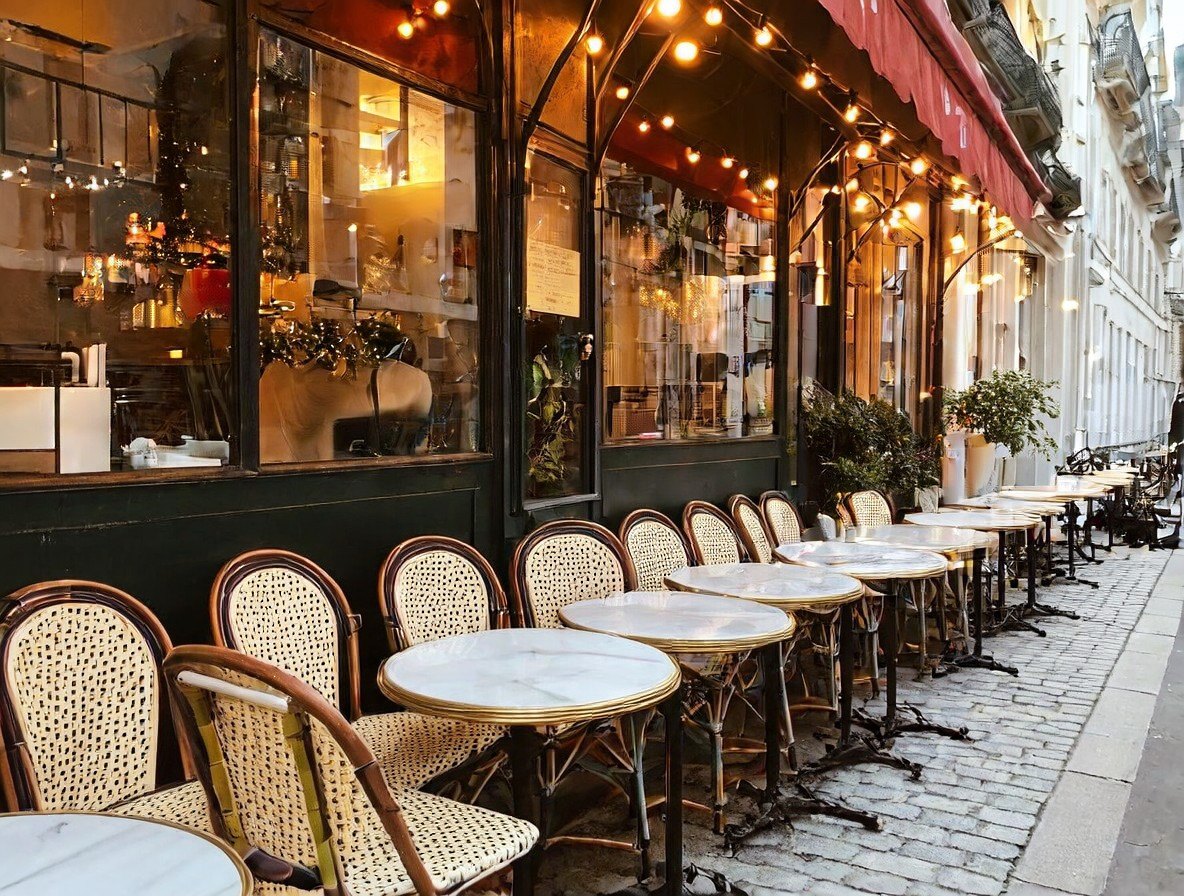
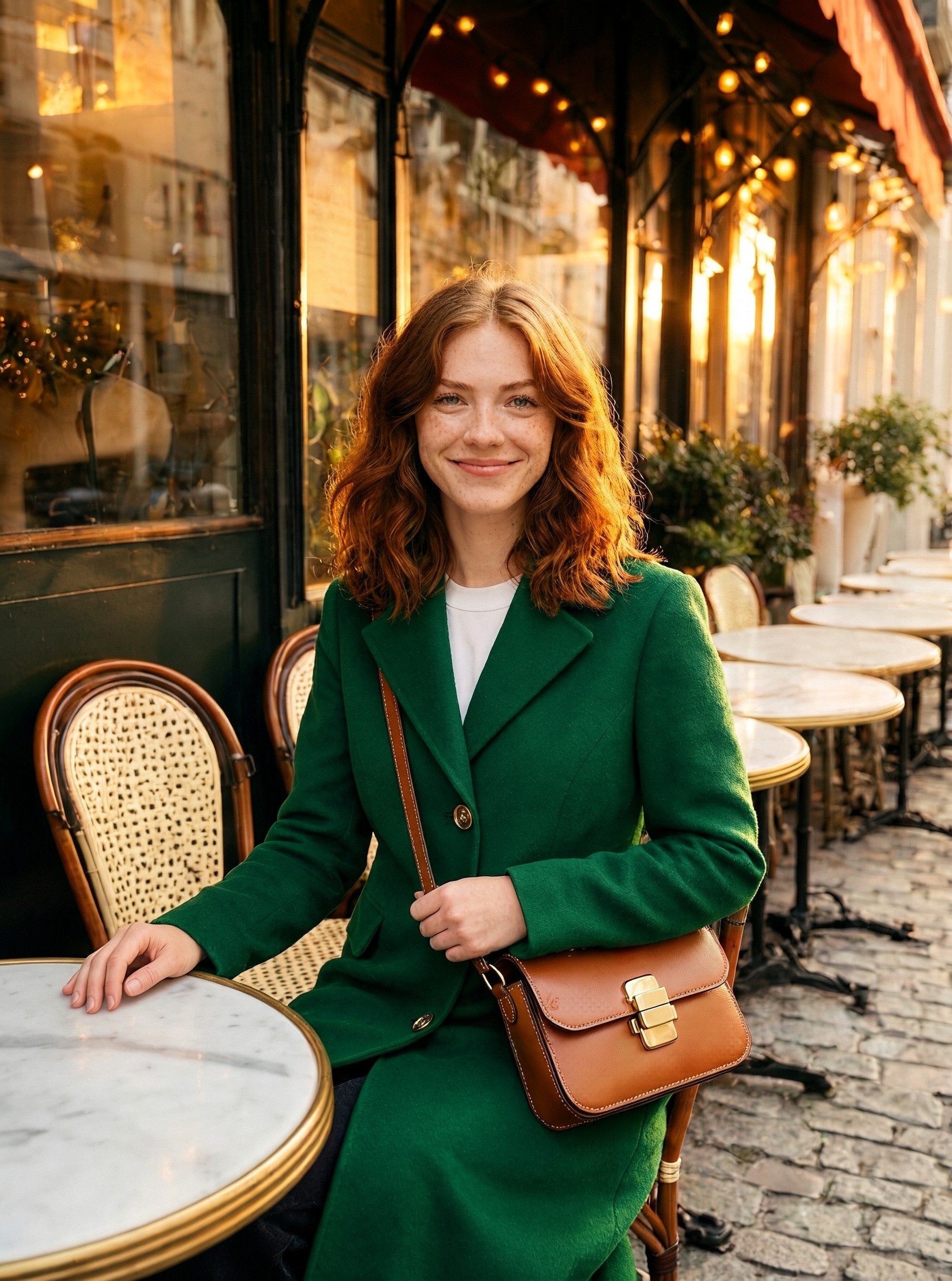
A person, a coat, a bag and a café — four separate images combined into one photo. The face, freckles and hair come from Picture 1, the clothes and the place from the others.
Prompt: The woman from Picture 1 wears the emerald green wool coat from Picture 2 and carries the tan leather crossbody bag from Picture 3. She sits at a small marble table on the cafe terrace from Picture 4 at golden hour, smiling at the camera. Keep her face, freckles and wavy auburn hair exactly as in Picture 1.
Example 2: New Background, Outfit or Pose from One Photo
With a single reference H3 works like a classic AI photo editor. Name the change, then list what must stay.
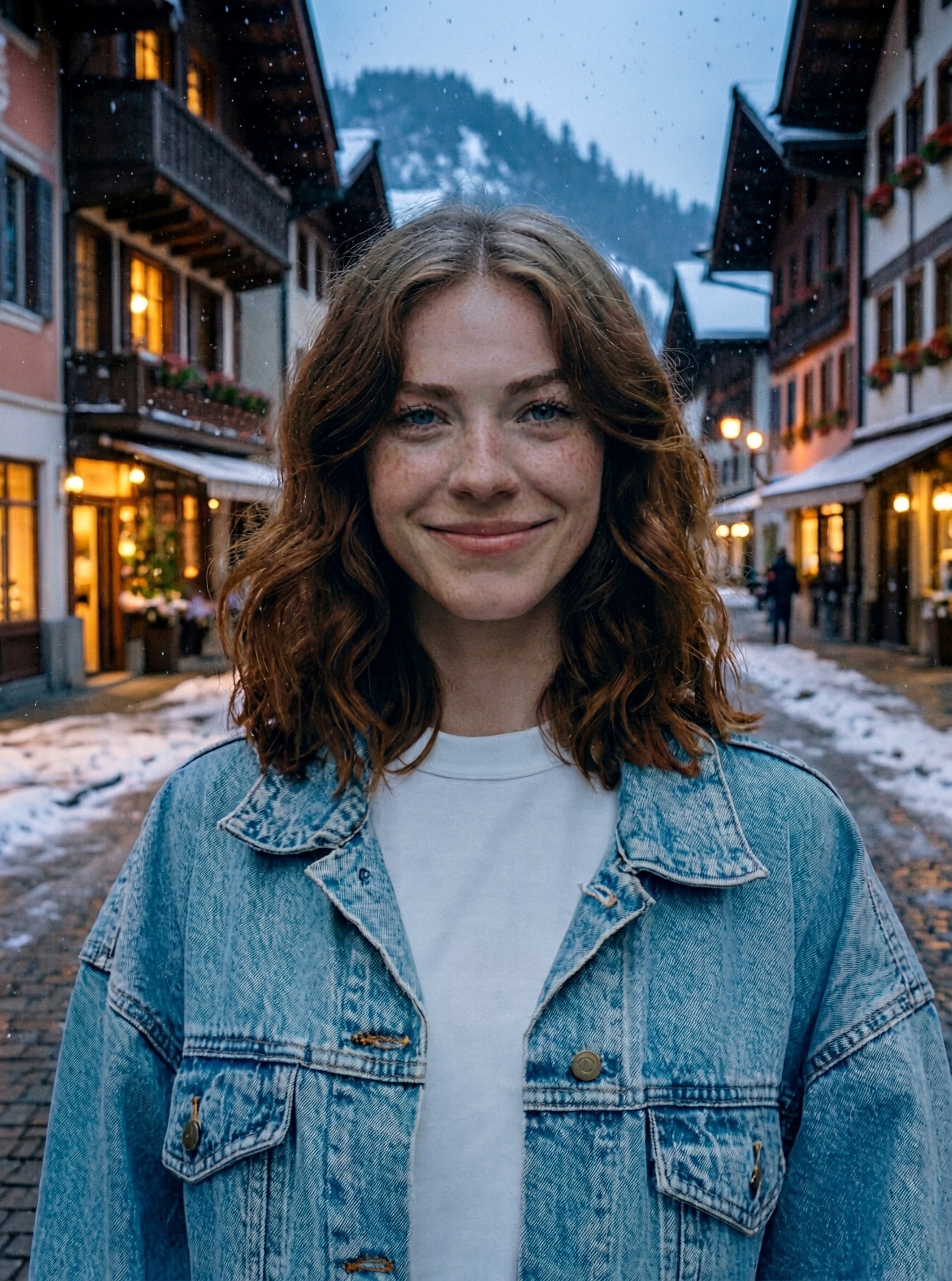
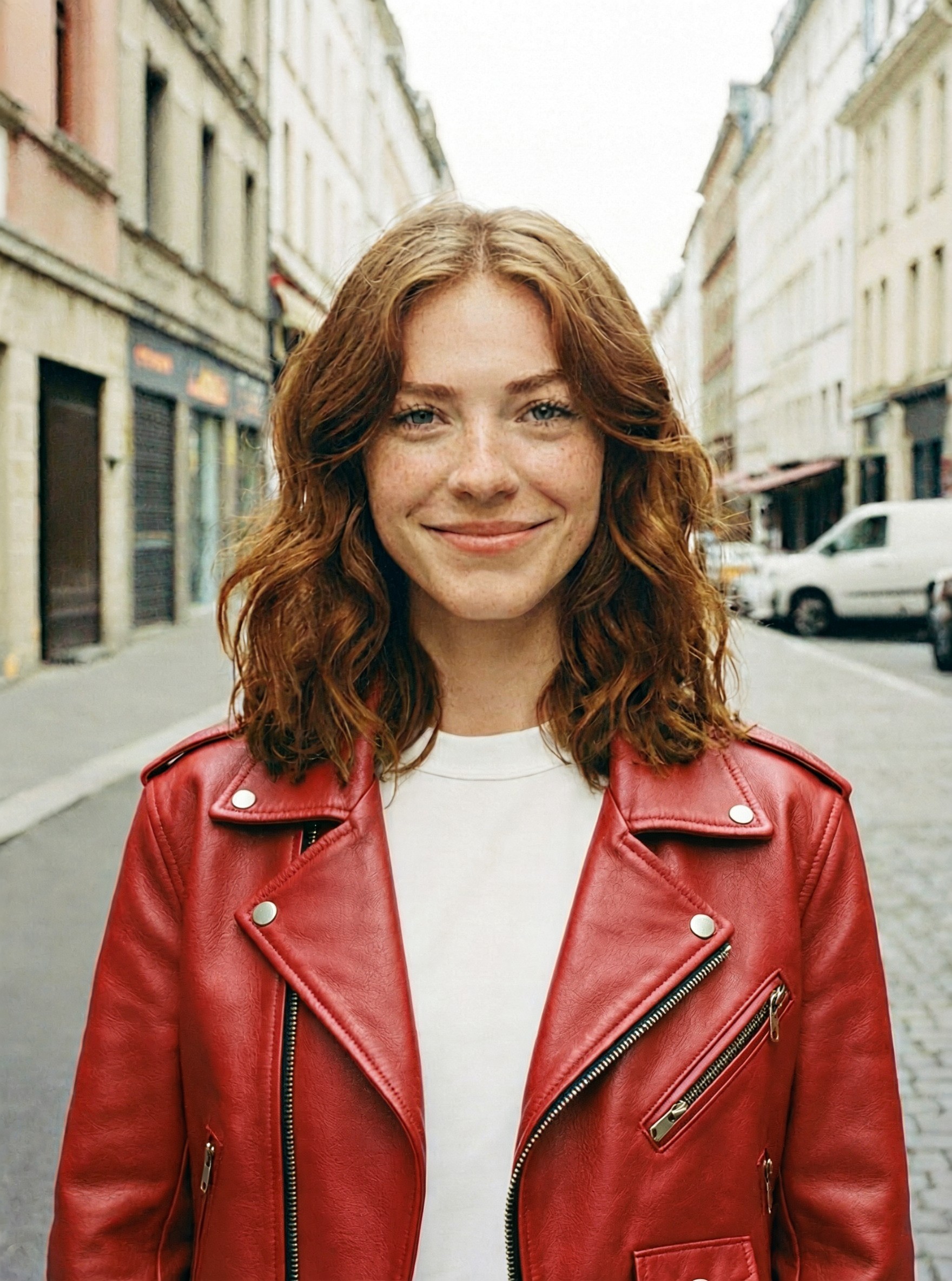
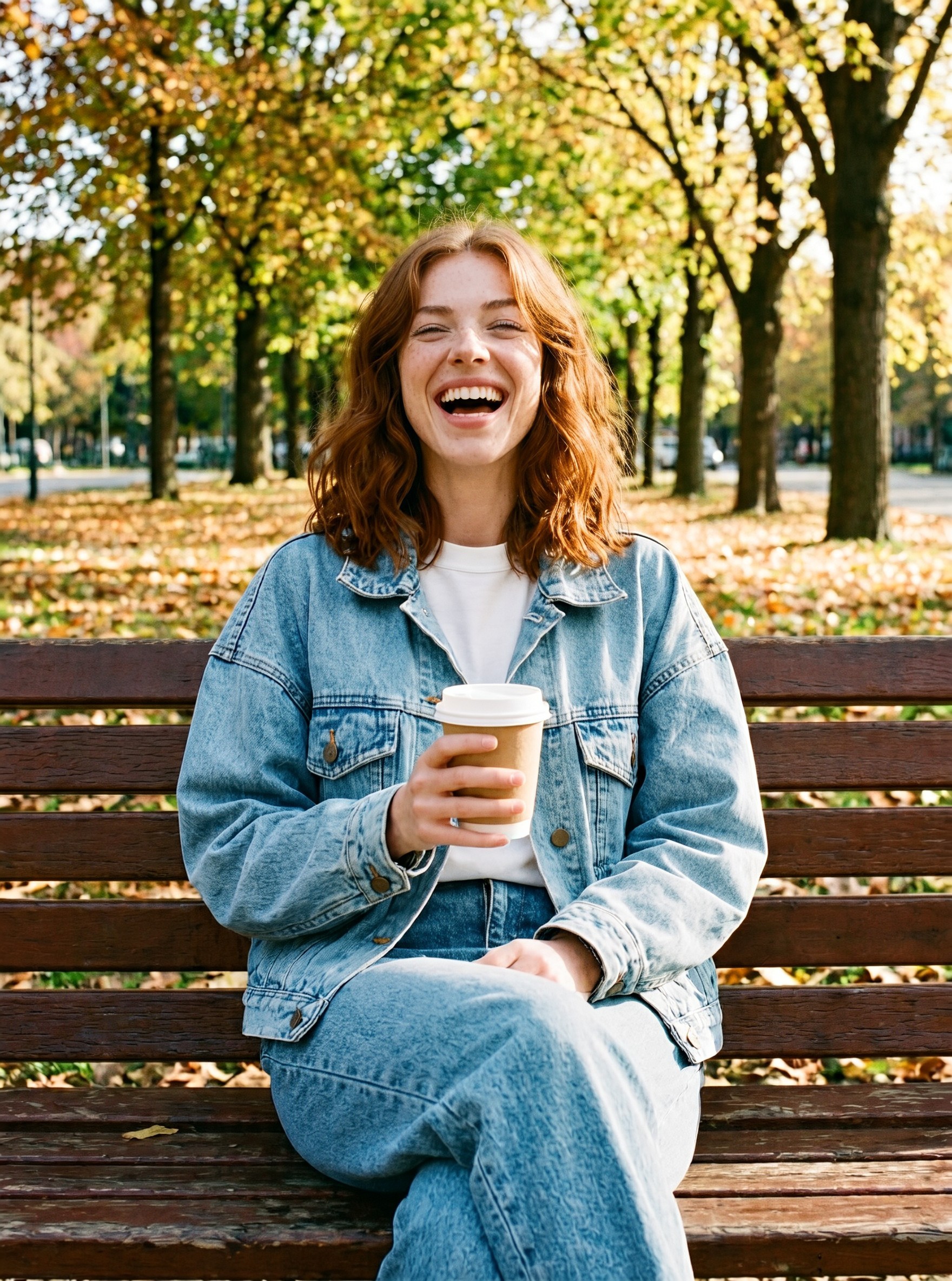
Each edit: 2K, 15 credits. Step-by-step prompts for each kind of change: edit a photo with a text prompt.
Example 3: The Same Face in New Scenes
One portrait used as the reference for a kitchen scene. Compare the face and hairstyle with the original; results vary.
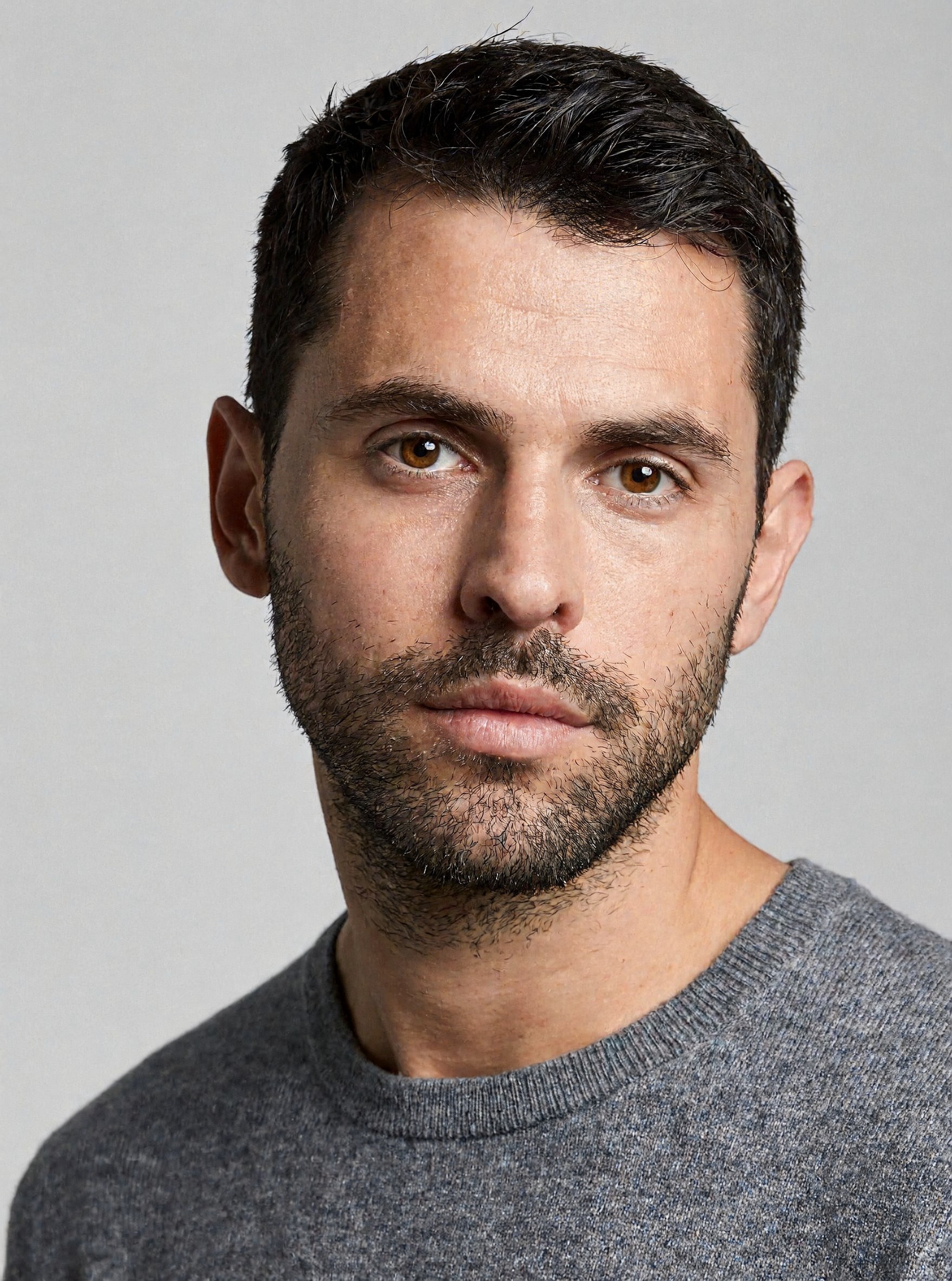
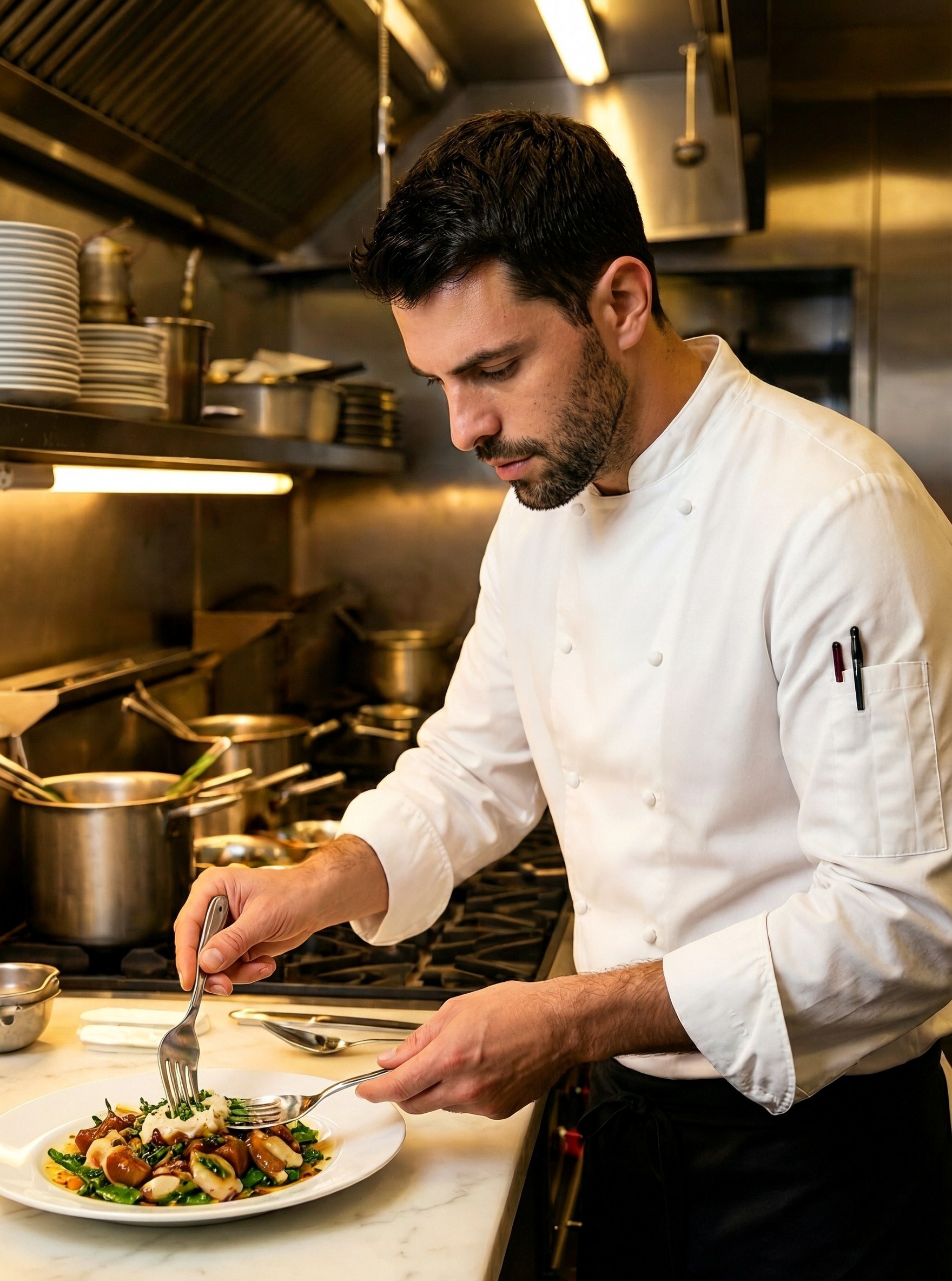
More on identity: how to keep the same face when editing.
Dress the Heroine in Armor: Minimax H3 in Two Steps, with GPT 2.6 for Comparison
The task: put a real suit of armor and a specific sword on the woman from the portrait, then place her at a mountain palace. Both models started from the same four source images, but the process and prompts differ. H3 used two edits: step 1 dressed her in a plain studio (portrait, armor, sword); step 2 took that result as Picture 1 and the palace as Picture 2 and relit her. GPT 2.6 received all four images in one edit. Read this as two real results, not a like-for-like test.
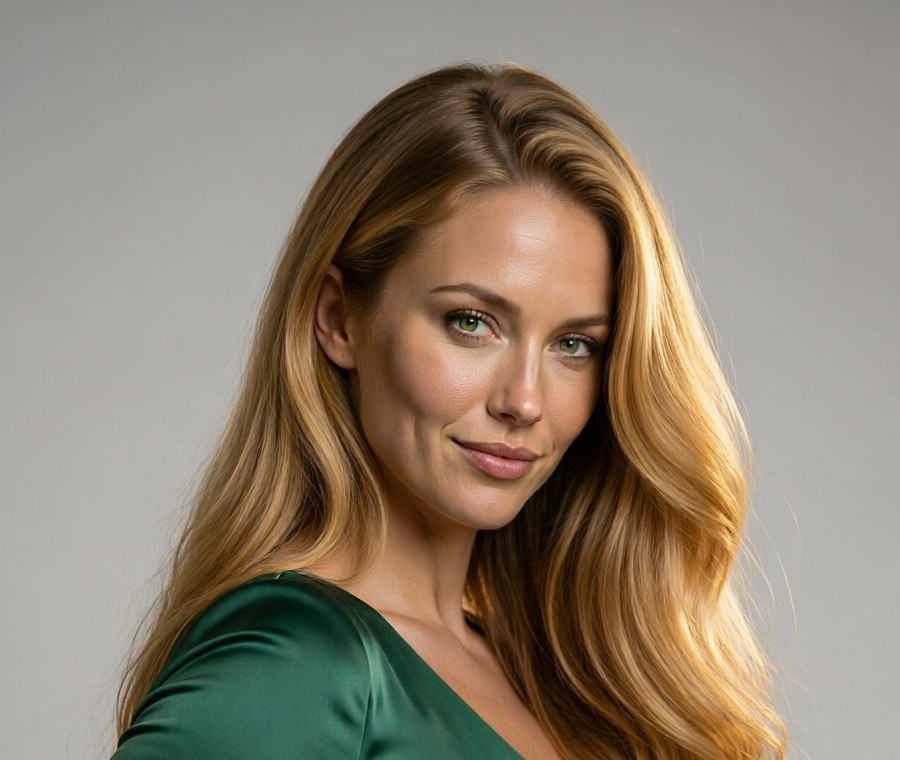
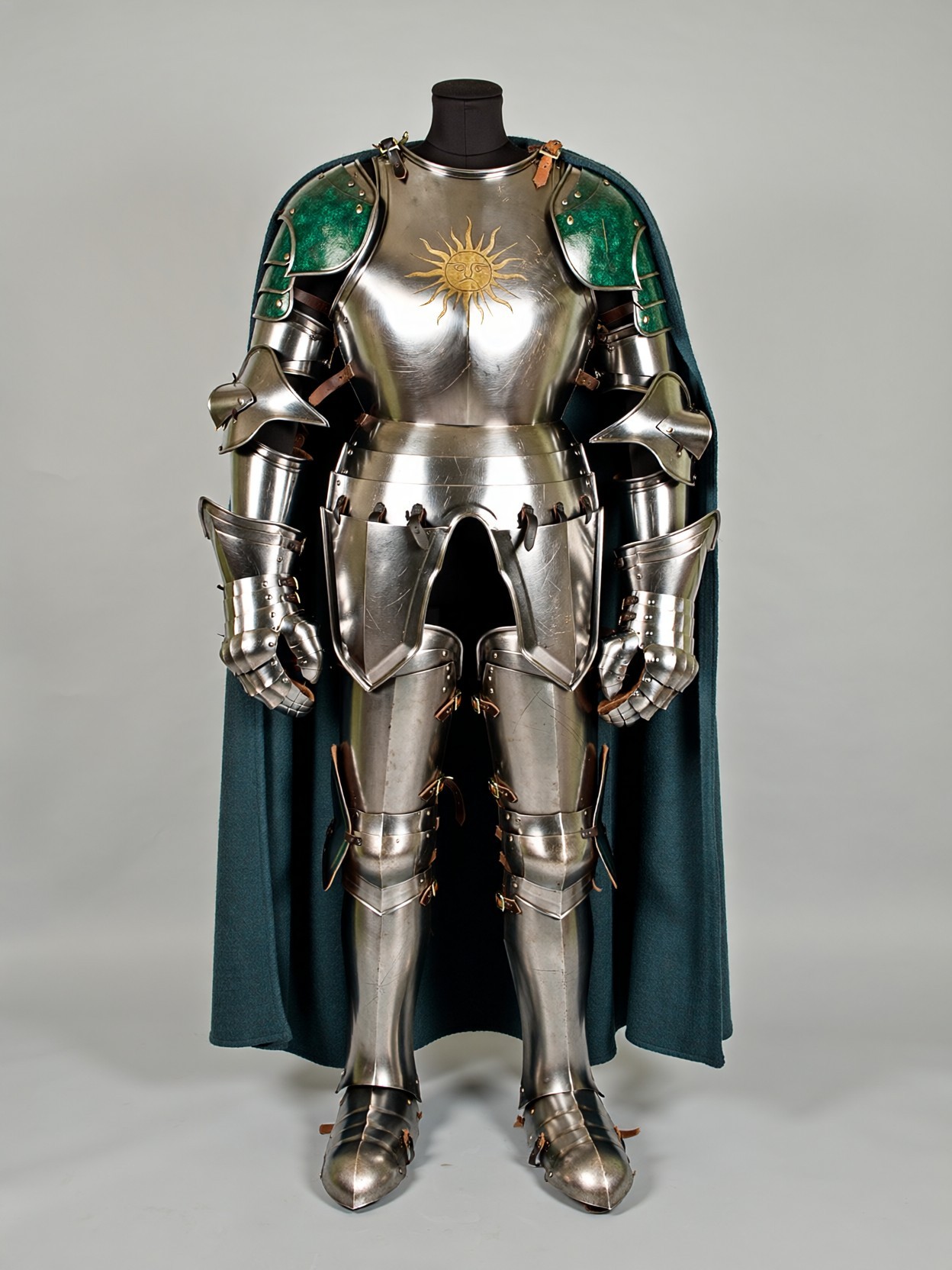
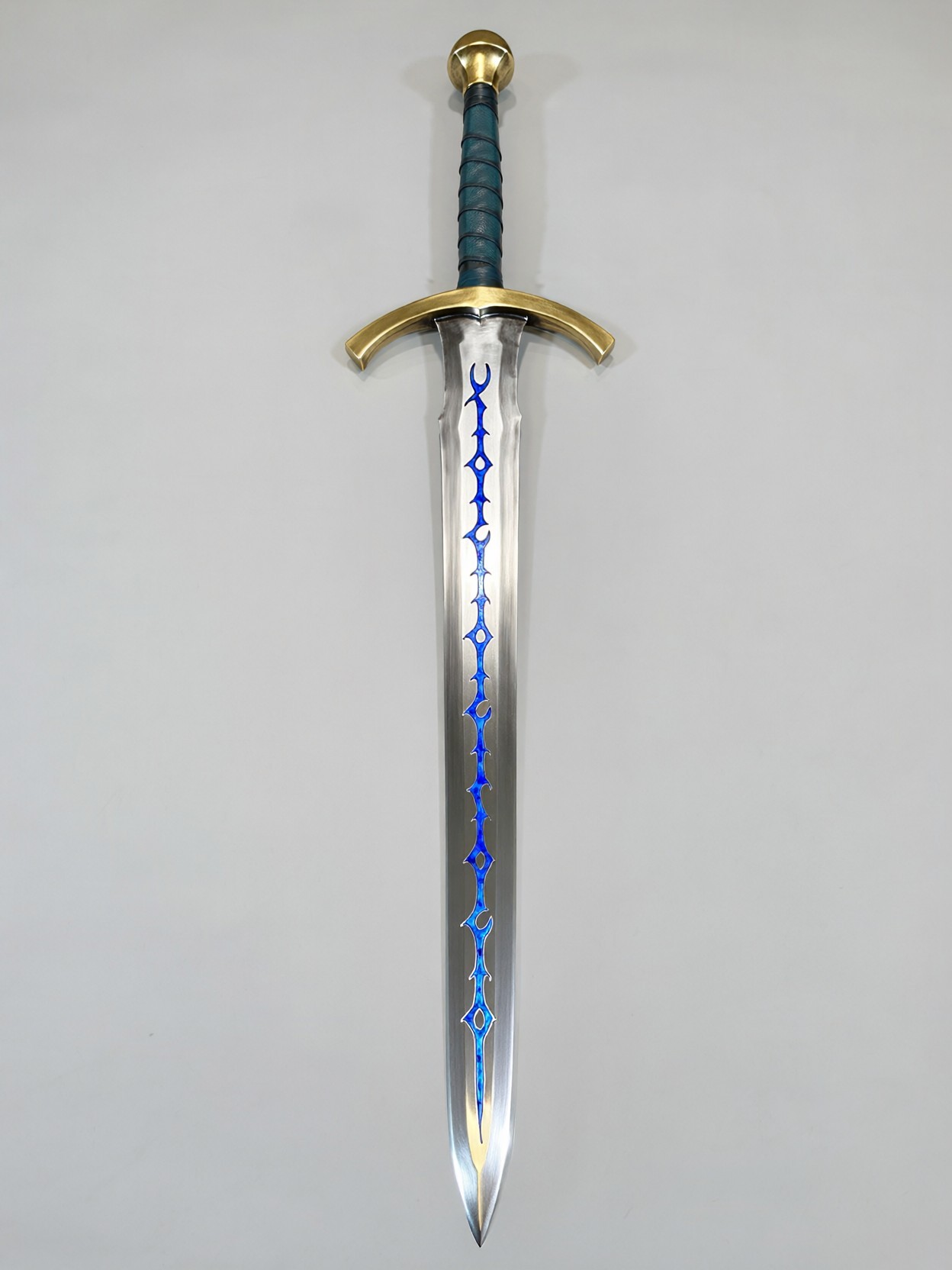
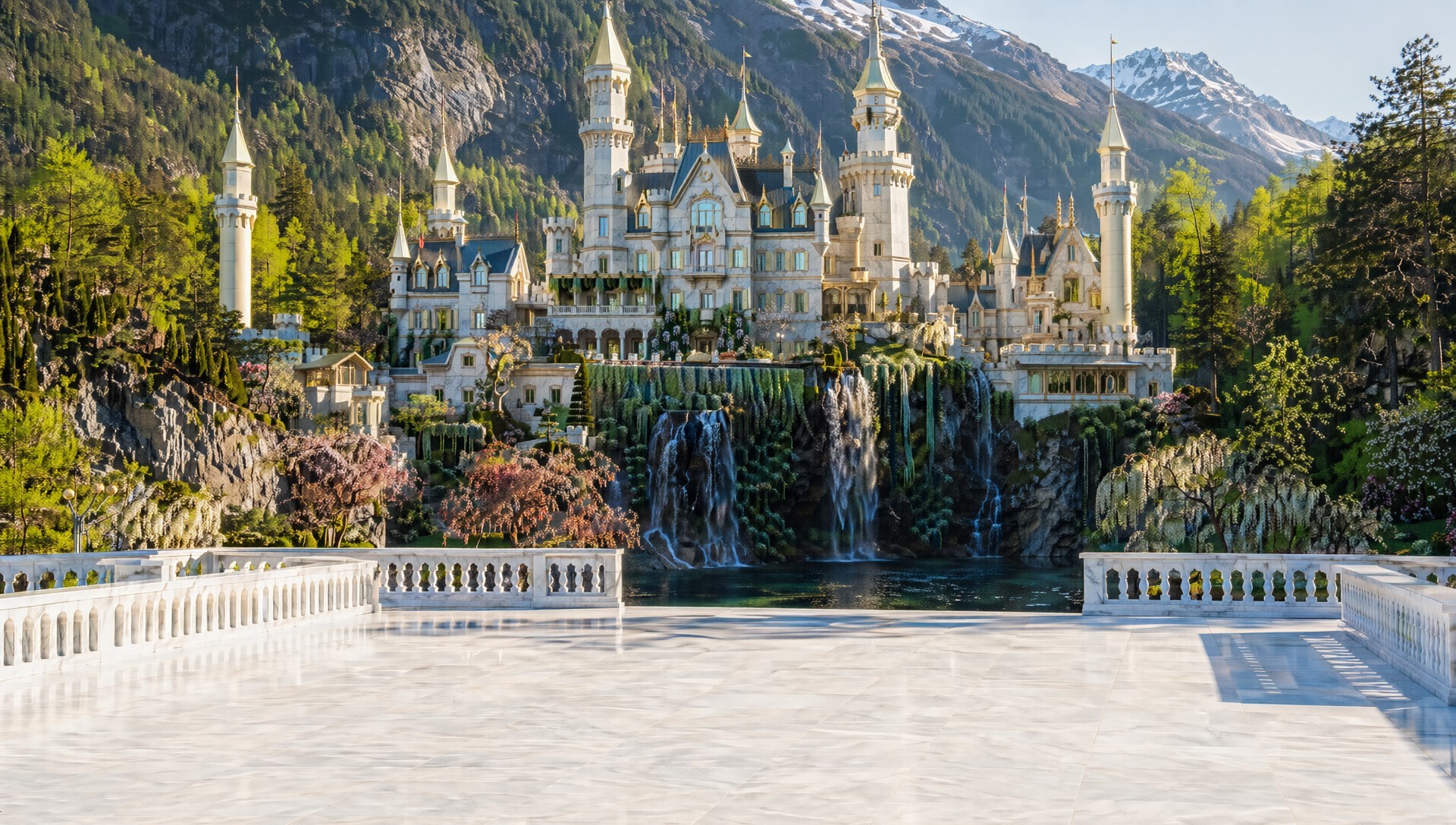
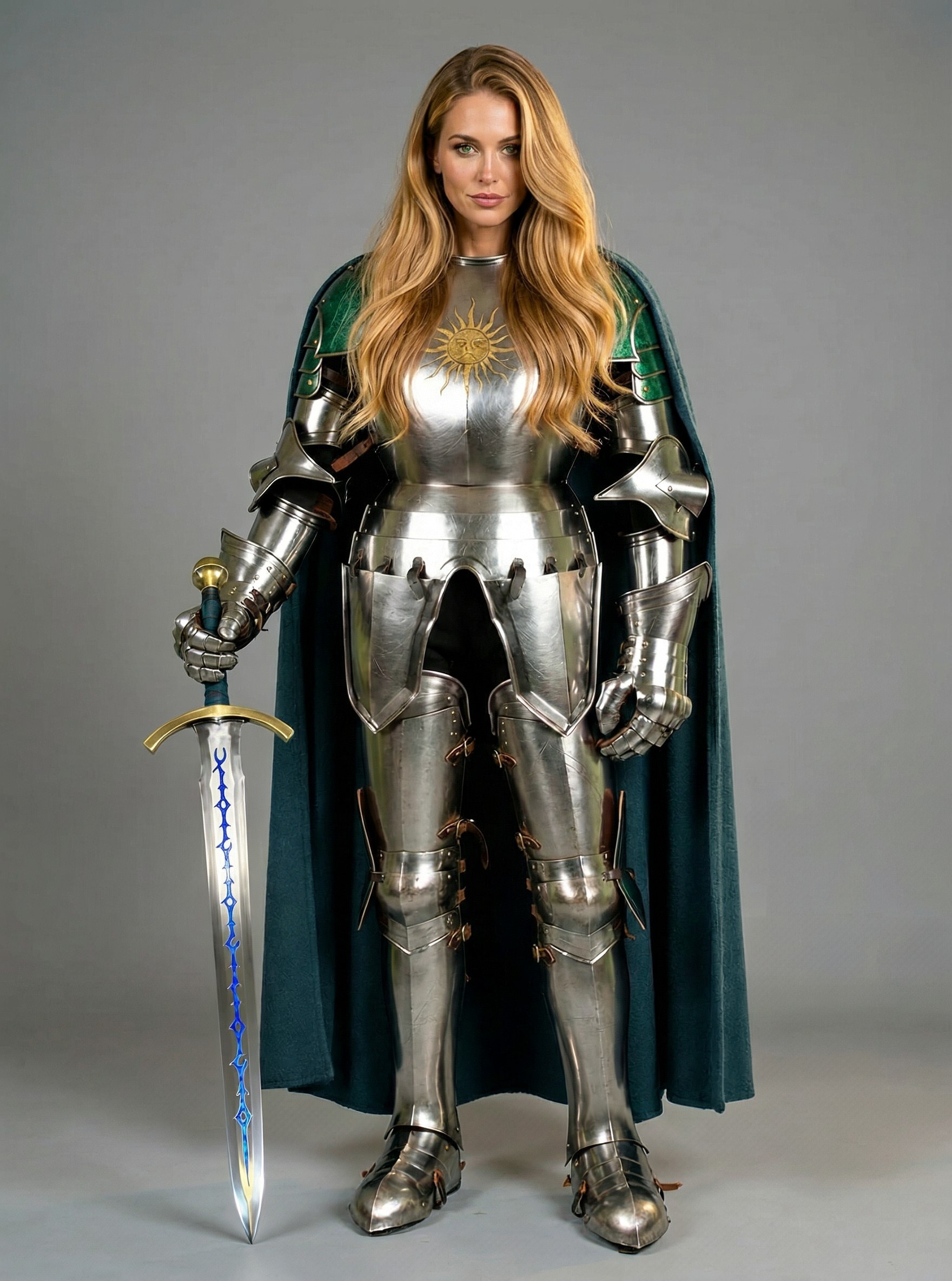
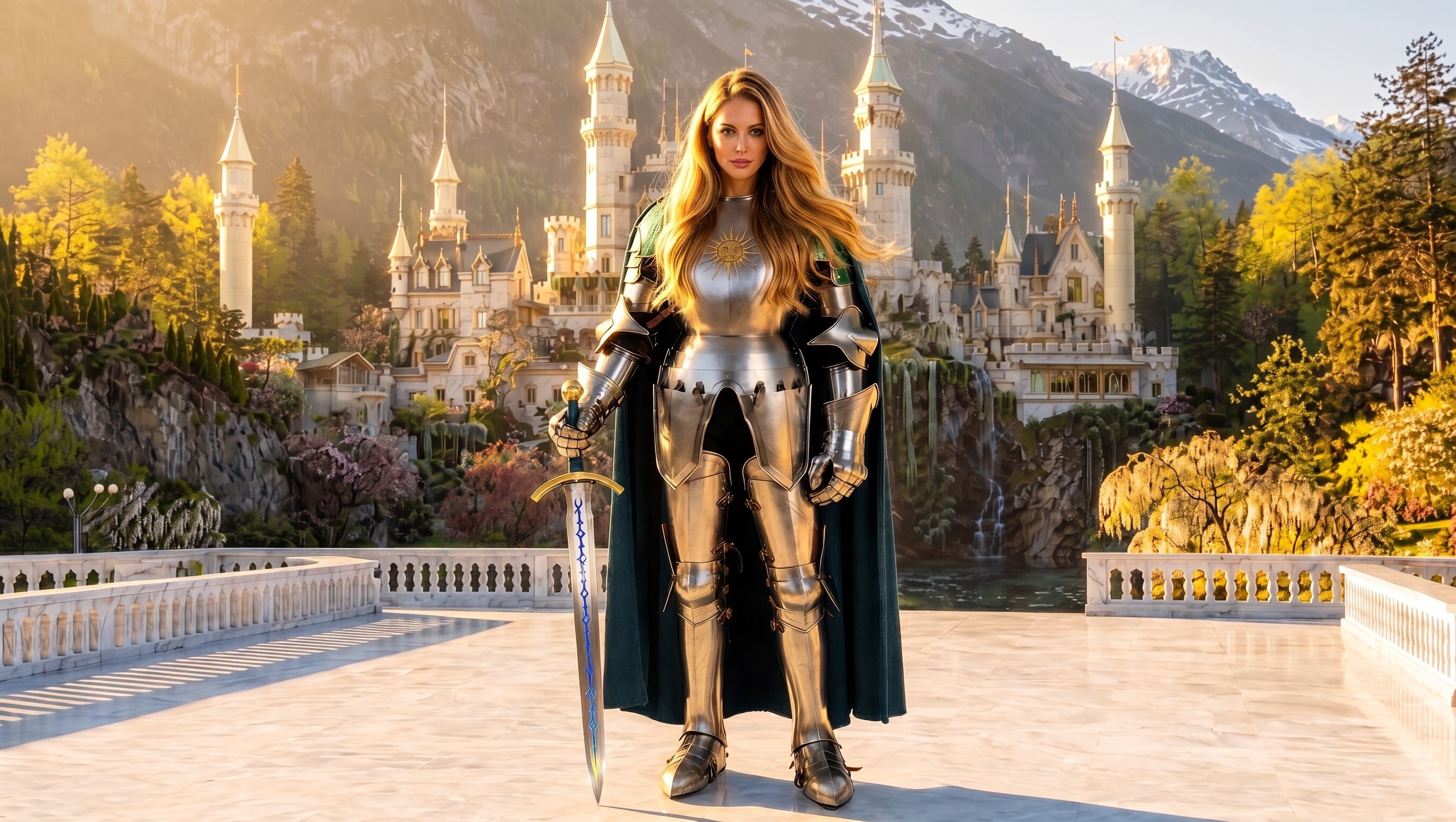
Step 1: 3 references · 2K · 3:4 · seed 107981090322558
Step 2: 2 references · 2K · 16:9 · seed 491860961761202
Exact prompt — H3 step 1 (armor)
Create one photorealistic full-length photograph. The SAME adult woman from Picture 1 now wears the complete silver plate armor from Picture 2: emerald green shoulder pauldrons, golden sun emblem on the breastplate, articulated steel arms and legs, dark teal cloak. She holds exactly the sword from Picture 3 in her right hand, blade pointing down, blue rune inlay and gold crescent crossguard visible. Keep her exact face, green eyes, natural skin texture and very long flowing golden blonde hair from Picture 1, worn loose over the armor. The armor is physically worn and fitted to her body: correct scale for her slim frame, plates following the curve of her shoulders, chest, waist and hips, visible leather straps and buckles, the weight of the pauldrons resting on her shoulders, contact shadows where plates overlap and where the armor meets her neck. The cloak hangs naturally from under the pauldrons with soft heavy folds. Her very long golden hair falls over the pauldrons and down the cloak, with strands casting soft shadows on the steel. It is one continuous real photograph, not a composite: the same light source, color temperature and color grade on her face, hair, armor and the background, reflections of the surroundings visible in the polished steel, natural camera depth of field with the background slightly soft, her feet firmly planted with contact shadows on the ground. Natural anatomy, her gloved right hand firmly gripping the sword hilt. She stands on a plain neutral grey studio floor under soft even daylight, confident alluring gaze to the camera, full body from head to feet. Exactly one person, no text.
Exact prompt — H3 step 2 (palace)
Create one photorealistic cinematic photograph. Place the SAME armored woman from Picture 1 — identical face, golden hair, armor, cloak and sword — standing confidently on the white marble terrace of the mountain palace from Picture 2. Relight her completely to match the scene: warm golden morning sunlight from the left side, with the same color grade, shadows, haze and depth of field as the background, reflections of the surroundings in her polished armor, her hair moving slightly in the wind, feet firmly planted with contact shadows on the ground. It must look like one real photograph taken on location, not a composite. Full body, medium-wide view. Exactly one person, no text.
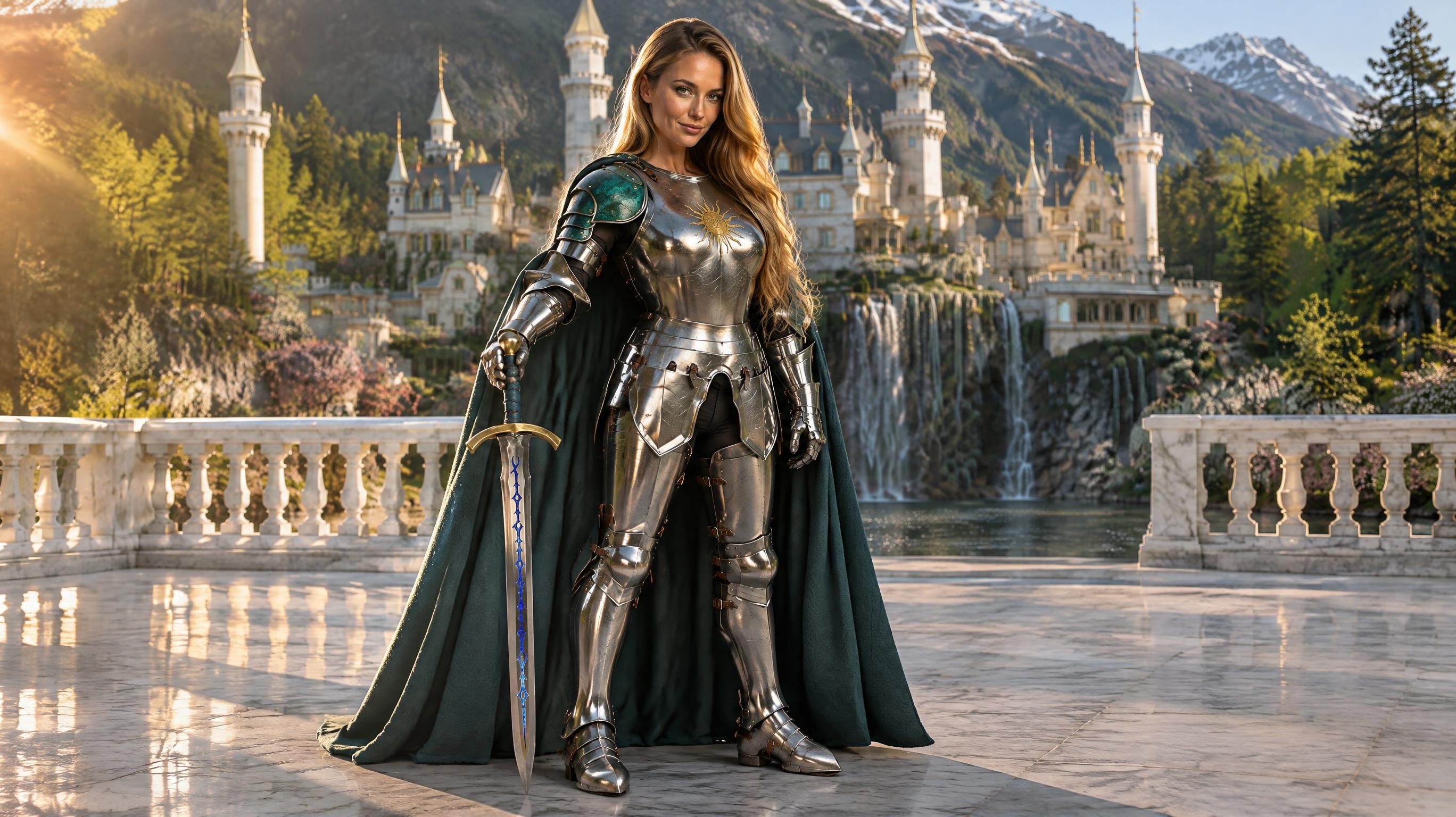
1 edit · 4 references · Medium · 2K · 16:9 · 1 output
Exact prompt — GPT 2.6 Image Edit
Create one photorealistic cinematic photograph. The SAME adult woman from Picture 1 stands confidently on the white marble terrace of the mountain palace from Picture 4. She wears the complete silver plate armor from Picture 2: emerald green shoulder pauldrons, golden sun emblem on the breastplate, dark teal cloak. She holds exactly the sword from Picture 3 in her right hand, blade pointing down, blue rune inlay and gold crescent crossguard visible. Keep her exact face, green eyes, natural skin texture and very long flowing golden blonde hair from Picture 1, worn loose over the armor. Lighting: warm golden morning sunlight from the left side. The armor is physically worn and fitted to her body: correct scale for her slim frame, plates following the curve of her shoulders, chest, waist and hips, visible leather straps and buckles, the weight of the pauldrons resting on her shoulders, contact shadows where plates overlap and where the armor meets her neck. The cloak hangs naturally from under the pauldrons with soft heavy folds. Her very long golden hair falls over the pauldrons and down the cloak, with strands casting soft shadows on the steel. It is one continuous real photograph, not a composite: the same light source, color temperature and color grade on her face, hair, armor and the background, reflections of the surroundings visible in the polished steel, natural camera depth of field with the background slightly soft, her feet firmly planted with contact shadows on the ground. Natural anatomy, her gloved right hand firmly gripping the sword hilt. Confident, alluring gaze toward the camera. Full body, medium-wide view. Exactly one person, no text.
What we see: relighting in a second step gives the H3 image one warm light shared with the palace, and the armor, sword and golden hair stay close to the step 1 image. Her face, however, has drifted further from the portrait than in the GPT 2.6 result: the likeness is looser and the make-up heavier, so do not read it as the same identity. The H3 pose is also more frontal and stiff. GPT 2.6 keeps the face closer and fits the armor and cloak more naturally to the body.
Price: this H3 example took two 2K edits × 15 = 30 credits. GPT 2.6 cost 185: 125 for Medium at 2K plus 4 references × 15. That is about 6 times more here.
If the face matters most, see the same-face guide. For one edit per model with identical inputs, see the volcano pair.
The H3 image was selected from six H3 final images made with different reference and prompt setups; the 30 credits cover only the two edits behind it, not the other attempts. GPT 2.6 was run once. Images are unretouched and resized for the web — real outcomes, not a benchmark or a guarantee. All people shown are AI-generated adults. The portrait is cropped from an image generated on Proxima with Qwen 2.1 and a realism LoRA; the armor, sword and palace were also generated with Qwen 2.1.
Three Different People in One Scene
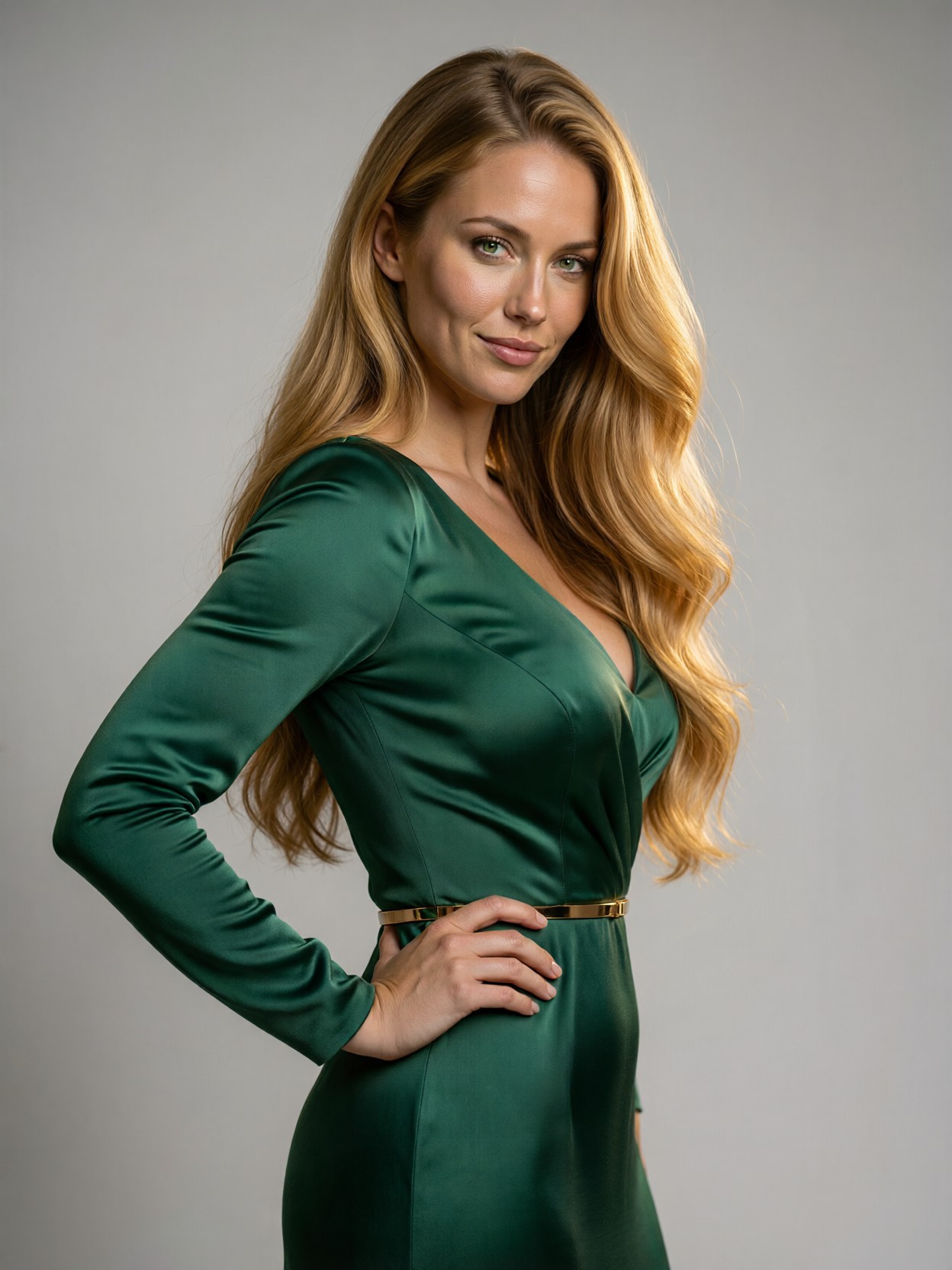
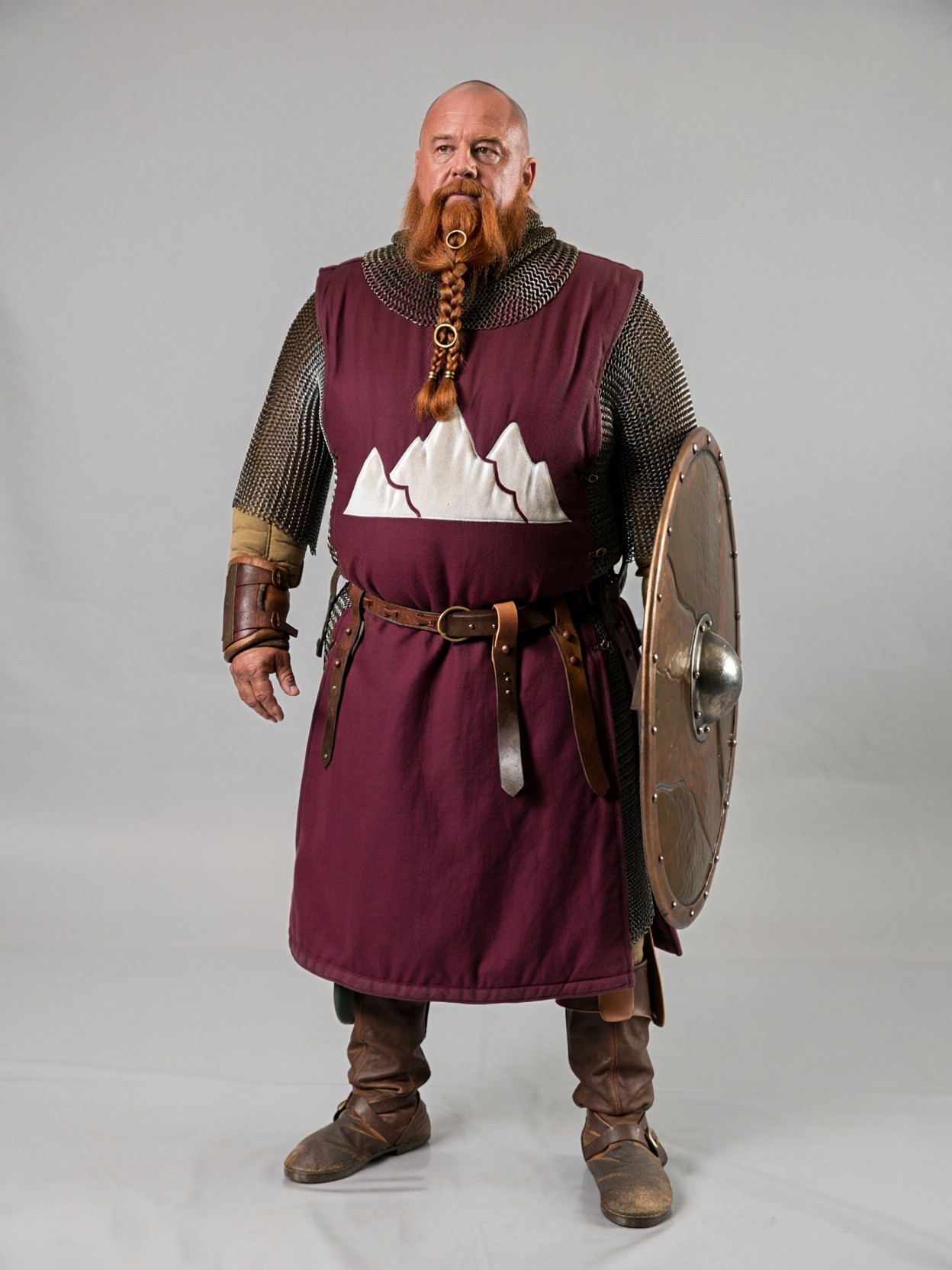
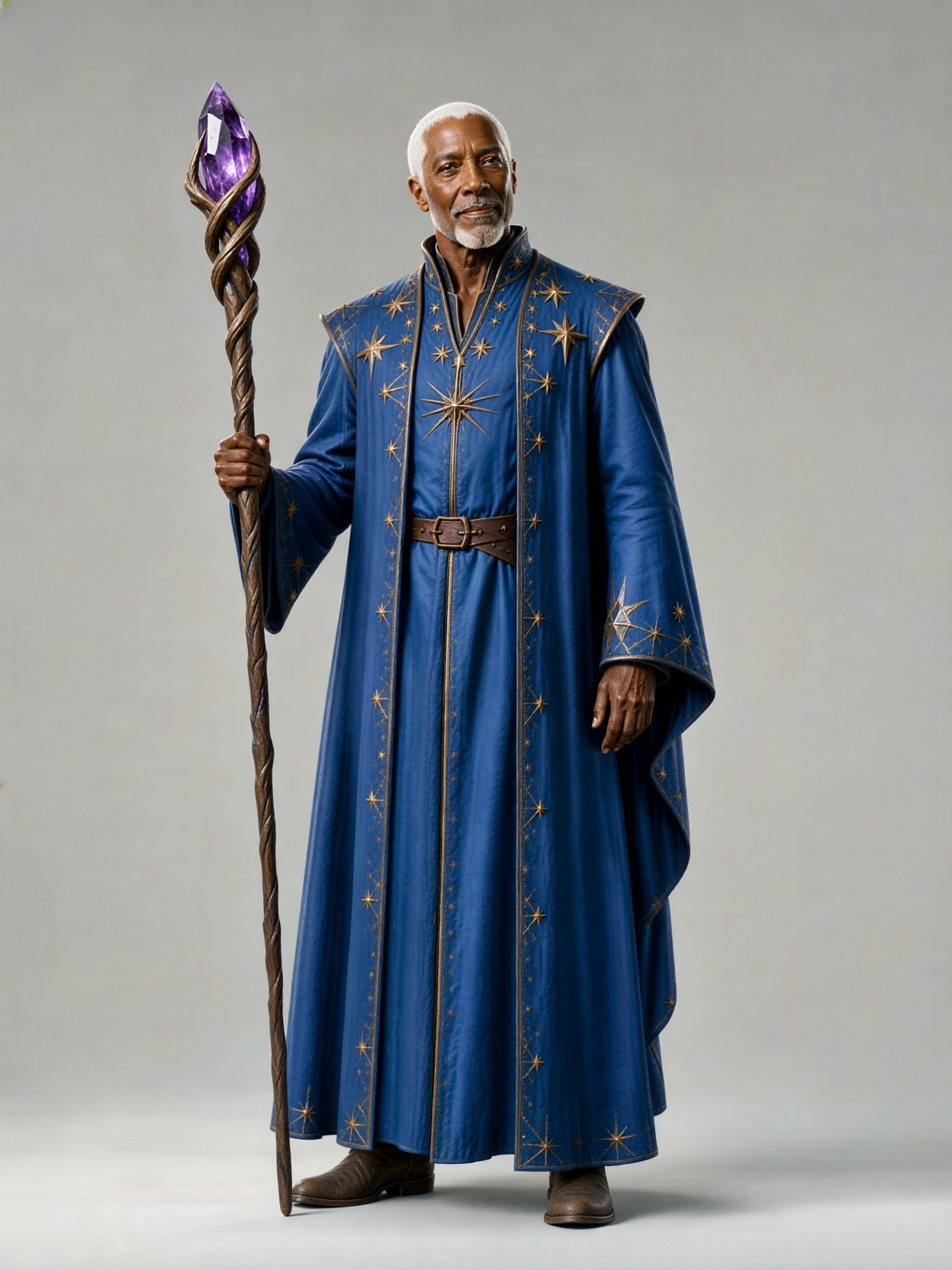
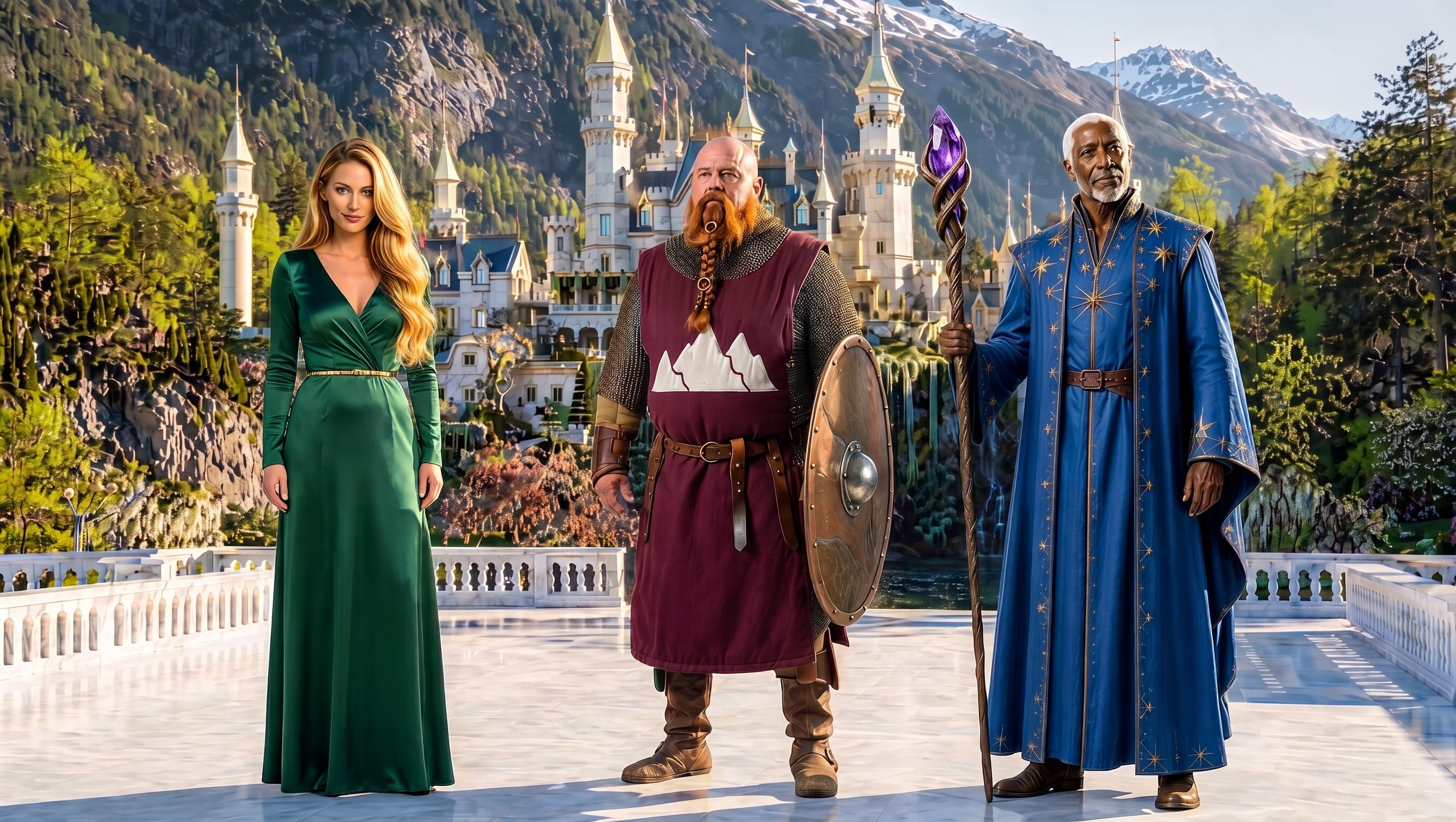
LEFT / CENTER / RIGHT gives each reference its own place. The heroine keeps her green gown and golden hair, the warrior his braided red beard, tabard and shield, the mage his star-embroidered robes and crystal staff — no merged faces or swapped accessories. Look closely and the figures can read slightly “placed” against the backdrop, a common trait of multi-reference composition.
Read the exact prompt
Combine these four reference images into one photorealistic cinematic group photograph. Exactly THREE distinct fully clothed adults, full bodies visible, standing side by side on the white marble terrace of the palace from Picture 4. LEFT: the woman from Picture 1 — keep her exact face, green eyes, very long flowing golden blonde hair and her emerald green satin gown with gold belt. CENTER: the stocky red-bearded man from Picture 2 — keep his bald head, braided copper-red beard with brass rings, chainmail, burgundy tabard with white mountain emblem and round shield. RIGHT: the tall man from Picture 3 — keep his dark brown skin, short white hair, white beard, cobalt blue robes with gold stars and wooden staff with purple crystal. Do not merge identities, outfits or accessories. Clear space between the three, keep the height differences, consistent warm morning light, real photograph, natural anatomy and hands. No extra people, no text, no combat.
All people shown are AI-generated adults, not real persons. The four references were generated separately on Proxima with Qwen 2.1 (native 2K) and realism LoRAs; the 15 credits cover the edit only. Each result is a single H3 attempt, shown unretouched — one real outcome, not a guarantee of exact identity or object reproduction. H3 accepts up to 16 references; this example needs four.
Prompt Tips for Minimax H3
- Number your images. Refer to them as Picture 1, Picture 2… in the order you added them, and give each one a role: person, outfit, product, place, style.
- Say what stays. End with "Keep her face, hair, pose and background unchanged" — whatever you do not mention may change.
- Put the main image first. The person or the photo you are editing should be Picture 1.
- One idea per sentence. Short, concrete sentences work better than one long list.
- Use the magic wand. It reads your images and expands a short instruction into a detailed one; edit the text before generating.
- Test at 1K, finish at 2K or 4K. 1K costs 8 credits — find the right prompt, then render the final at higher resolution. A fixed seed helps you compare prompts fairly.
- More references are not always better. Use the images the edit really needs; each extra picture is one more thing the model has to place.
No Strict Content Filter
Minimax H3 Image Edit does not apply the strict moderation of mainstream editors. Swimwear and fashion shoots, fantasy battles, horror make-up and other mature artistic themes may be supported. Proxima's Terms of Use still apply: keep content legal and only edit photos of real people with their consent. If you need an even more permissive option for a single small change, try MOSS Image Edit.
Minimax H3 vs Other Proxima Editors
| Model | Credits (1K) | References | Content filter | Choose it for |
|---|---|---|---|---|
| Minimax H3 Image Edit | 8 (15 at 2K) | 16 | No strict filter | Most edits, many references, best value |
| GPT 2.6 Image Edit Premium | 65 + 15 per reference | 16 | Strict | Exact instructions, text in images |
| MOSS Image Edit | 15 | 2 | Fewer restrictions | One small change other models refuse |
| Qwen 2.1 Image Edit | 15 (25 native 2K) | 10 | Flexible | Edits with LoRA styles |
| Krea 2 Image Edit | 25 | 2 | Flexible | Photorealism with Krea 2 LoRAs |
Full comparison of all 14 models: which image edit model to choose.
Next Steps on Proxima
- Animate it: open Video Pro, add the edited image as a reference and turn it into a Minimax H3 video.
- Make a reusable character: send the best portrait to Character Asset Pack for a screen set and a named character tag.
- Tell a story: use your characters in the AI storyboard generator and chain the panels into a film.
- Learn more: step-by-step video lessons in Proxima tutorials.
Minimax H3 Image Edit on Proxima: Complete Guide to Editing with Up to 16 Reference Images FAQ
What is Minimax H3 Image Edit?
Minimax H3 Image Edit is an image editing model on Proxima that changes a photo from a text instruction and can combine up to 16 reference images in one edit. It is designed to preserve faces, products and places, renders at 1K, 2K or 4K and has no strict content filter.
How much does Minimax H3 Image Edit cost on Proxima?
8 credits per image at 1K, 15 credits at 2K and 30 credits at 4K. Reference images cost nothing extra, so an edit with 16 references costs the same as an edit with one. No subscription is needed.
How many reference images can Minimax H3 Image Edit use?
Up to 16. Call them Picture 1, Picture 2 and so on in your prompt, in the order you added them.
Does Minimax H3 Image Edit have censorship?
It has no strict content filter, so fashion, swimwear, fantasy, horror and other mature artistic themes that mainstream editors often refuse may be supported. Proxima's Terms of Use still apply: keep content legal and only edit photos of real people with their consent.
How do I keep the same face with Minimax H3?
Put a clear photo of the person first, describe the new scene, outfit or pose, and end the prompt with what must stay: "Keep his face, beard, eyes and hairstyle exactly as in Picture 1." A front-facing, well-lit photo works best.
Can I use LoRAs with Minimax H3 Image Edit?
No. Minimax H3 Image Edit works without LoRAs. For LoRA-driven edits use Qwen 2.1 Image Edit, Krea 2 Image Edit or Qwen Image Edit 2511.
What resolution should I choose?
2K (the default) is the best balance for most images. Use 1K for quick tests at 8 credits and 4K for prints or large crops at 30 credits.
How long does an edit take?
Completion time varies with the model and current demand; check the generation status in Proxima.
When should I use another model instead?
Use GPT 2.6 Image Edit (premium) for detailed instruction following and for lettering inside the image, MOSS Image Edit for a single small change that H3 does not get right, and Qwen 2.1 Image Edit when you want a LoRA style.
What can I do with the result?
Every result is saved in your gallery. Animate it in Video Pro, use it as a reference for the next edit, or turn the person into a reusable character with Character Asset Pack.