How to Refine AI Video Scenes: Transformations, Fine Detail and 2K Download
Refine an AI film by checking the story, continuity and composition before increasing detail. This lesson follows the sandworm reveal and the final close-up in Sleeping Sands of Kharuun, then shows the review and 2K download stage.

The video starts at 21:01, where this lesson begins. Watch the full 27:09 tutorial.
In this part of the video
The final stage is not simply “add more detail.” A finished shot must tell the intended story, preserve continuity and guide the viewer’s attention. This lesson separates those decisions using the last two scenes of Sleeping Sands of Kharuun.
How do I describe a convincing transformation?
Name the object that changes and describe the visible sequence. In this story the mountain is the monster, not a mountain with an unrelated worm behind it. The prompt must connect the dark opening, the mouth and the emerging body into one transformation.
Allow enough time for the action. A complicated reveal needs more room than a simple glance. Too many competing movements can make the story difficult to follow even when individual frames look impressive.
Step by step
-
Continue from the approved shot
Preserve the characters, weapons and lighting from the previous scene.
-
Describe the transformation in order
Say what changes, what remains recognisable and how the camera observes it.
-
Review the generated scene
Check whether the story reads clearly before approving the clip.
-
Refine the final shot
Correct the pose, grip and background explicitly; adjust detail only when useful.
-
Watch the complete chain
Check transitions, pacing and the ending with Chain so far.
-
Download the finished film
Use the download control and verify the saved file before publishing.
How we used this in Sleeping Sands of Kharuun
B2: the mountain becomes the sandworm
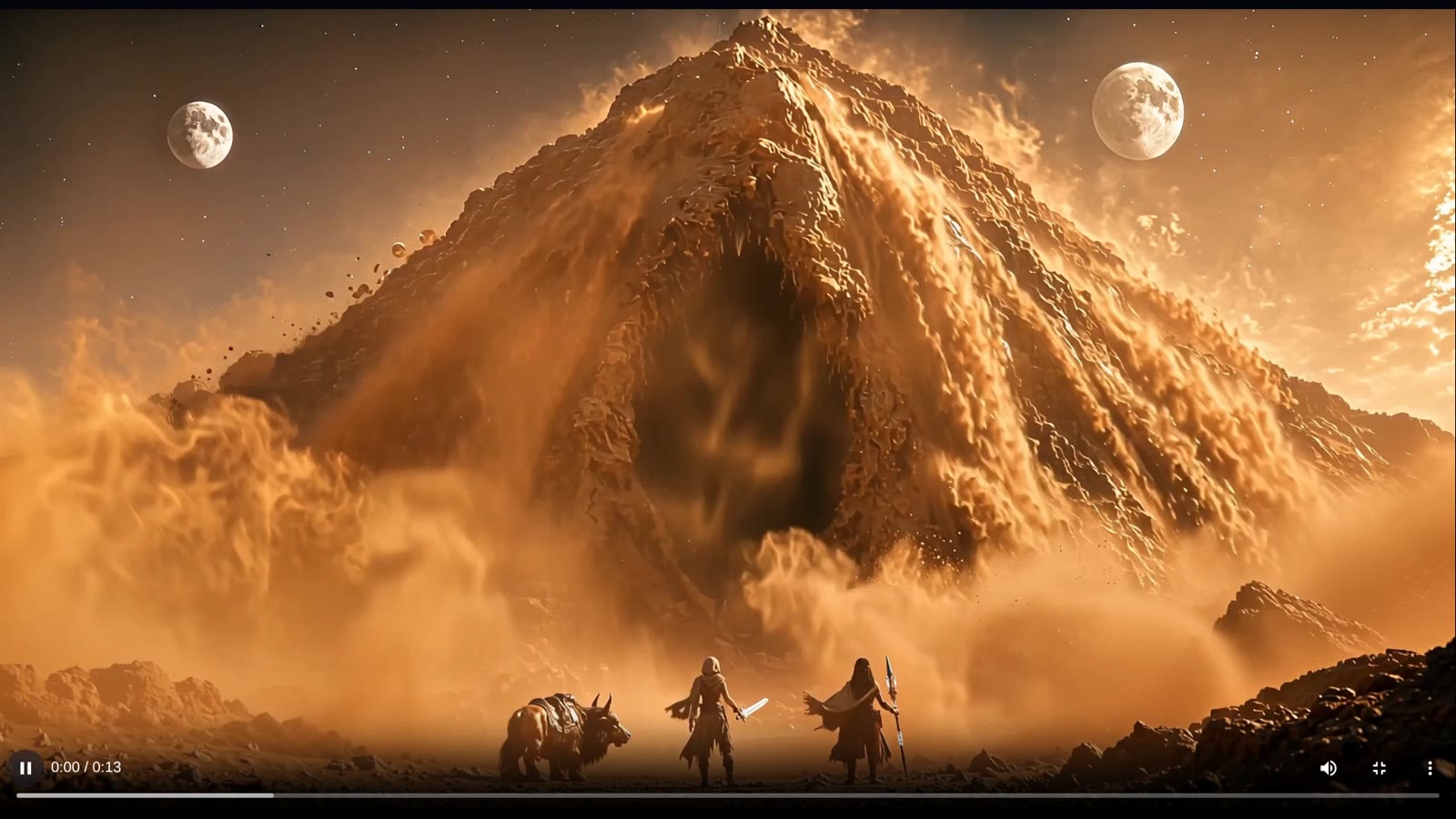
At 21:07 the narrator continues directly from B1 while preserving Iraya’s sword and Ashara’s spear. The central cavity becomes an enormous mouth with long fang-like teeth around the rim. Tentacles emerge, then the mountain collapses in an avalanche of sand to reveal the worm rising above the former summit.
The instruction keeps the characters, weapons, lighting and continuous shot. Craft expands the transformation and visual effects request. The duration is set to the demonstrated maximum of 15 seconds; after viewing the result, the narrator keeps it.
B3: fix the shot, not just the sharpness
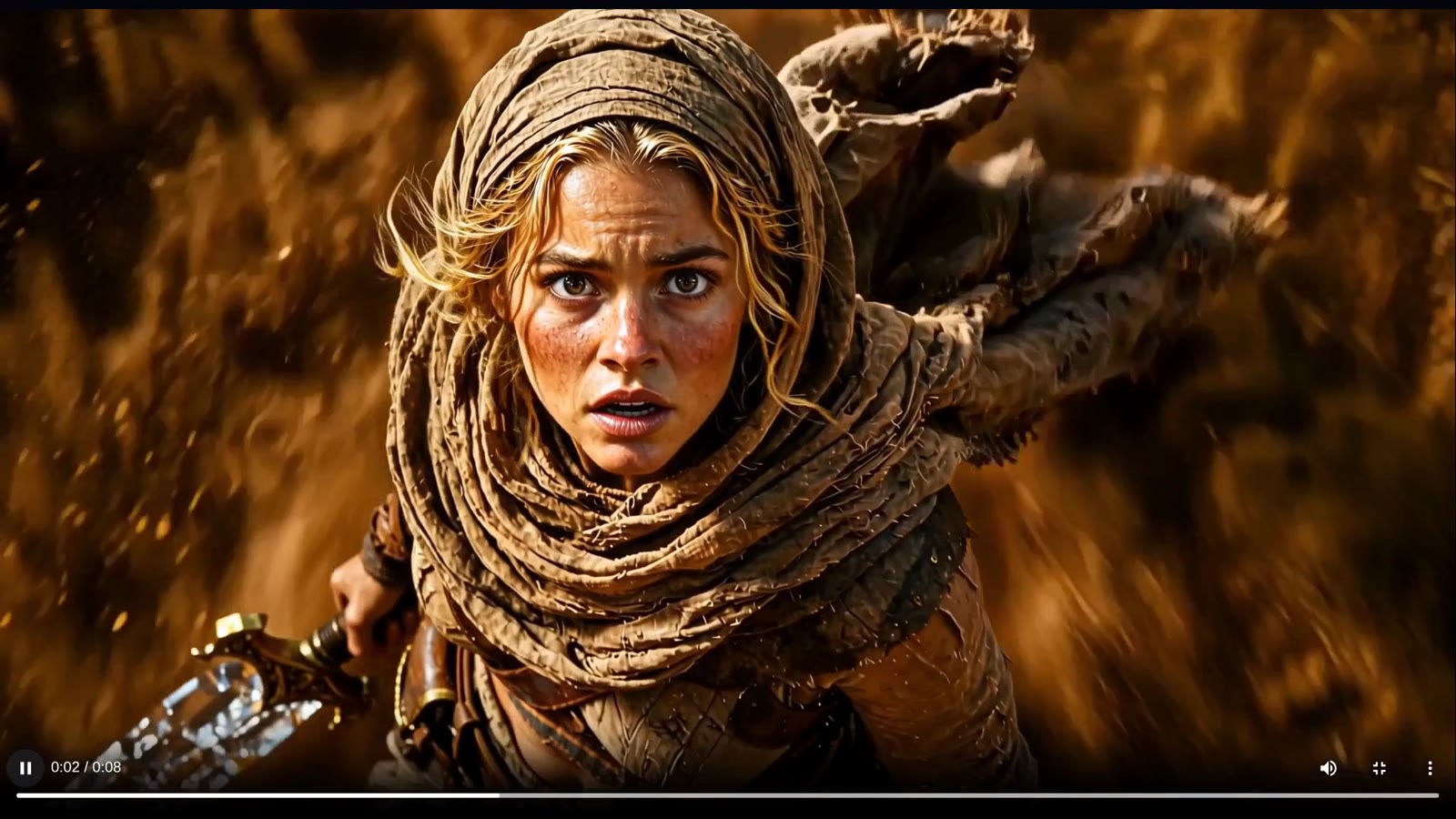
The first attempt asks the camera to pull back slightly and show Iraya from head to toe, ready for battle with her sword. The result does not match the intended ending: the worm remains visible behind her, the sword is held in both hands and the fine detail could be stronger.
The retry changes two things. Fine Detail is increased to 310%, and the prompt places Iraya in a violent sand vortex. Dust completely hides the background; she holds the sword in one hand; her frightened expression becomes a defiant smirk by the end.
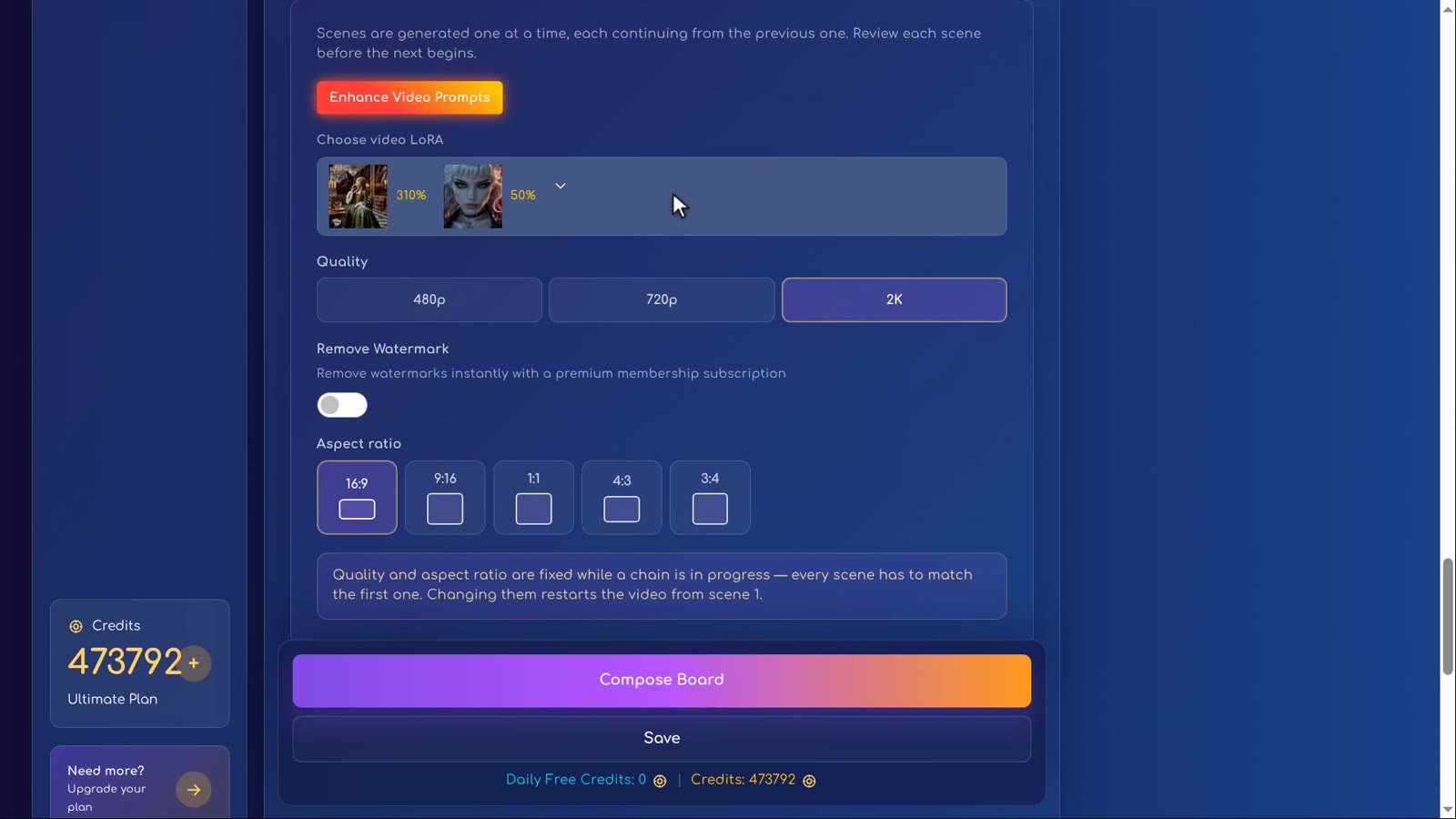
This is a useful example of directing attention. Hiding the background removes the unwanted visible worm, while specifying one hand corrects the grip. It is not evidence that increasing a detail setting alone repairs poses or continuity.
What should I check before downloading?
- Story: does the reveal happen in the intended order?
- Continuity: do weapons, characters and setting remain believable?
- Composition: can viewers see the important action?
- Ending: does the last expression or movement deliver the desired mood?
- Full sequence: do the transitions work when watched together rather than as separate clips?
At 25:05 the narrator selects Chain so far to watch the whole sequence. At 26:35 the finished film is downloaded in 2K. After saving your own file, open it and check the picture, sound and ending before uploading it elsewhere.
What can I make next?
Start with a small project you can revise. Keep a clear set of characters, plan one moment per panel and confirm each scene only after reviewing the join. When that feels comfortable, add more panels or a more complex story. More scenes create more continuity decisions, so a good workflow matters more than a long prompt.
Return to the full tutorial to revisit a demonstration, or use the previous lessons to practise character creation, panel editing and scene chaining independently.
FAQ
Will a higher Fine Detail setting fix a bad scene?
Not necessarily. In the tutorial the successful retry changes the prompt as well as the Fine Detail setting, so the improvement cannot be attributed to the setting alone. Fix the composition and action explicitly.
What is the longest scene used in this tutorial?
The sandworm transformation uses the 15-second maximum shown in the tutorial. This is the demonstrated workflow, not a promise about every model or future version.
How do I download the full film?
After reviewing the joined sequence with Chain so far, use the film download control. The tutorial downloads its finished film in 2K at 26:35.
Are these the exact prompts from the project?
The worked example describes the actions and settings demonstrated in the tutorial. Any teaching paraphrase is not an exported verbatim prompt.
Try it yourself: Storyboard
Plan your film panel by panel with AI-written prompts.All lessons in this tutorial
- 01:14 Lesson 1 · Generate your heroes, beast and world
- 02:32 Lesson 2 · Make consistent characters with Character Asset Pack
- 05:10 Lesson 3 · Set up the storyboard and let AI write the panels
- 07:30 Lesson 4 · Edit panels with tags, Craft and versions
- 10:17 Lesson 5 · Write your own prompts and compose the board
- 13:17 Lesson 6 · Turn the storyboard into your first video scene
- 16:07 Lesson 7 · Chain scenes into one continuous film
- 21:01 Lesson 8 · Reveal the sandworm, refine details and download