How to Make a Cinematic Multi-Shot AI Video with MAGI-2

12 chapters
- 00:00The result first
- 00:06MAGI-2 in the Video Pro Generator
- 00:13References: pictures, video and audio
- 00:25Choose the model
- 00:49Sound, duration, aspect ratio and Reference mode
- 01:04Write the idea in plain words
- 01:12Add the two cat-girl pictures
- 01:19Enhance Prompt writes the shot script
- 01:31Generate: 15 seconds for 2400 credits
- 01:42The result, full screen
- 02:09Watch it again
- 02:22See you in the next tutorial
How to make a cinematic multi-shot AI video with sound using MAGI-2 in Proxima Video PRO: the three modes, every setting, Enhance Prompt and the shot script behind the result, with timed cuts, one camera move per shot and a template to copy.
Key takeaways
- MAGI-2 makes Full HD video with its own dialogue, effects and music, up to 30 seconds per generation, at 160 credits per second.
- Pick the mode first: text only, start and end frame, or Reference mode for pictures that show a character or place.
- A MAGI-2 prompt is a short shot script: SCENE CONTEXT, ACTIVE REFERENCES, FORMAT MODE, LIGHT LOGIC, SHOT 1 to N and SOUND.
- Give each shot about 2 to 4 seconds, one or two actions and only one camera move, and put the hard cuts inside the chosen duration.
- Enhance Prompt turns a few plain sentences into that script. Read it and fix anything that does not match your pictures before you pay.
What you will make
In the video a few plain sentences and two pictures of a cat-girl become a 15-second, four-shot action scene with its own sound: she hears a bell, shows her claws, leaps past the moon and lands on a wet roof. It is one MAGI-2 generation in Video PRO, 16:9, 2400 credits. The wait is cut; the result is real.
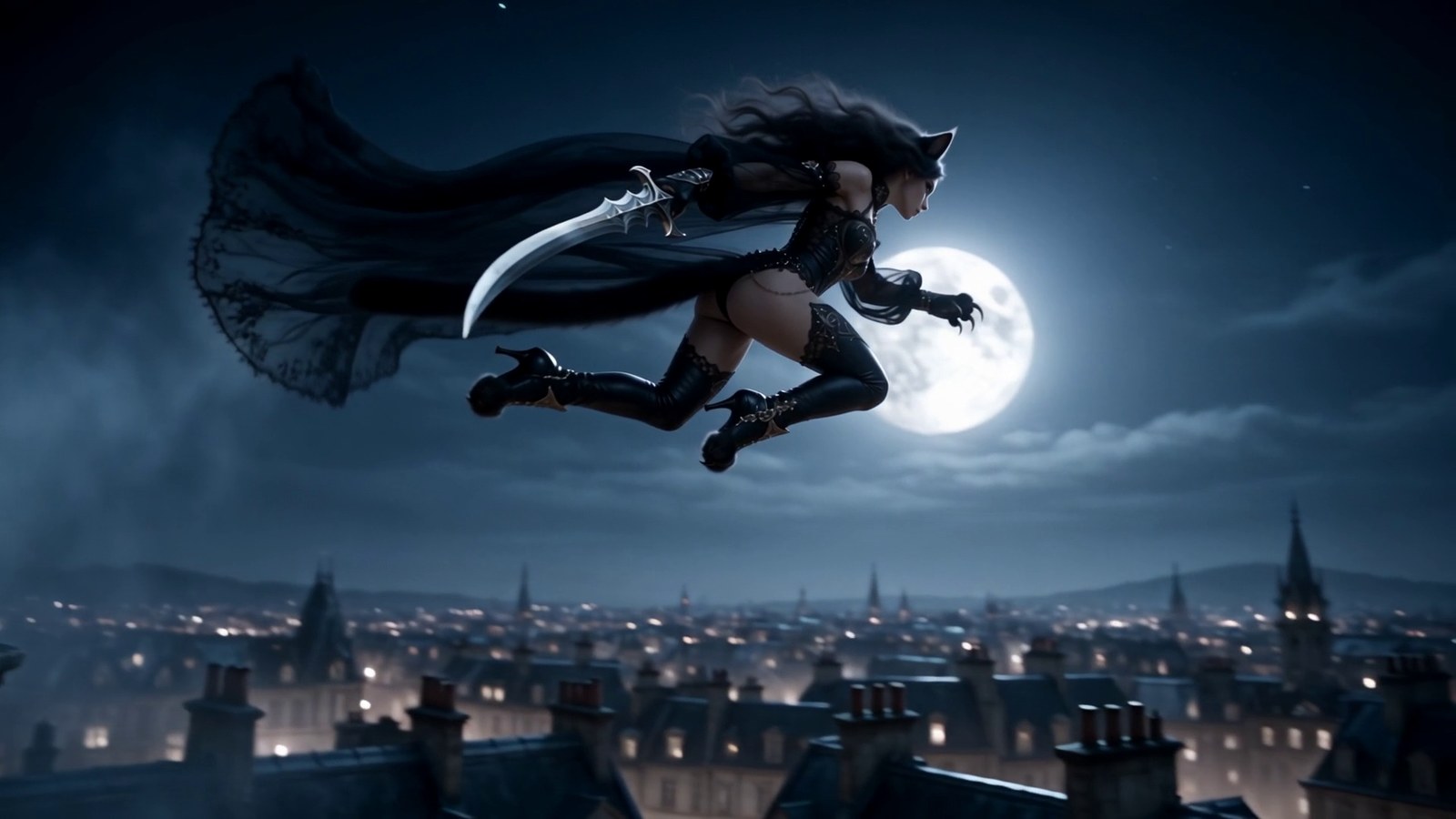
The video is short. This page goes further: most of it explains how a MAGI-2 prompt is built, so you can read what Enhance Prompt writes, fix it, or write your own.
What MAGI-2 is good at
- Real-looking motion: running, jumping, fighting, cloth and hair that react to speed and wind.
- Cinematic camera: push-ins, tracking shots, whip pans and lens choices you can ask for shot by shot.
- Sound in the same pass: dialogue with lip-sync, effects, ambience and music. You can switch it off.
- Several shots in one clip: hard cuts at the times you write, so one generation can be a small edited scene.
- References that hold: the face, the outfit and the place from your pictures stay the same across the cuts.
- Full HD only, up to 30 seconds in one generation.
The price depends only on the length:
| Duration | Credits | Good for |
|---|---|---|
| 4 s | 640 | a quick test of a look or a single moment |
| 5 s | 800 | one shot or two |
| 8 s | 1280 | two or three shots |
| 10 s | 1600 | three shots |
| 15 s | 2400 | four or five shots, as in the video |
| 20 s | 3200 | five or six shots |
| 30 s | 4800 | about ten shots, a full short scene |
That is 160 credits per second, sound included. There is no lower resolution, so a shorter clip is the only way to pay less.
Three ways to start
MAGI-2 has three modes. Proxima picks one from what you add and from the Reference mode switch, and Enhance Prompt writes a different kind of prompt for each.
| Mode | What you add | Use it when |
|---|---|---|
| Text only | No pictures | You have an idea, not a look. The prompt must describe every person and place. |
| Start / end frame | 1 or 2 pictures, Reference mode off | You want to animate a picture you already like. Picture 1 is the first frame; a second picture becomes the last frame. |
| Reference mode | Up to 10 pictures, 5 videos, 5 audio files | The pictures show a character, an outfit, an object or a place that should appear in new shots, from new angles. |
Reference mode switches on by itself with three or more pictures, or with any video or audio. With exactly two pictures you decide: off means start and end frame, on means two references. The lesson uses two references, so the switch is on.
The Video PRO form, step by step
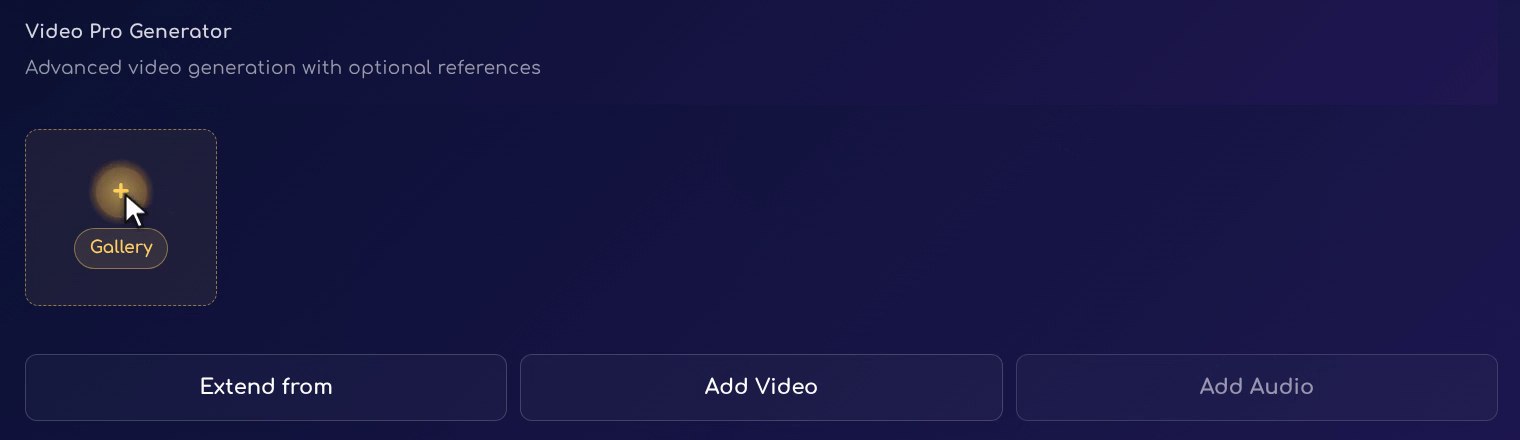
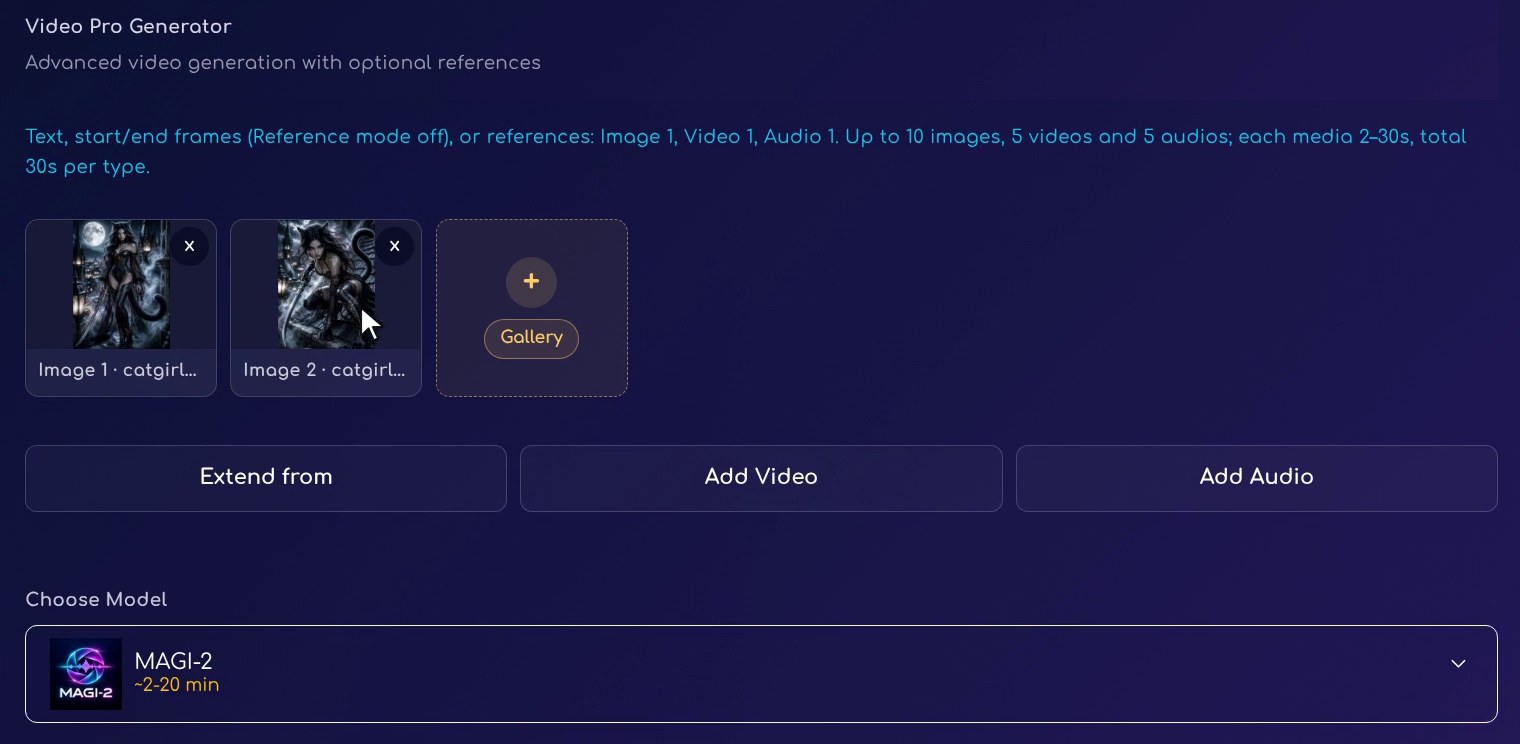
Open Proxima Studio and choose Video Pro in the left menu. At the top you add references: + uploads a picture, Gallery picks one you made on Proxima, Add Video and Add Audio add clips, for example a motion to copy, a voice or a piece of music.
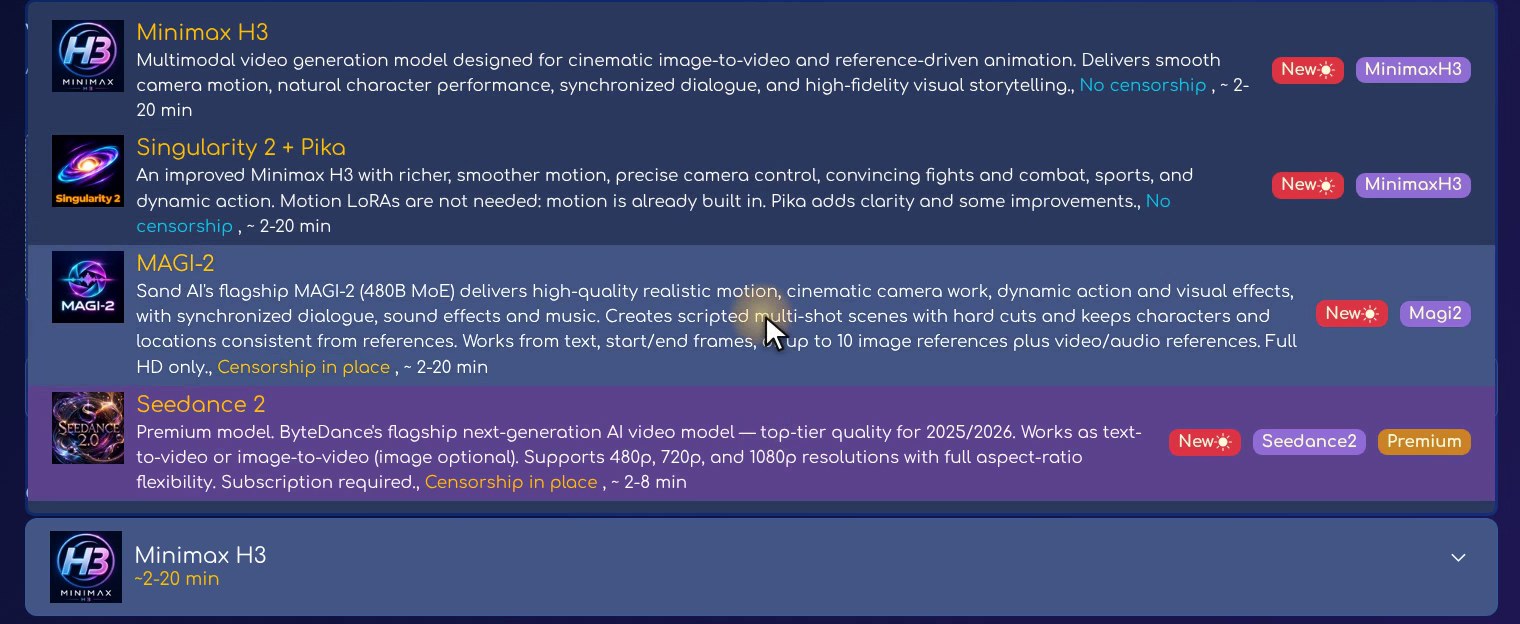
Under Choose Model, Minimax H3 is the default and good enough for most videos. Singularity 2 + Pika is based on Minimax with more motion, Seedance 2 is a well-known premium model, and MAGI-2 is the newest.
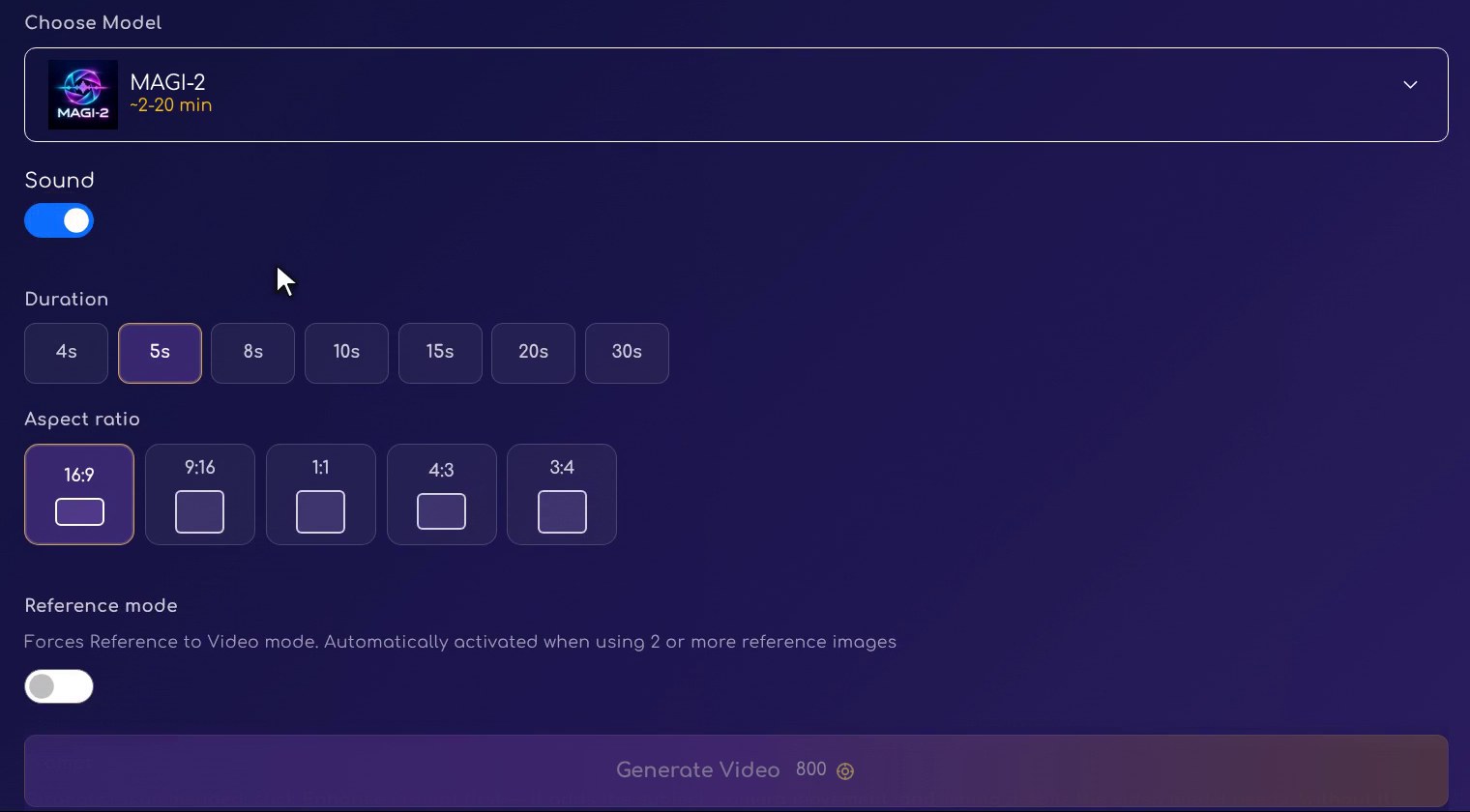
With MAGI-2 selected you get its own settings:
- Sound: on by default. Switch it off for a silent clip.
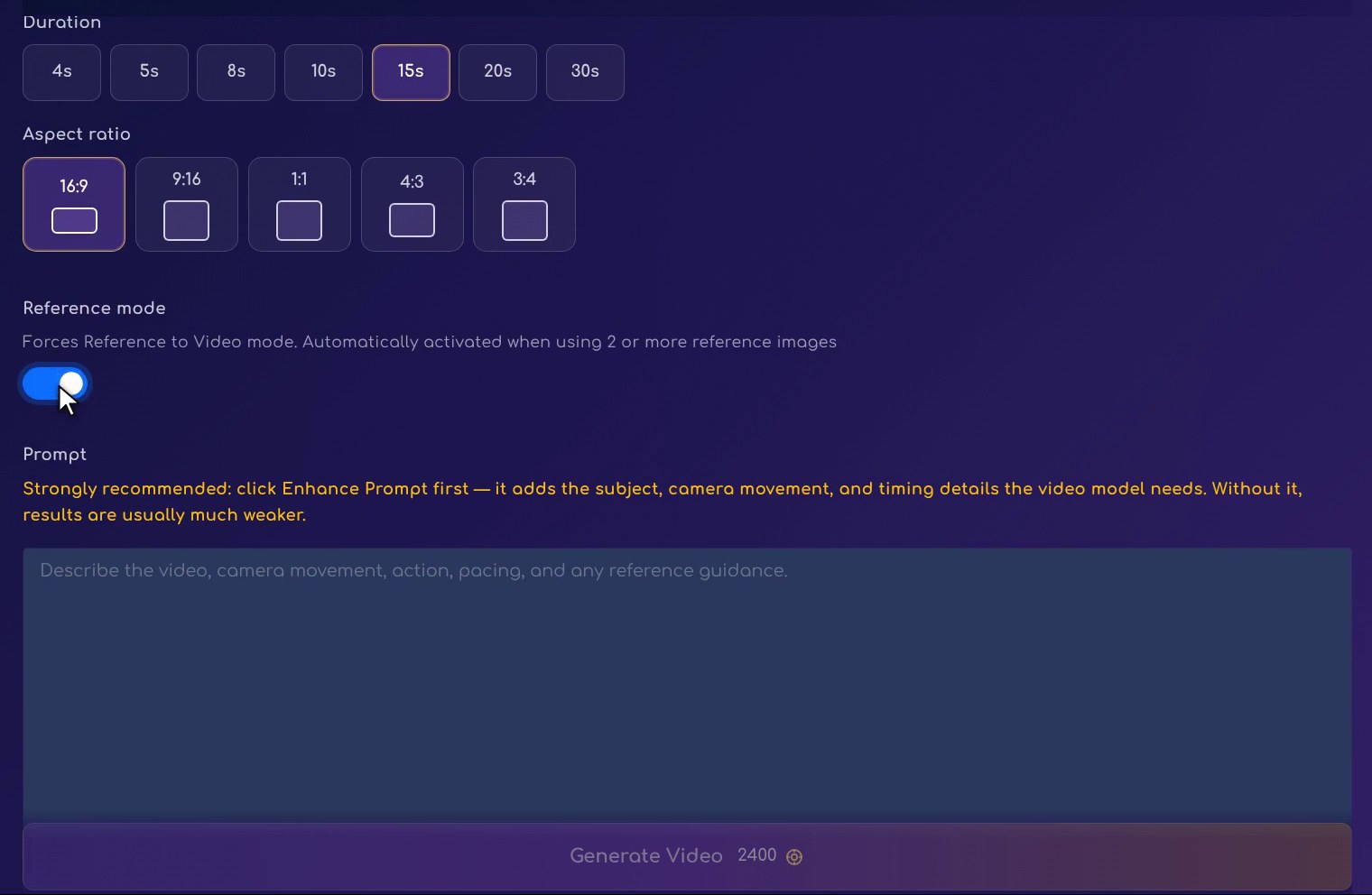
- Duration: 4, 5, 8, 10, 15, 20 or 30 seconds.
- Aspect ratio: 16:9, 9:16, 1:1, 4:3 or 3:4. The video follows this, not the shape of your pictures; a start frame of a different shape is cropped from the centre.
- Reference mode: see the table above.
The video uses 15 seconds, 16:9 and Reference mode on. Above the prompt field Proxima recommends Enhance Prompt, and the Generate button already shows the price.
How to write a MAGI-2 prompt
MAGI-2 reads a prompt best when it looks like a short shooting script: a few labelled blocks, then one block per shot with exact times. The sections below explain each block. They follow the published MAGI-2 examples and recommendations and what worked for us.
1. Start with plain words
Begin with what you would tell a friend: who, where, what happens from start to finish, the mood and the sounds. Name your pictures by number. This is the exact idea typed in the video:
The cat-girl from Picture 1 stands on a misty gothic balcony at midnight under a full moon. She hears a bell, extends the sharp claws on her paws like in Picture 2, leaps from the balcony across the rooftops and lands on a wet roof, ready to fight. Cinematic action, wind, a distant bell and a dark orchestral hit.
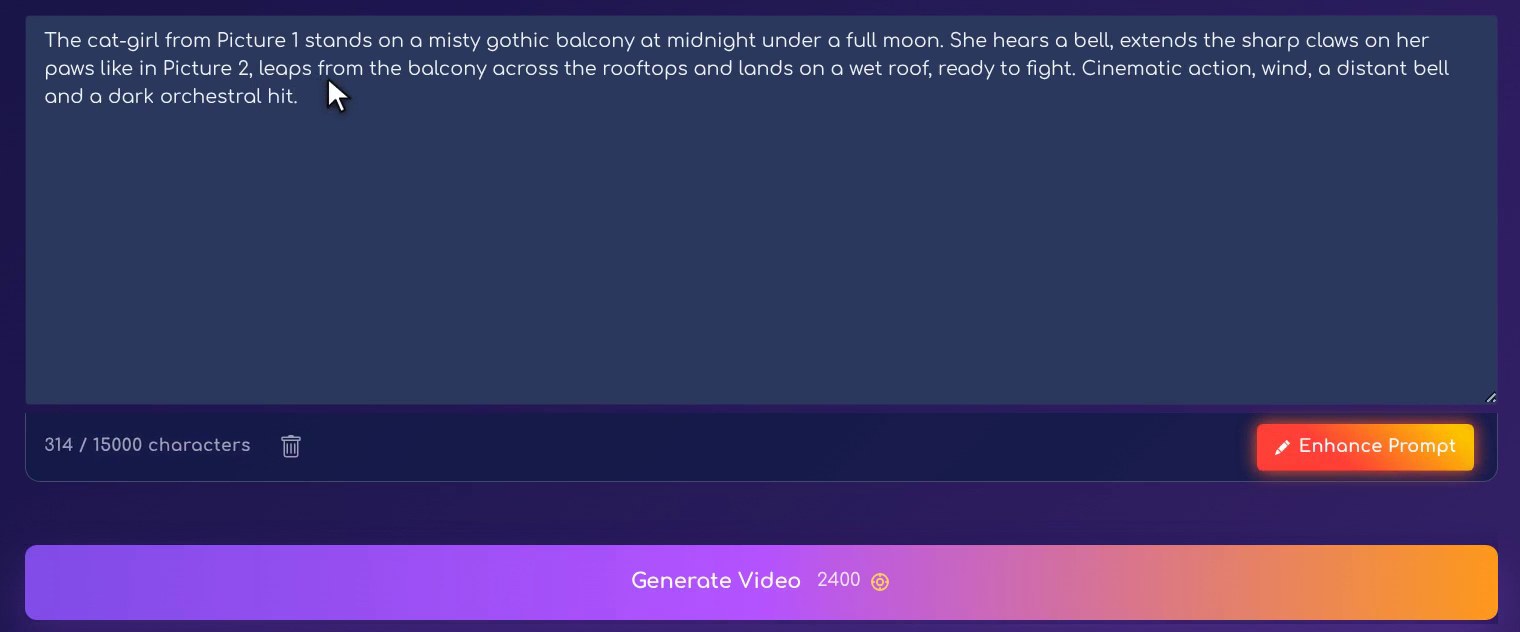
It already contains a beginning, a middle and an end (bell, claws, leap, landing) and a few sounds. That is all Enhance Prompt needs. Without Enhance Prompt, a paragraph like this usually gives a much weaker video, because the model has to guess the shots, the timing and the camera.
2. The six blocks
Write the blocks in English, in this order, each with an UPPERCASE header:
| Block | What goes in it |
|---|---|
SCENE CONTEXT | 2 to 4 sentences: place, time, what happens from start to end, genre and editing style, and "no other people" if that matters. |
ACTIVE REFERENCES | Only in Reference mode. One line per input: @Image 1, @Image 2, @Video 1, @Audio 1, what it controls and what it shows, plus a lock sentence. |
FORMAT MODE | Number of shots and the exact HARD CUT times, real time or slow motion, and what must stay identical. |
LIGHT LOGIC | The main light, where it comes from, lamps in the frame, and how it looks when the camera faces each way. |
SHOT 1 … SHOT N | Time range and a short title, a LENS LOCK line, the camera position and its one move, then the action. |
SOUND | Dialogue in quotes with the speaker, effects, ambience and music, with times; or "No dialogue". |
End with "No readable text or logos" unless you want text in the picture.
3. SCENE CONTEXT: the whole story in a few lines
This block tells the model what kind of film it is making before any detail. Say where and when, the full action from first to last moment, and the style of editing ("fast heroic editing", "calm documentary pace"). If nobody else should appear, say so here.
4. ACTIVE REFERENCES: name every input in upload order
The cards in the form are numbered in the order you add them, and the prompt must use the same numbers: @Image 1 is the first picture, @Image 2 the second. Videos and audio have their own counters: @Video 1, @Audio 1.
For each input write two things:
- What it controls: the character and outfit, the location, a pose for one shot, a motion to copy, a voice, the music.
- What it shows, in concrete words: hair, face, clothes, props, the shape of the place. A description backs up the picture, so the model knows what to keep when the angle changes.
Then add a lock sentence, for example: Her face and outfit 100% match @Image 1 in every shot. If the character still drifts, use clearer reference pictures and describe them in more detail.
Use only the inputs you really uploaded. A prompt that mentions @Image 3 when there are two pictures confuses the model.
5. FORMAT MODE: shots and hard cuts that fit the duration
A hard cut switches to a new view instantly. Write how many shots there are and exactly when each cut happens, for example 4 shots, HARD CUTs at 3.5s, 7.0s and 10.5s. Two rules:
- Every cut must be inside the duration you chose. A cut at 12 s in a 10-second clip cannot happen.
- Give each shot about 2 to 4 seconds. Shorter shots do not leave time for an action; much longer ones tend to stall.
| Duration | Shots that fit well | Example cuts |
|---|---|---|
| 5 s | 1 or 2 | one continuous shot, or a cut at 2.5s |
| 10 s | 3 | 3.5s, 7.0s |
| 15 s | 4 or 5 | 3.5s, 7.0s, 10.5s |
| 30 s | 8 to 10 | about every 3 s |
For a single take write one continuous shot, no cuts. Also say whether the action is real time or has a slow-motion moment, and what must stay identical across shots: the face, the outfit, a prop.
6. LIGHT LOGIC: one light that makes sense from every angle
When the camera turns, the light should still come from the same place. Name the main light and its direction, any lamps in the frame, and how the picture looks when the camera faces the light or turns away from it. This keeps the shots looking like one scene.
7. SHOT blocks: one or two actions, one camera move
Each shot starts with a header line, SHOT 2 — 3.5s to 7.0s — CLAWS, then a LENS LOCK line, then the camera and the action. The lens tells the model how wide the view is:
- 24 wide: a lot of space around the subject, good for big movement such as a leap.
- 35 standard: a natural medium view, good for a person in their surroundings.
- 85 telephoto: a tight close-up with a soft background, good for hands, faces and details.
Then place the camera (height, distance, side) and give it one movement: a slow push-in, a tracking move, an arc or a whip pan. Finally describe one or two actions. Too many things happening in one shot is the most common reason a MAGI-2 clip falls apart.
8. SOUND: write what you want to hear, with times
Sound is generated together with the picture. Put dialogue in quotes and say who speaks; MAGI-2 creates the voice and moves the lips. List the effects, the ambience and the music, and where a sound should hit, for example a heavy landing thud and a dark orchestral hit at 11.0s. If nobody should talk, write "No dialogue".
9. Start / end frame mode: describe what is already there
In this mode the picture is the first frame of the video, so the prompt should describe the scene already shown in the picture and only the movement you want. A prompt about a different place or person makes MAGI-2 change the picture a lot. With an end frame, describe what happens between the two pictures and say that the last shot ends exactly on the end frame. Frames that share the setting, light and character give smoother transitions. Do not use @Image labels in this mode and leave out the ACTIVE REFERENCES block.
10. Text-only mode
Without pictures there is no ACTIVE REFERENCES block. Describe each character fully in SCENE CONTEXT (age, hair, face, clothes, props) and repeat the key features in the shots, so the same person appears after every cut.
11. Common mistakes
- Cut times outside the duration, or so many shots that each one lasts a second.
- Several actions and camera moves in one shot: "she runs, jumps, turns, draws the sword while the camera circles and zooms".
- References in the wrong order: the prompt calls the location
@Image 1but you uploaded the character first. - A frame-mode prompt about another scene: the start picture changes beyond recognition.
- Mentioning references you did not upload, or describing them differently from what they show.
- No SOUND block: the model then guesses, and may add music or voices you did not want.
- A very long prompt: the field accepts 15,000 characters, but around 3,000 is plenty. Ours was 2,627.
The example from the video, block by block
This is the prompt Enhance Prompt wrote from the plain idea above. It was used without changes:
SCENE CONTEXT
A misty gothic city at midnight under a full moon. A cat-girl assassin stands on a stone balcony, hears a distant bell, extends her claws, leaps across the rooftops and lands in a fighting crouch on a wet slate roof. Dark cinematic fantasy action, fast heroic editing, no other people.

ACTIVE REFERENCES
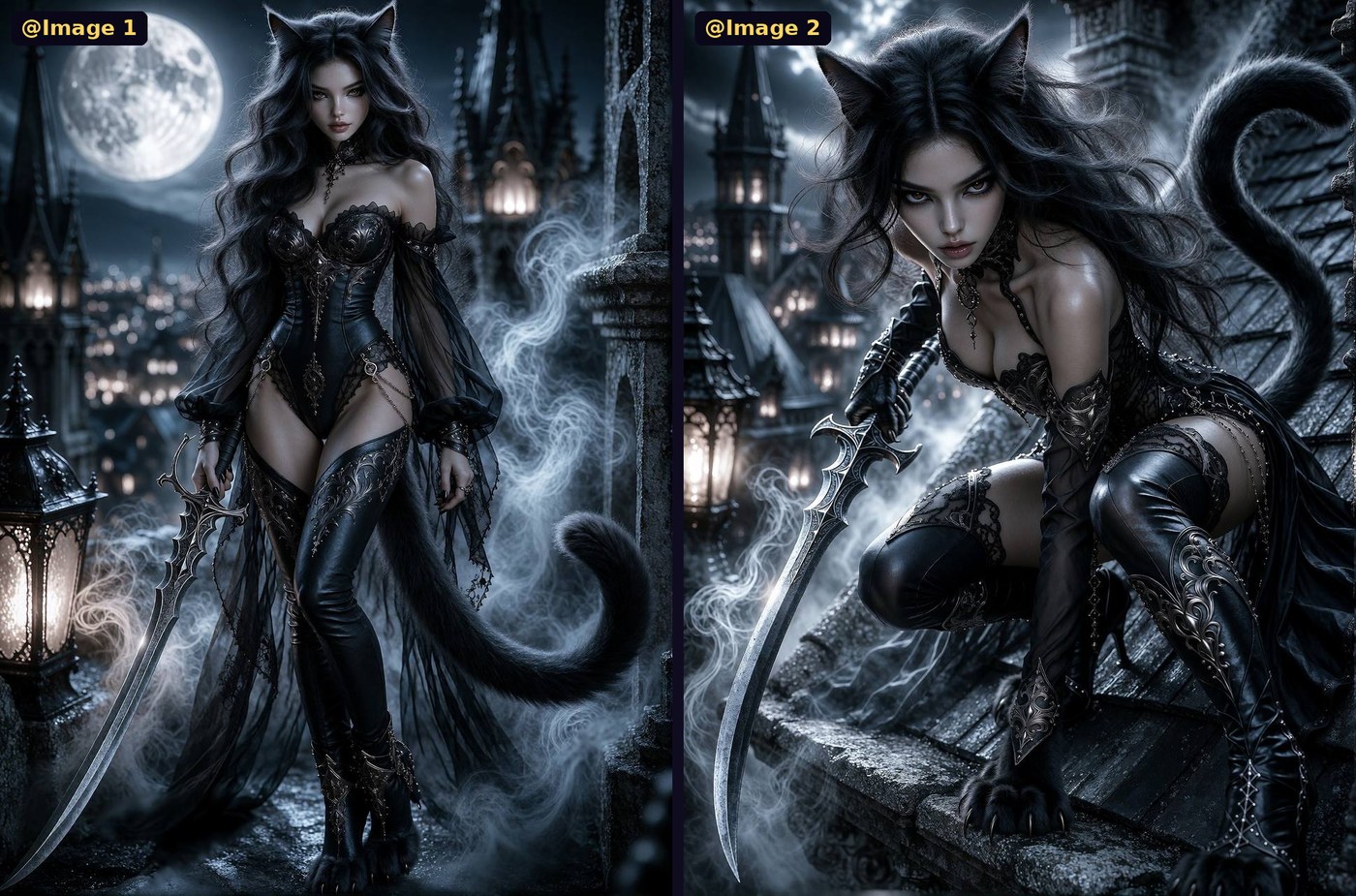
@Image 1 — character identity and wardrobe: the cat-girl with long wavy black hair, black cat ears and tail, black lace corset with sheer sleeves, ornate thigh-high leather boots, holding an ornate curved sword, standing on a gothic balcony with lantern and full moon. Her face and outfit 100% match @Image 1 in every shot.
@Image 2 — pose and location for the final beat: the same cat-girl crouched low on a wet slate rooftop, claws extended from her paw-like hands, sword in one hand, aggressive stare, misty rooftops behind. Her crouched pose, extended claws and expression match @Image 2 in the final shot.

FORMAT MODE
4 shots, HARD CUTs at 3.5s, 7.0s and 10.5s. Real time with a brief slow-motion moment during the leap. Keep her face, hair, outfit and sword identical across all shots.

LIGHT LOGIC
Cold blue moonlight as key light from above and behind, rim-lighting her hair and ears. Warm flickering lantern practicals lower left and in the distant city windows; when the camera faces the city the background glows warm against the cool mist.

SHOT 1 — 0.0s to 3.5s — THE BELL
LENS LOCK = 35 standard
Camera at chest height, medium shot from the front, slow push-in. She stands still on the misty balcony, hair and sheer sleeves moving in the wind; a distant bell tolls and her ears twitch, her head turning toward the sound.

SHOT 2 — 3.5s to 7.0s — CLAWS
LENS LOCK = 85 telephoto
Camera close at hand height, slight arc left. Her fingers flex and sharp claws extend from her paws with a glint of moonlight; mist swirls around her.

SHOT 3 — 7.0s to 10.5s — THE LEAP
LENS LOCK = 24 wide
Camera low at rooftop level, tracking sideways then whip-panning to follow her. In slow motion she leaps off the balcony railing and soars across the moonlit rooftops, cape and hair streaming.

SHOT 4 — 10.5s to 15.0s — LANDING
LENS LOCK = 35 standard
Camera low and close from the front, slow push-in. She lands hard on the wet slate roof, tiles glistening, then settles into the exact crouched fighting pose from @Image 2, claws out, staring into the camera as mist drifts past.

SOUND
No dialogue. A deep distant bell toll at 1.0s; a metallic claw-shing in shot 2; wind rush during the leap; a heavy landing thud and a dark orchestral hit at 11.0s; low ominous strings throughout.

No readable text or logos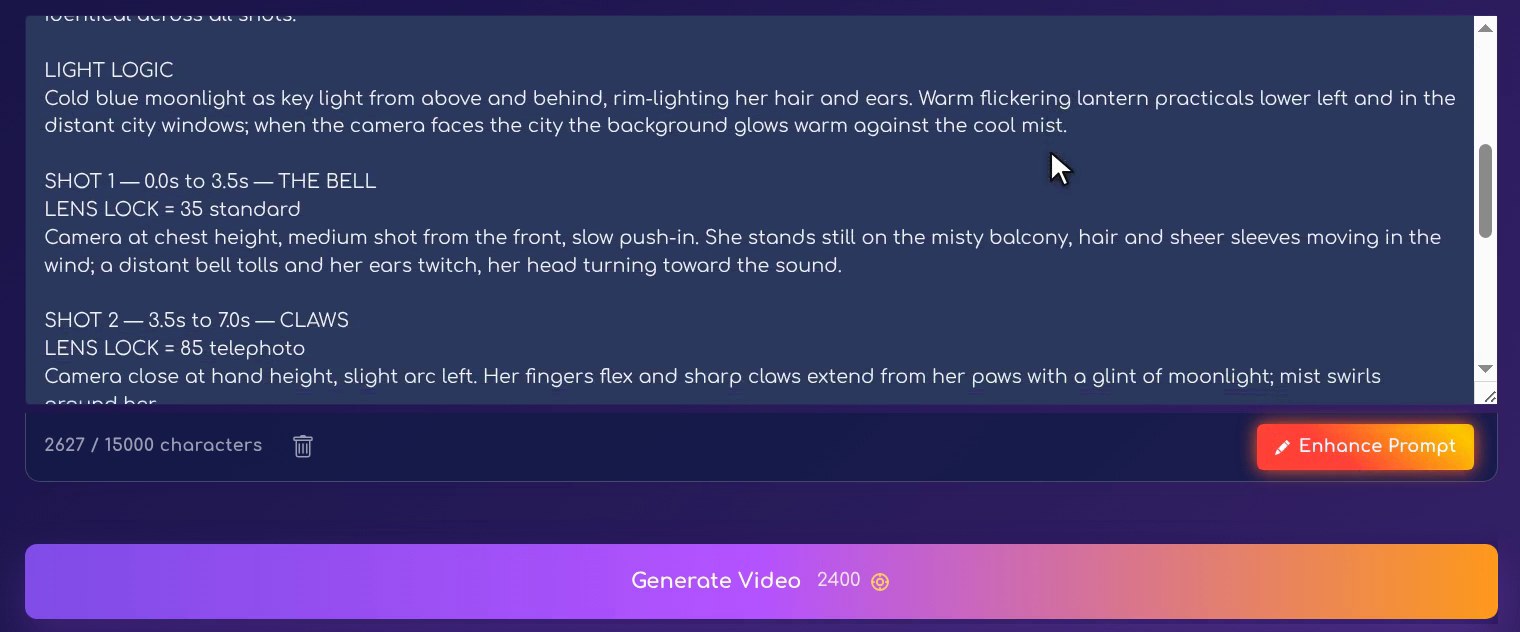
What each part does:
- SCENE CONTEXT retells the plain idea as one arc (bell, claws, leap, landing), sets the genre and the editing pace, and rules out extra people.
- ACTIVE REFERENCES gives each picture a job.
@Image 1controls identity and wardrobe in every shot;@Image 2controls only the final pose. Note how much it describes: hair, ears, tail, corset, boots, sword. The plain idea said none of that; Enhance Prompt took it from the pictures. - FORMAT MODE splits 15 seconds into four shots of 3.5 to 4.5 seconds, adds one slow-motion moment and repeats what must not change.
- LIGHT LOGIC sets cold moonlight from behind and warm lanterns, so the balcony, the leap and the roof look like the same night.
- SHOT 1 to 4 each have one lens, one camera move and one or two actions: a close 85 mm shot for the claws, a 24 mm wide shot with a tracking move for the leap, 35 mm for the person in her surroundings.
- SOUND says there is no dialogue and places the bell, the claw sound, the wind and the landing hit on the timeline.
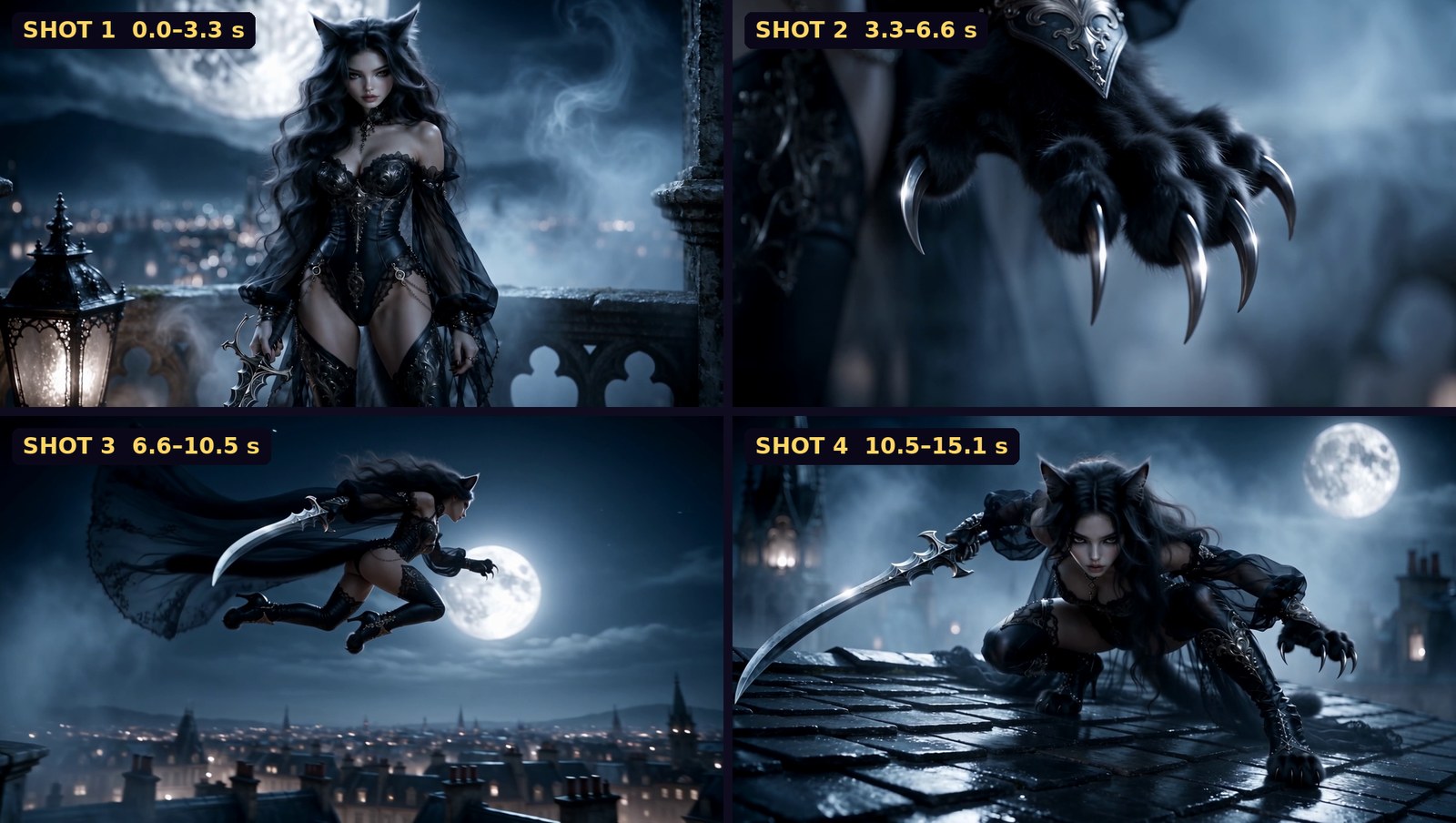
And this is what came out. The four shots appear in the planned order, the cuts land within about 0.4 seconds of the requested times, and the last shot ends in the crouched pose from @Image 2.
A template to copy
Replace the words in square brackets and delete the lines you do not need. For start/end frame or text-only mode, remove the ACTIVE REFERENCES block.
SCENE CONTEXT
[Place and time]. [Who] [does what, from the first moment to the last]. [Genre], [editing style]. No other people.

ACTIVE REFERENCES
@Image 1 — character identity and wardrobe: [hair, face, clothes, props as seen in the picture]. Her face and outfit 100% match @Image 1 in every shot.
@Image 2 — location: [the main shapes, materials and landmarks of the place]. @Image 2 controls the geography.

FORMAT MODE
[N] shots, HARD CUTs at [3.0s, 6.0s, 9.0s]. Real time[, with a brief slow-motion moment during ...]. Keep [face, hair, outfit, props] identical across all shots.

LIGHT LOGIC
[Main light and its direction]. [Lamps or windows in the frame]. When the camera faces [direction], [how the light looks].

SHOT 1 — 0.0s to [3.0s] — [TITLE]
LENS LOCK = [35 standard]
Camera [height, distance, side], [one move: slow push-in]. [One or two actions].

SHOT 2 — [3.0s] to [6.0s] — [TITLE]
LENS LOCK = [85 telephoto]
Camera [position], [one move]. [One or two actions].

SHOT 3 — [6.0s] to [10.0s] — [TITLE]
LENS LOCK = [24 wide]
Camera [position], [one move]. [One or two actions].

SOUND
[No dialogue. / She says: "..."] [Effect] at [time]; [ambience]; [music cue and where it hits].

No readable text or logos
Check before you generate: the last shot ends at the selected duration, every @ label matches a card in the form, and no shot has more than one camera move.
Enhance Prompt: what it does and when to edit it
Press Enhance Prompt after you have added the pictures and chosen the duration, aspect ratio and mode. It reads your idea, your pictures and these settings and writes the blocks above: @Image labels only in Reference mode, cut times that fit the chosen length, and a SOUND block that respects the Sound switch. In the video the 314-character idea became 2,627 characters.
It can write a different text each time, so always read it. Edit it, or press it again, when:
- a description does not match your pictures, or it invented a detail you do not want;
- the references are in the wrong order or one is missing;
- a shot has too many actions, or the cuts do not suit your story;
- the SOUND block has dialogue or music you did not ask for;
- you changed the duration or mode afterwards: enhance again, so the cut times fit.
To repeat the exact prompt from the video, copy it from the block above instead.
Generate and check the result
Click Generate Video. MAGI-2 needs time: the model card says 2 to 20 minutes, and our 15-second video took about 19. The result appears under the button; play it with sound, then use Download movie.
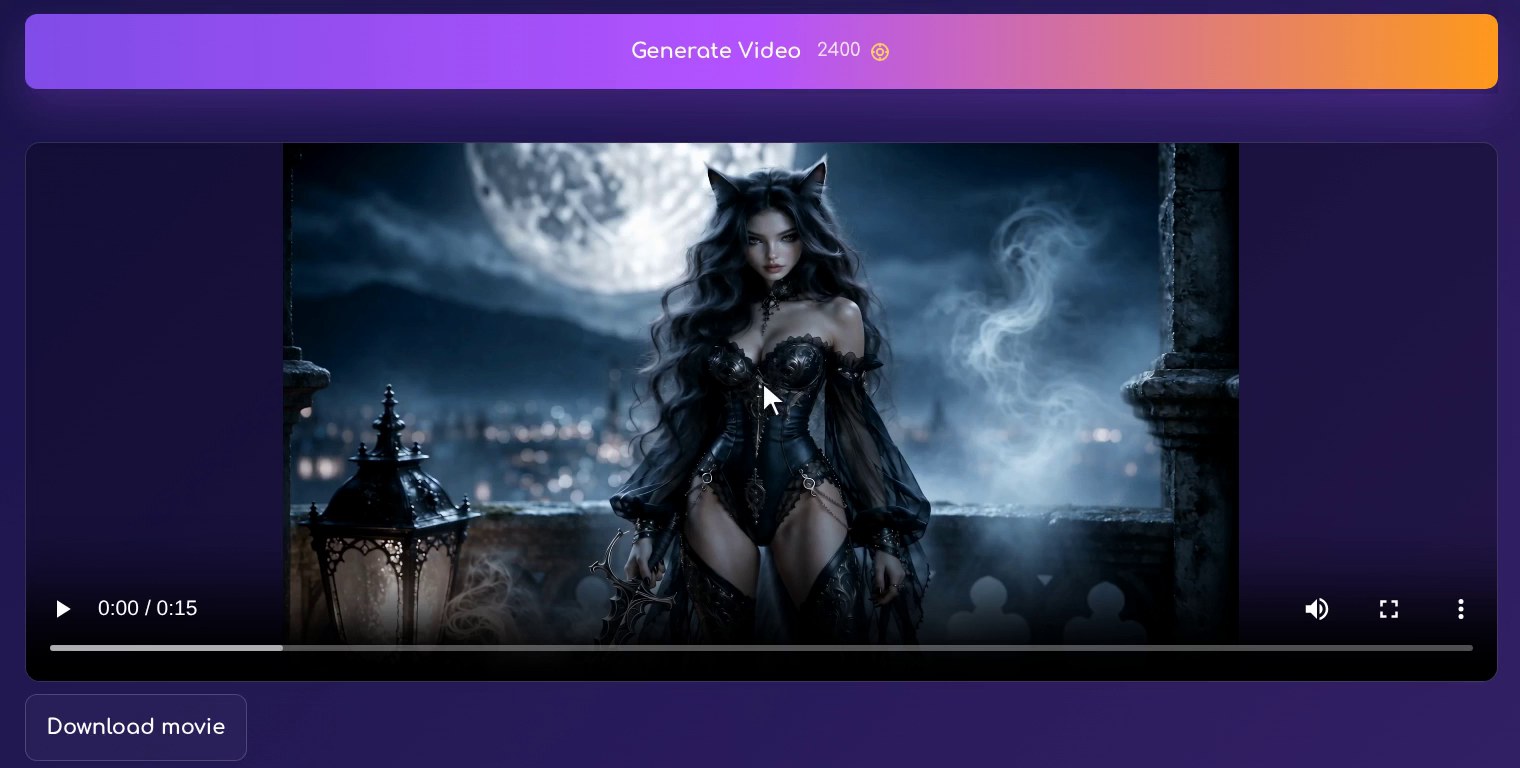
Look at three things: does the face stay the same after every cut, does each shot do what its block says, and does the sound match the action. In our run the four shots and the final pose came out as planned.
Tips:
- Duration and cuts go together. A 5-second clip is one or two shots; for a small scene with four or five shots take 15 seconds; 30 seconds fits about ten.
- Every second costs 160 credits. Try a new character or look with a short, simple clip first, then make the long multi-shot version.
- One generation can be a whole scene. Planned cuts in one clip keep the light and the character more consistent than separate clips joined later.
Step by step
-
Open Video PRO
Open Proxima Studio and choose Video Pro in the left menu.
-
Choose MAGI-2
Open Choose Model and pick MAGI-2. Sound is switched on.
-
Pick the mode
No pictures for text only. One or two pictures with Reference mode off for a start and end frame. Reference mode on for pictures of a character or place.
-
Add references in order
Click + or Gallery for pictures, Add Video or Add Audio for clips. The first one is Image 1, the next Image 2, and so on.
-
Set duration and shape
Choose 4 to 30 seconds and one of five aspect ratios. The price on the Generate button updates.
-
Write the idea in plain words
Who, where, what happens from start to end, the mood and the sounds. Name the pictures: Picture 1, Picture 2.
-
Press Enhance Prompt
It writes the shot script for the chosen mode and duration. Read every block and fix what does not match.
-
Generate and check
Click Generate Video. MAGI-2 often takes 10 to 20 minutes. Watch the result with sound and check the face, the cuts and the last shot.
FAQ
How much does MAGI-2 cost on Proxima?
160 credits per second: 640 for 4 s, 800 for 5 s, 1280 for 8 s, 1600 for 10 s, 2400 for 15 s, 3200 for 20 s and 4800 for 30 s. Sound is included. The price is always on the Generate button.
How long can a MAGI-2 video be?
From 4 to 30 seconds in one generation, always Full HD (1080p), in 16:9, 9:16, 1:1, 4:3 or 3:4.
How long does it take?
The model card says 2 to 20 minutes. The 15-second video in this lesson took about 19 minutes; the wait is cut out of the video.
Do I need Enhance Prompt?
It is strongly recommended. MAGI-2 follows a structured shot script much better than a short paragraph, and Enhance Prompt writes that script for your mode, duration and pictures. You can also write it yourself with the template on this page.
Why did my pictures become the first and last frame?
With Reference mode off, one picture is the start frame and two pictures are the start and end frames. Switch Reference mode on when the pictures show a character or a place. Three or more pictures, or any video or audio, always use Reference mode.
How many references can I add?
Up to 10 pictures, 5 videos and 5 audio files. Videos can be MP4 or MOV up to 200 MB, audio WAV or MP3 up to 15 MB; each clip 2 to 30 seconds, at most 30 seconds in total per type.
Can the characters speak?
Yes. Put the line in quotes in the SOUND block and say who speaks. MAGI-2 creates the voice with lip-sync. Write "No dialogue" if nobody should talk.
Will the cuts land exactly on my timestamps?
Close, not exact. In the lesson we asked for 3.5, 7.0 and 10.5 s and got 3.28, 6.64 and 10.48 s. If a cut must hit a beat, trim the clip in an editor.
Is the character in the video real?
No. The cat-girl was generated on Proxima. Use pictures of real people only with their consent.
Full transcript
Read the full transcript (≈ 300 words)
00:06 MAGI-2 in the Video Pro Generator ▶ play from here
Welcome to Proxima! Today I'll show you MAGI-2, a brand new video model, in the Video Pro Generator.
00:13 References: pictures, video and audio ▶ play from here
At the top, you add references. Click the plus to upload, or pick pictures from your Gallery. The buttons below let you add more: a video, or a sound track as a reference.
00:25 Choose the model ▶ play from here
Next, the model. Minimax H3 is the default. It's good enough for most videos. It's provided by our partners, and it usually costs much less than on other platforms.
Singularity 2 plus Pika is also based on Minimax, and gives you more motion. Seedance 2 is a well-known commercial model with great quality. And this is MAGI-2, the newest model on Proxima. Let's try it.
00:49 Sound, duration, aspect ratio and Reference mode ▶ play from here
Sound is on by default. MAGI-2 creates dialogue, effects and music together with the video. I'll make it fifteen seconds, keep sixteen by nine, and turn on Reference mode, because my pictures are references, not first and last frames.
01:04 Write the idea in plain words ▶ play from here
Now the prompt. I'll just describe the idea in plain words.
01:12 Add the two cat-girl pictures ▶ play from here
Then I add the two pictures of our cat-girl. Picture 1 is her look, and Picture 2 shows her clawed paws.
01:19 Enhance Prompt writes the shot script ▶ play from here
Now press Enhance Prompt. It turns my idea into a full script: the scene, the references, timed shots with camera lenses, the light and the sound.
01:31 Generate: 15 seconds for 2400 credits ▶ play from here
Now click Generate Video. Fifteen seconds cost two thousand four hundred credits. MAGI-2 takes a while, often ten to fifteen minutes, so let's skip ahead.
01:42 The result, full screen ▶ play from here
And here's the result. Let's watch it full screen.
Not bad at all! Real motion, a cinematic camera, and sound that fits the action. It's Full HD, ready to use.
02:09 Watch it again ▶ play from here
Wait... seriously?! This is Seedance-level quality, and at the same settings it costs four to five times less! Oh, and you can generate up to thirty seconds in one go!
02:22 See you in the next tutorial ▶ play from here
Thanks for watching, and see you in the next tutorial on Proxima!
Related tutorials
More tutorials on YouTube
Watch our lessons one after another and get the new ones first.