How to Make a Continuous AI Film: Confirm Scenes, Chain Videos and Fix Continuity
Build a continuous AI film in order: generate a scene, review it, confirm the preferred version, then create the next scene from its ending. Use Chain so far to inspect the joined sequence and make continuity requirements explicit when regenerating a weak shot.

The video starts at 16:07, where this lesson begins. Watch the full 27:09 tutorial.
Continuity means the viewer believes one moment follows the next. Faces, outfits, props, direction of movement and lighting should remain coherent unless the story deliberately changes them. Generating clips in order and checking their joins gives you more control than treating every clip as a separate film.
How does a new scene continue from the previous one?
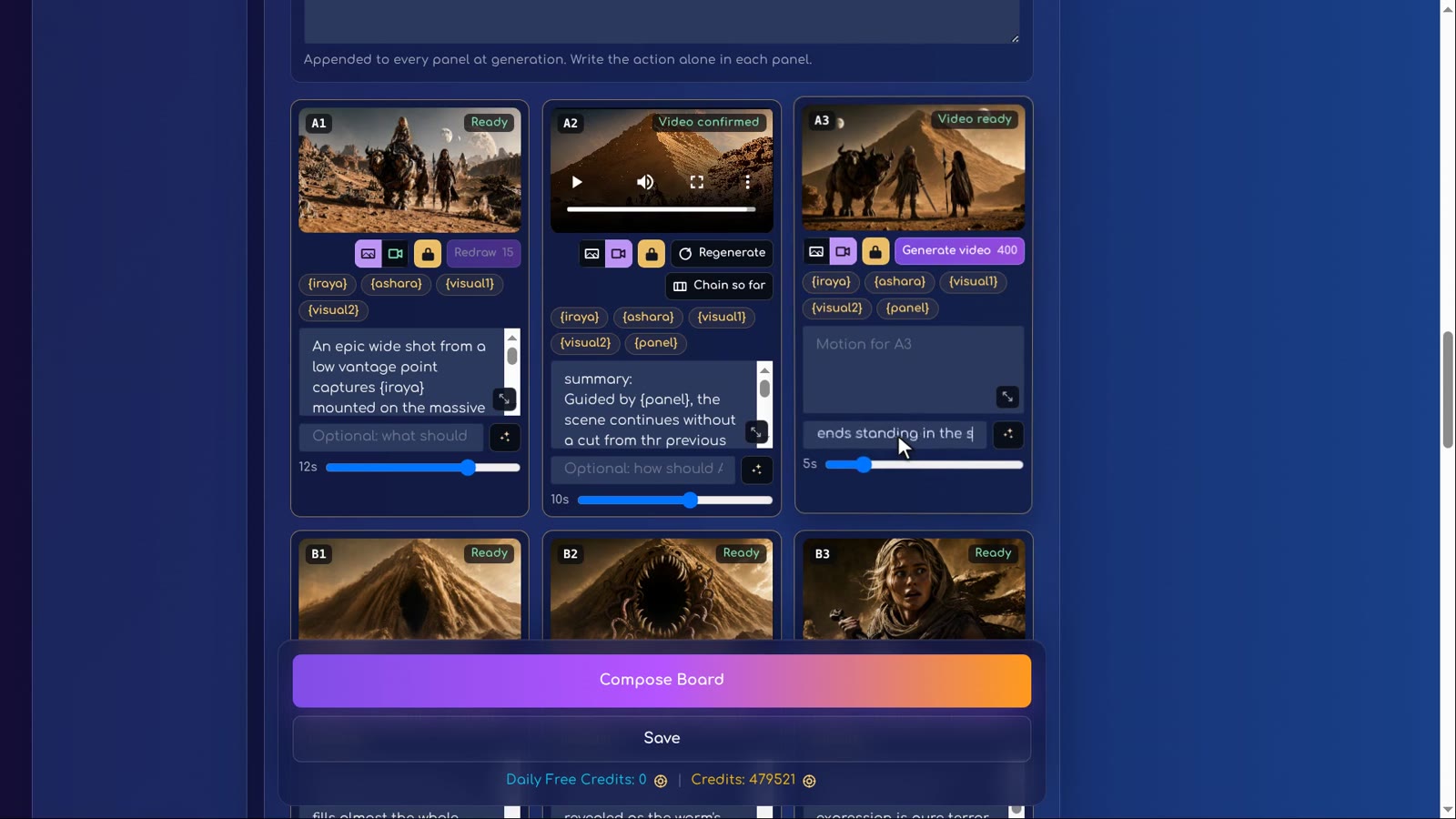
The tutorial explains that the approved scene’s last moments become the next scene’s starting point. Confirm the previous video with the tick before proceeding. When writing the next prompt, describe the continuation rather than resetting everyone to a different position without explanation.
Think of the panel image as a destination or visual plan, and the motion instruction as the route into that moment. For A3, Iraya gets off the beast and draws her sword, ending in the pose shown in the panel.
What should I check at each join?
| Check | Question to ask |
|---|---|
| Characters | Are the same people present in believable positions? |
| Props | Does each person still hold the right weapon or object? |
| Action | Does the new movement continue from the prior ending? |
| Environment | Do lighting, location and scale still make sense? |
| Camera | Is the change in viewpoint intentional and understandable? |
Use Chain so far after a few scenes and after an important correction. A clip may look beautiful alone but feel abrupt when joined to the preceding scene.
Step by step
-
Confirm the previous scene
Choose the version whose ending you want the next scene to continue from.
-
Describe the continuation
Say how the action starts from the prior ending and what stays the same.
-
Craft and generate
Review the prompt and duration before generating the next scene.
-
Watch the join
Use Chain so far to inspect the film up to this point.
-
Fix discontinuities
Specify missing objects, positions or camera behaviour and regenerate the affected scene.
-
Confirm the corrected version
Continue only once the scene and its join work together.
How we used this in Sleeping Sands of Kharuun
A2 continues the journey toward the sand mountain. The narrator sets it to 10 seconds and keeps the generated version. A3 then uses an 8-second interval to show Iraya dismounting and drawing her sword. The narrator notes that joining frames use some of this interval, so the finished sequence is slightly shorter. At 18:10 the first three scenes are reviewed with Chain so far.
B1 pulls the camera back to show the heroes tiny before the living mountain. Sand falls and a dark opening starts to form, but the full monster reveal is reserved for B2. The first result looks spectacular yet loses the weapons.
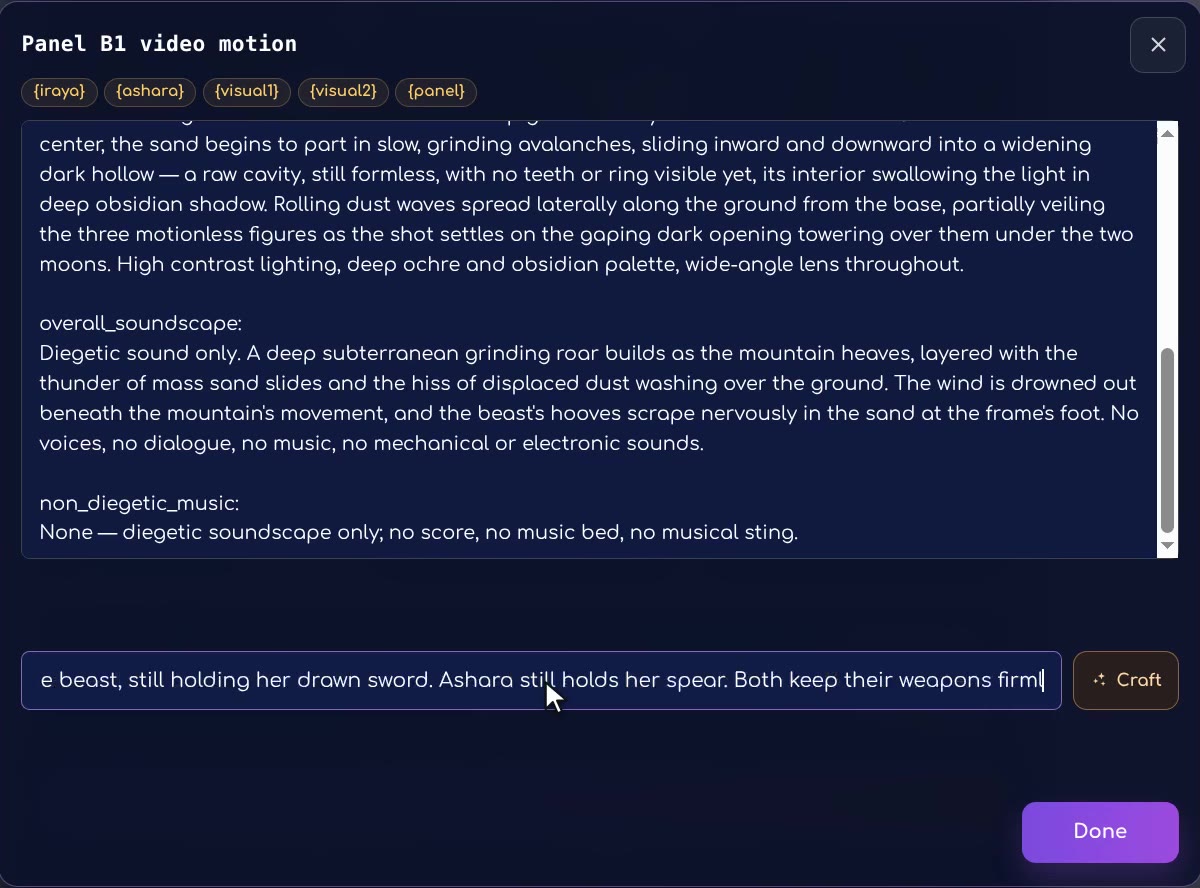
The correction at 20:03 explicitly continues from A3: Iraya still holds her drawn sword, Ashara keeps her spear, and they take cautious steps back without turning away from the mountain. Craft applies the change, the duration stays at 10 seconds and Regenerate creates another version. The narrator checks the smoother transition and preserved weapons, then confirms B1.
How should I fix a continuity error?
Describe the specific state to preserve, not only the failure. “Do not lose the weapons” is less informative than “Iraya keeps her drawn sword; Ashara keeps her spear while both step back facing the mountain.” Keep the rest of the action stable so you can judge whether the correction worked.
- Repair an unsuitable scene before building more scenes from it.
- Review both the new clip and its transition.
- Do not expect identical pixels across shots; judge recognisable identity and believable action.
- If a later scene already exists, review the downstream continuity again after changing an earlier scene.
The final lesson covers the sandworm transformation, a corrected close-up and downloading the finished film.
FAQ
What does Chain so far do?
It lets you watch the generated scenes up to the current point joined as one film. Use it to assess transitions, pacing and continuity rather than only watching clips separately.
Why is my joined film shorter than the scene durations?
The tutorial notes that some time is used for joining frames, so the resulting video can be slightly shorter than the selected intervals.
How do I keep weapons or props from disappearing?
State the current object and its owner explicitly in the continuation prompt. Review the generated result; references and explicit instructions improve guidance but do not guarantee every detail.
Try it yourself: Storyboard
Plan your film panel by panel with AI-written prompts.All lessons in this tutorial
- 01:14 Lesson 1 · Generate your heroes, beast and world
- 02:32 Lesson 2 · Make consistent characters with Character Asset Pack
- 05:10 Lesson 3 · Set up the storyboard and let AI write the panels
- 07:30 Lesson 4 · Edit panels with tags, Craft and versions
- 10:17 Lesson 5 · Write your own prompts and compose the board
- 13:17 Lesson 6 · Turn the storyboard into your first video scene
- 16:07 Lesson 7 · Chain scenes into one continuous film
- 21:01 Lesson 8 · Reveal the sandworm, refine details and download