How to Make an AI Storyboard: Panels, Characters, Visual References and Enhance Storyboard
Step-by-step: create an AI storyboard in Proxima Art. Choose Panels or Single sheet and the number of panels, add your characters and visual references, pick the panel image model, then let Enhance Storyboard turn a short story into prompts for every panel.

The video starts at 05:10, where this lesson begins. Watch the full 27:09 tutorial.
In this part of the video
A storyboard is a visual plan of your film: one picture per shot, in order. Directors use it to decide the camera angles and the action before filming. In Proxima Art the storyboard is also the engine of your film — every panel later becomes a video scene. In this lesson you will set up the storyboard for Sleeping Sands of Kharuun: choose the method and the number of panels, add the characters and visuals, pick the image model and let the AI write all the panel prompts.
Before you start: you need at least one character created in Character Asset Pack (lesson 2). Panels require one Character with a Screen Set.
Step 1: name the project and choose the method
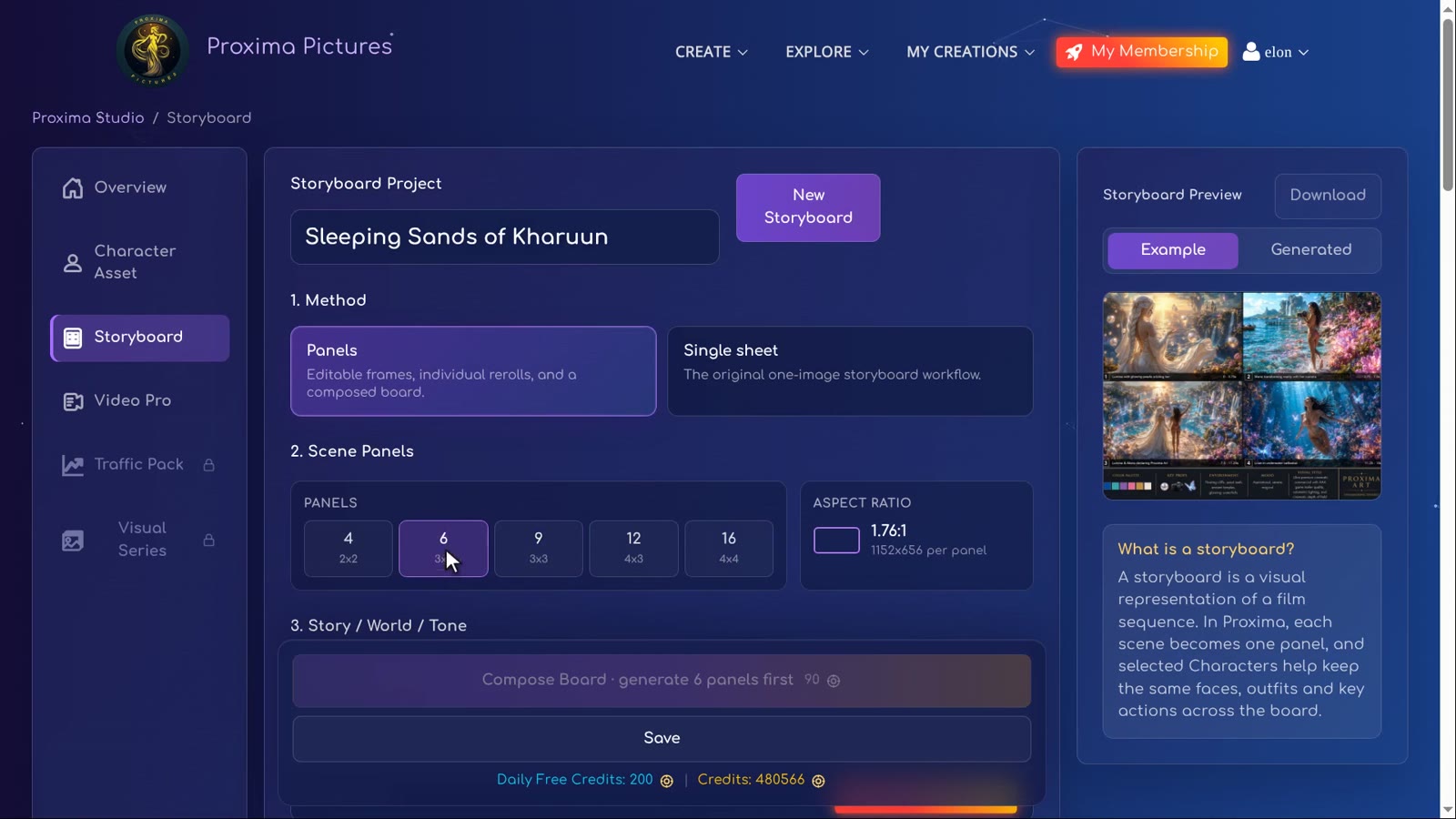
Open Proxima Studio and click Create Storyboard. Type a name in Storyboard Project. Under 1. Method you have two options:
- Panels — editable frames, individual rerolls and a composed board. Every panel has its own prompt, image, lock, versions and length.
- Single sheet — the original one-image storyboard workflow: the whole board is drawn in one go.
We recommend Panels. You get far more control, you can fix one shot without touching the others, and each panel can be turned into its own video scene — so your film can be much longer.
Step 2: how many panels?
2. Scene Panels offers boards of 4 (2×2), 6 (3×2), 9 (3×3), 12 (4×3) or 16 (4×4) panels. Panels are wide frames (1.76:1, 1152×656 pixels each), similar to a cinema screen. A short story needs about six; for longer videos choose 9 or even 16. Panels are named by row and position: A1, A2, A3, then B1, B2, B3 and so on.
Free accounts can compose boards of up to 6 panels. A subscription opens the 9, 12 and 16-panel boards.
Step 3: characters and visual references
Characters
Under 4. Characters, click Choose Character(s) and pick the heroes you created earlier — here Iraya and Ashara. Each character card shows its tag: {iraya}, {ashara}. A tag carries the character's description and reference images into every panel where it appears.
Visual references
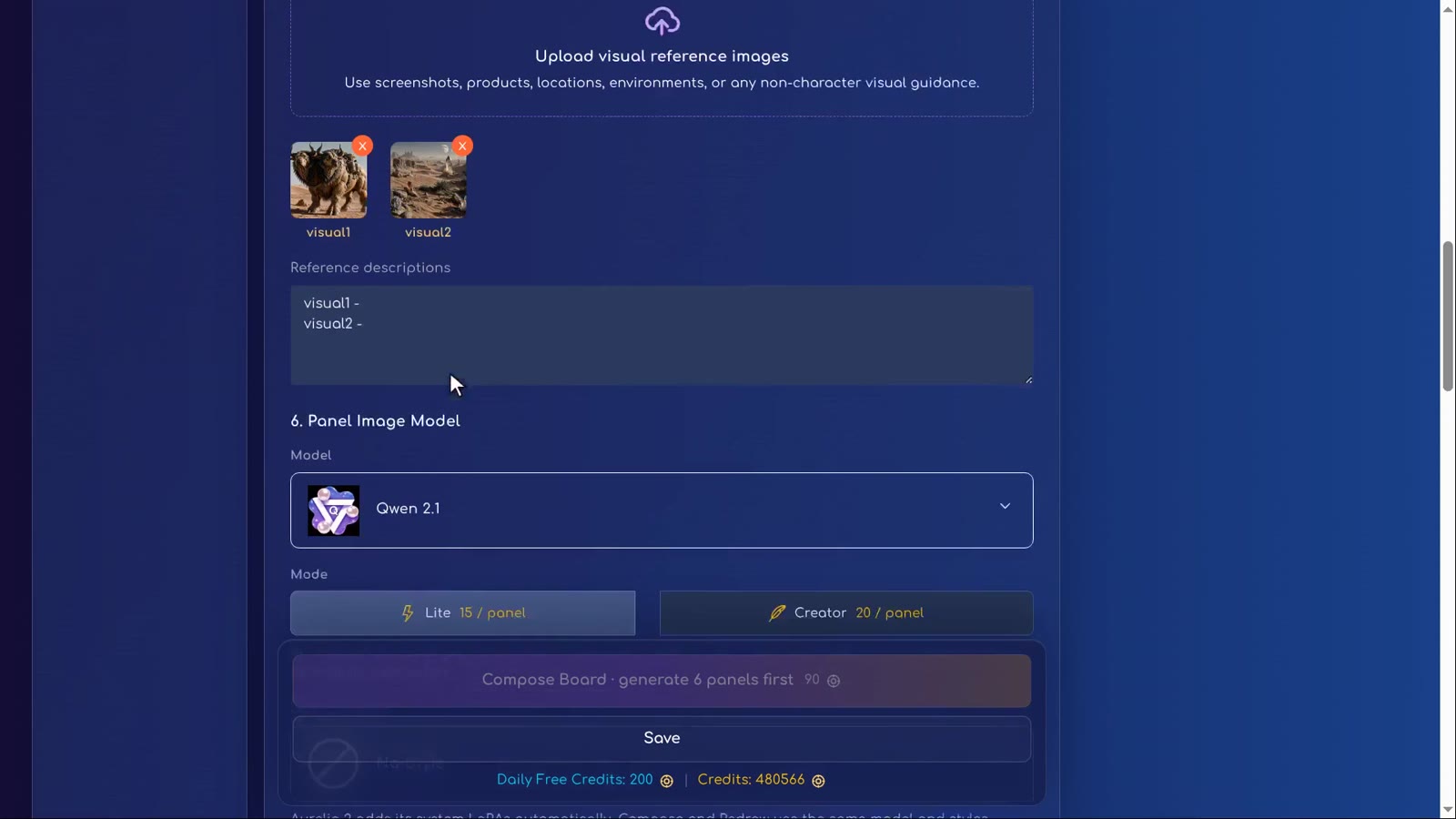
5. Visual References are everything that is not a character: creatures, worlds, places, buildings, products. Upload images or reuse your own. Each image gets a tag — {visual1}, {visual2} — and a line in Reference descriptions. Give each one a short description, for example:
visual1 - a two-headed desert beastvisual2 - a distant desert planet
The description is inserted automatically wherever you use the tag, so the AI always knows what {visual1} is.
Step 4: the panel image model
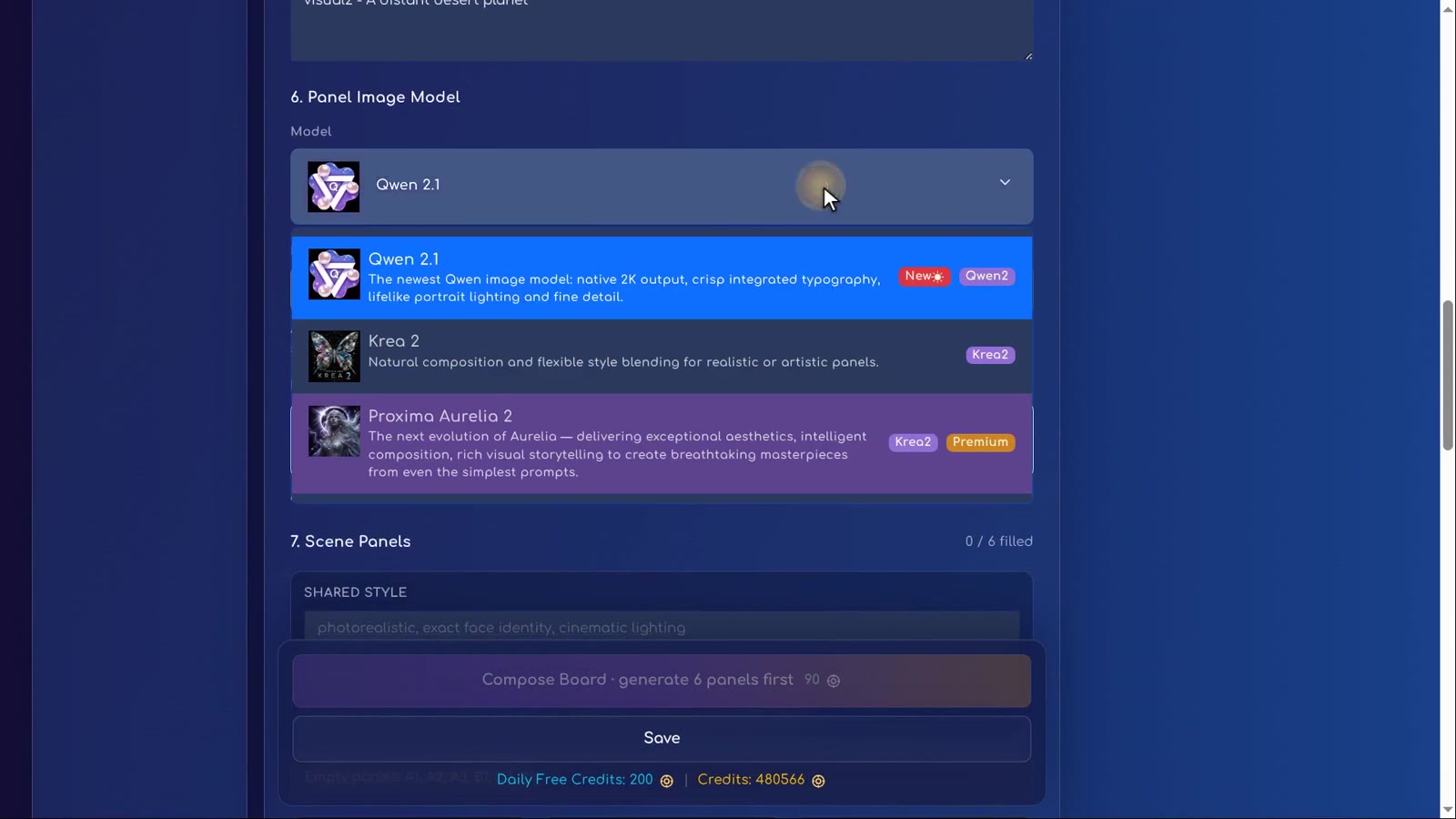
6. Panel Image Model decides who draws the panels. Three models are available:
- Qwen 2.1 — the newest Qwen model, detailed and good with light and faces. It has two modes: Lite at 15 credits per panel and Creator at 20 credits per panel, with full creative control and LoRA support. Both look great; Lite is an alternative way of generating at a lower cost and is sometimes even better.
- Krea 2 — natural composition and flexible style blending for realistic or artistic panels.
- Proxima Aurelia 2 (Premium) — rich aesthetics; it adds its own system LoRAs automatically.
Under LoRA / styles you can add a style LoRA. Use the same look as your characters — in the video, one LoRA is enough: GPT style. Compose and Redraw always use the same model and styles you set here.
Step 5: the story and Enhance Storyboard
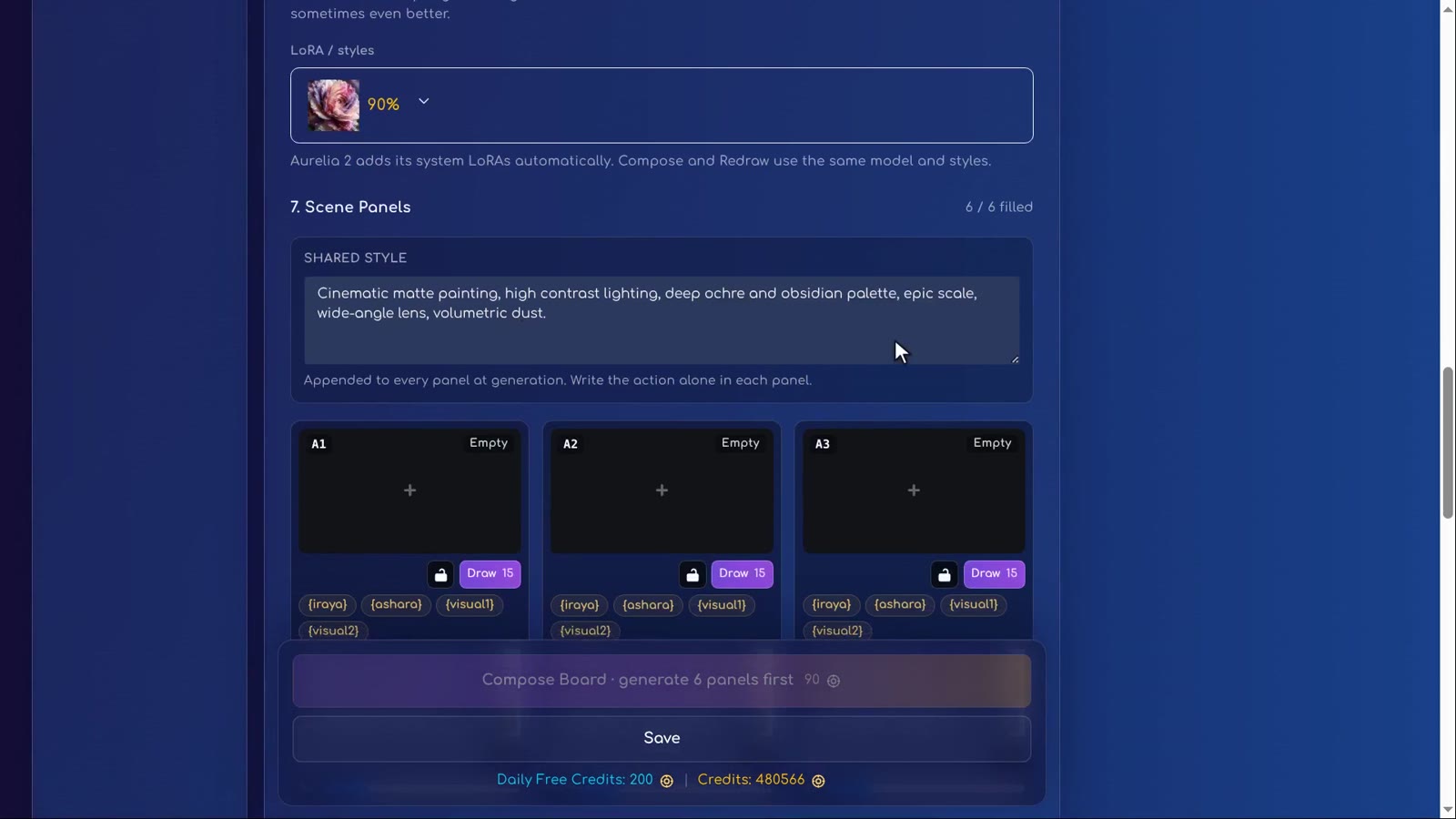
Below the model you see 7. Scene Panels with a Shared Style field and the empty panels. The shared style is appended to every panel when it is generated, so each panel only needs its action. You can leave both empty: the built-in AI enhancer will fill them in.
Scroll up to 3. Story / World / Tone and describe what happens, in a few words and in any language. The video uses this story:
“Iraya rides visual1 slowly across the dunes of visual2, while Ashara walks beside the beast, leading it by the reins. They stop before a huge sand mountain ringed with crystals. The outlines of distant moons hang in the sky…”
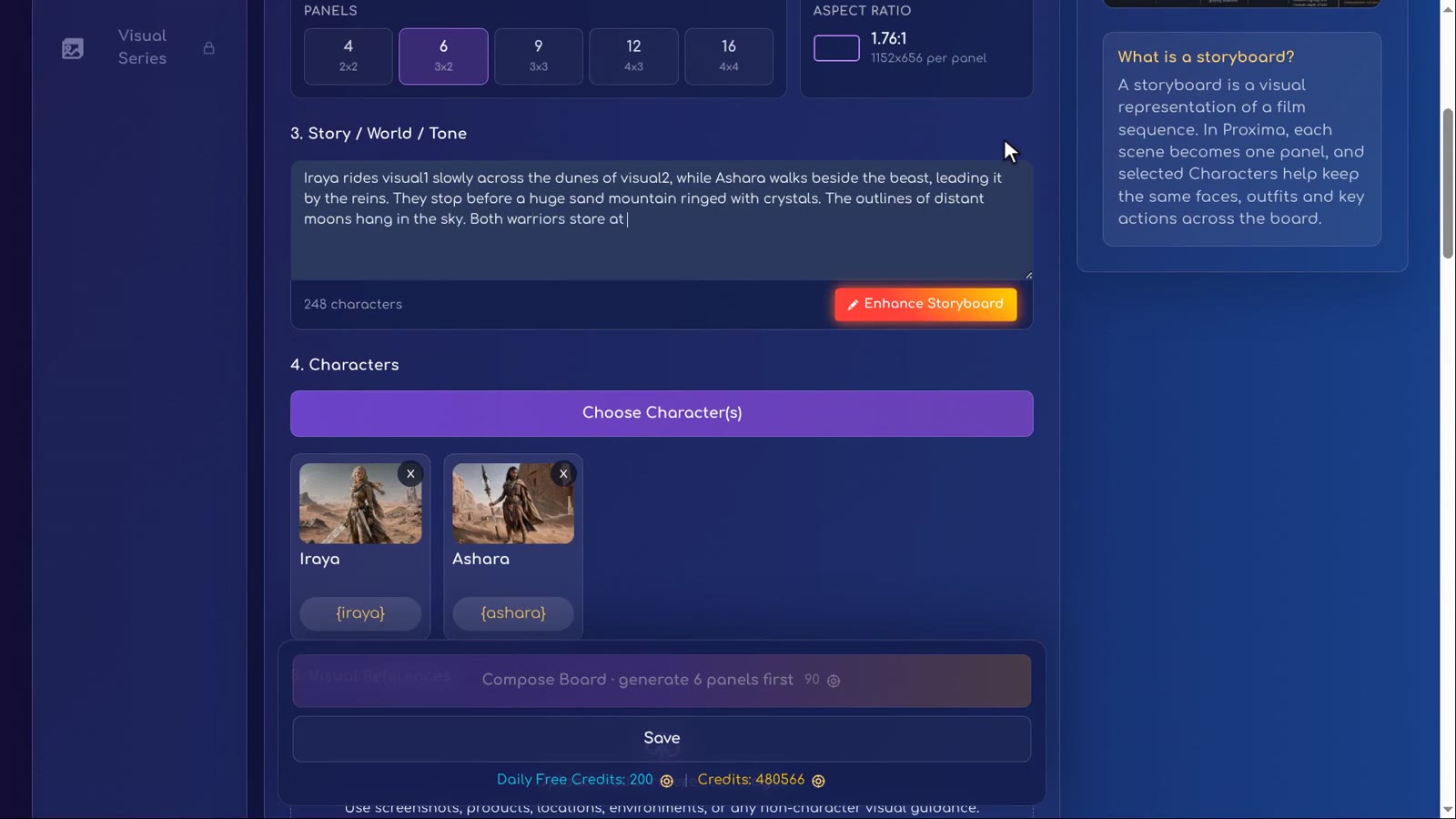
Now click Enhance Storyboard. It polishes your story, translates it into English and splits it across the panels. When it is done, the shared style is filled in and every panel has its own prompt with the right tags.
Clean up the shared style
The enhancer sometimes adds too many style words. Words such as painterly, illustration or consistent character designs can distort the images, especially for a cinematic look. Delete them from the shared style and keep the ones that describe light, colour and camera — for example “cinematic, high contrast lighting, deep ochre and obsidian palette, epic scale, wide-angle lens, volumetric dust”. Then click Save.
Step by step
-
Open Storyboard
In Proxima Studio click Create Storyboard and give your project a name.
-
Choose the Panels method
Panels gives you a separate prompt, image, length and video for every frame. Single sheet draws the whole storyboard as one image.
-
Choose the number of panels
6 panels suit a short story; take 9, 12 or 16 for a longer film. Free accounts can compose up to 6 panels.
-
Add your characters
Click Choose Character(s) and select the heroes you created in Character Asset Pack. Each one gets a tag such as {iraya}.
-
Add visual references
Upload or pick images of creatures, places or objects. They get tags {visual1}, {visual2}… Give each one a short description.
-
Pick the panel image model
Keep Qwen 2.1 in Lite mode (15 credits per panel) or switch to Creator (20). Add a style LoRA if you used one for your characters.
-
Write a short story
In Story / World / Tone describe what happens in a few sentences, in any language. Say clearly who does what.
-
Click Enhance Storyboard
The AI polishes the story, translates it into English and writes the shared style and a prompt for every panel.
-
Clean up the result
Read the shared style and remove extra style words (painterly, illustration, consistent character designs) that could distort the images. Save.
Tips
- Write who does what. “Ashara walks beside the beast, leading it” can be read as both women riding. Be explicit: “Iraya rides the beast; Ashara walks beside it on foot.”
- Use tags, not descriptions. Tags carry the selected references; still describe the action, position and any details that must remain in this shot.
- Plan one clear moment per panel. If a moment has two very different things to show — tiny heroes and a gigantic mountain — split it across two panels.
- Keep one browser tab per storyboard. The storyboard saves automatically, so an old tab can save outdated text over your changes.
Common mistakes
- Starting without a character — the Panels method needs at least one character with a screen set.
- Keeping every style word the enhancer suggests — the images become illustrations instead of film frames.
- Forgetting the visual descriptions — without them the AI has to guess what
{visual1}is. - Choosing 16 panels for a 30-second idea — more panels means more images and more video scenes to pay for. Start small.
In the next lesson you will look at a single panel up close: tags, the lock, the full-screen editor, Craft and versions.
How we used this in Sleeping Sands of Kharuun
The project uses six panels, two named heroines and visual references for the two-headed beast and desert world. At 06:41 the short story is expanded with Enhance Storyboard. The resulting sequence moves from travelling toward the mountain to the transformation and a final reaction shot.
The initial setup establishes the cast and setting. Later lessons refine the framing and the reveal: the mountain itself becomes the worm. The worked example shows why reviewing the AI-written panel prompts is essential before drawing the images.
FAQ
How do I make an AI storyboard?
In Proxima Art open Storyboard, choose the Panels method and the number of panels, add your characters and visual references, write a short story and click Enhance Storyboard. The AI writes a prompt for every panel; then you draw the panels one by one.
Should I use Panels or Single sheet?
Use Panels. Every panel has its own prompt, lock, versions and length, and later each panel becomes its own video scene, so your film can be much longer. Single sheet draws the whole board as one image.
How many panels do I need?
Six panels are enough for a short story like the one in the tutorial. For a longer film choose 9, 12 or 16. Free accounts can compose boards of up to 6 panels; a subscription opens 9, 12 and 16.
How much does a storyboard cost?
You pay per panel image. With Qwen 2.1 in Lite mode each panel costs 15 credits, so six panels cost 90 credits; Creator mode costs 20 per panel. Redrawing a panel costs the same again.
Can I write my story in another language?
Yes. Write it in any language; Enhance Storyboard translates it into English and splits it across the panels.
What are visual references?
Extra images that are not characters: creatures, places, buildings, objects. Each becomes a tag like {visual1}, and its short description is inserted wherever you use the tag.
Try it yourself: Storyboard
Plan your film panel by panel with AI-written prompts.All lessons in this tutorial
- 01:14 Lesson 1 · Generate your heroes, beast and world
- 02:32 Lesson 2 · Make consistent characters with Character Asset Pack
- 05:10 Lesson 3 · Set up the storyboard and let AI write the panels
- 07:30 Lesson 4 · Edit panels with tags, Craft and versions
- 10:17 Lesson 5 · Write your own prompts and compose the board
- 13:17 Lesson 6 · Turn the storyboard into your first video scene
- 16:07 Lesson 7 · Chain scenes into one continuous film
- 21:01 Lesson 8 · Reveal the sandworm, refine details and download