How to Edit AI Storyboard Panels: Tags, Craft, Locks and Versions
Edit one AI storyboard panel at a time: use tags for characters and references, Craft to refine a short instruction, and versions to compare results. Lock approved images to protect them while you work on the rest of the board.

The video starts at 07:30, where this lesson begins. Watch the full 27:09 tutorial.
In this part of the video
A panel is one planned shot, not the whole film. If its camera angle or character position is wrong, correct that panel before you spend credits animating it. This lesson explains the editing controls using a real correction from Sleeping Sands of Kharuun.
What do the panel controls do?
| Control | When to use it |
|---|---|
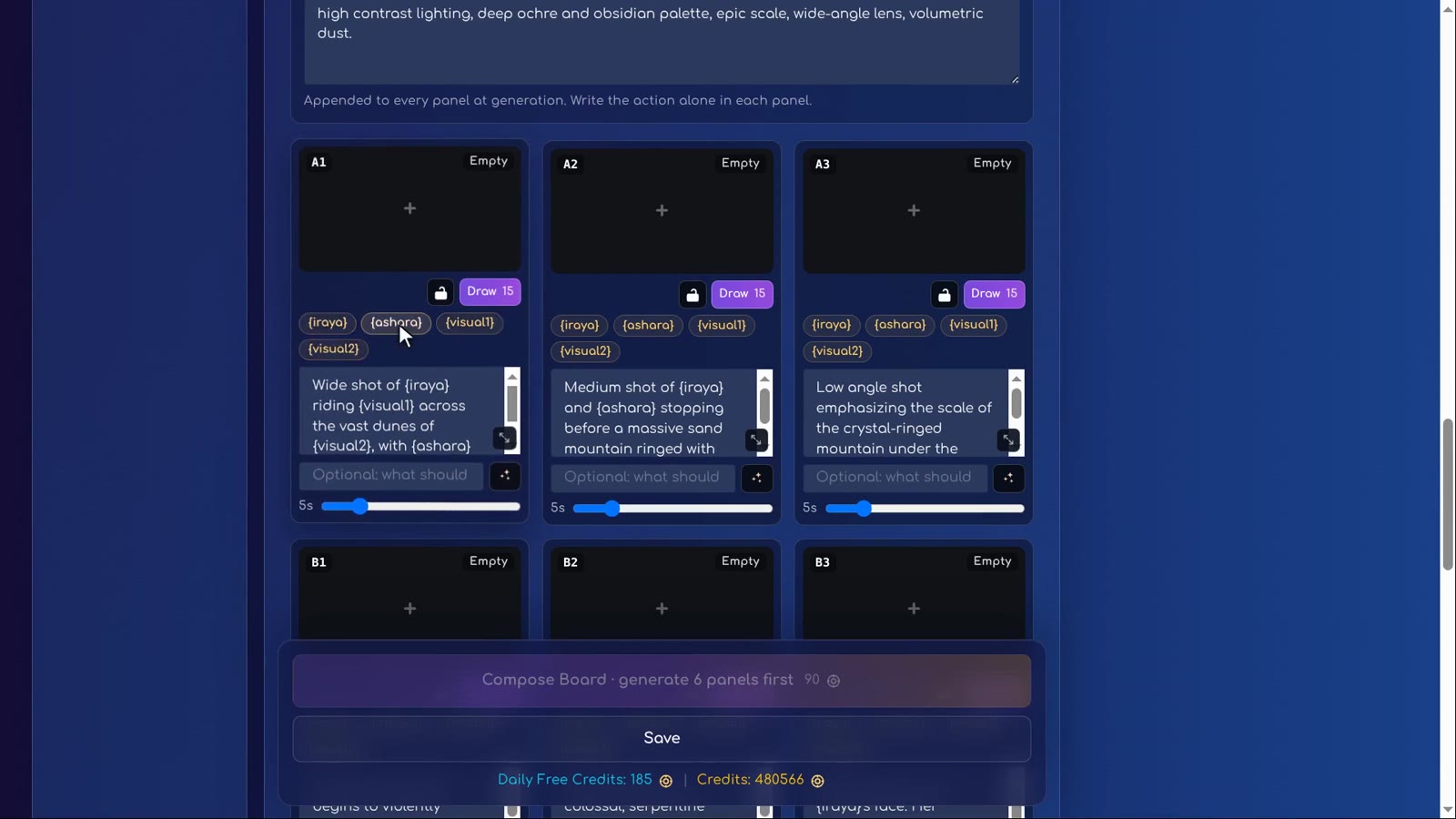
| Character and visual tags | Connect the prompt to the characters and reference images already selected for the project. |
| Expand arrow | Read and edit the full prompt in the larger editor. |
| Instruction field and Craft | Turn a short change request into a revised prompt. |
| Draw / Redraw | Generate a new panel image from the current prompt. |
| Version arrows | Compare the available generated versions. |
| Lock | Protect a panel you have approved from accidental image redraws. |
How do tags help keep the right characters in a shot?
A tag such as {iraya} refers to a character selected for this storyboard; {visual1} refers to a visual reference. Click the relevant tags rather than inventing a different spelling each time. They provide references, but they do not replace the shot description: you still need to explain who is riding, walking or facing the camera.
Only include a tag when that subject belongs in the shot. A close-up of one heroine needs a different description from a wide shot containing both heroines and the creature.
How do I make a useful Craft instruction?
Use a small, testable request. For example, this teaching example captures the correction demonstrated in the film; it is not a verbatim saved prompt:
Show both heroines from behind, small in the frame, facing a giant sand mountain. Keep the desert setting and remove the crystals.
This specifies camera viewpoint, relative scale, setting and an unwanted detail. “Make it better” does not tell the model which of those things to change. After Craft finishes, read the result: make sure it kept the tags and did not add a new action or subject.
Step by step
-
Open a panel
Expand the prompt with the arrow so you can read the full description.
-
Check the tags
Include the characters and visual references that should appear in this shot.
-
Describe one correction
In the instruction field explain the framing, action or object that is wrong.
-
Run Craft and review
Read the rewritten prompt before accepting it.
-
Draw and compare
Generate the panel, then use the version arrows to compare it with the previous result.
-
Lock the image
Protect an approved panel before continuing.
How we used this in Sleeping Sands of Kharuun
At 09:08 the tutorial revises a panel instead of accepting an unsuitable composition. The request at 09:46 describes both heroines from behind, small in the frame, before a giant sand mountain, with no crystals. The recorded workflow also removes the GPT style LoRA before the redraw. Craft refines the wording and Redraw produces a better version; the improvement is not attributable to the text change alone. At 10:10 the narrator shows that the first version is still available through the arrows.
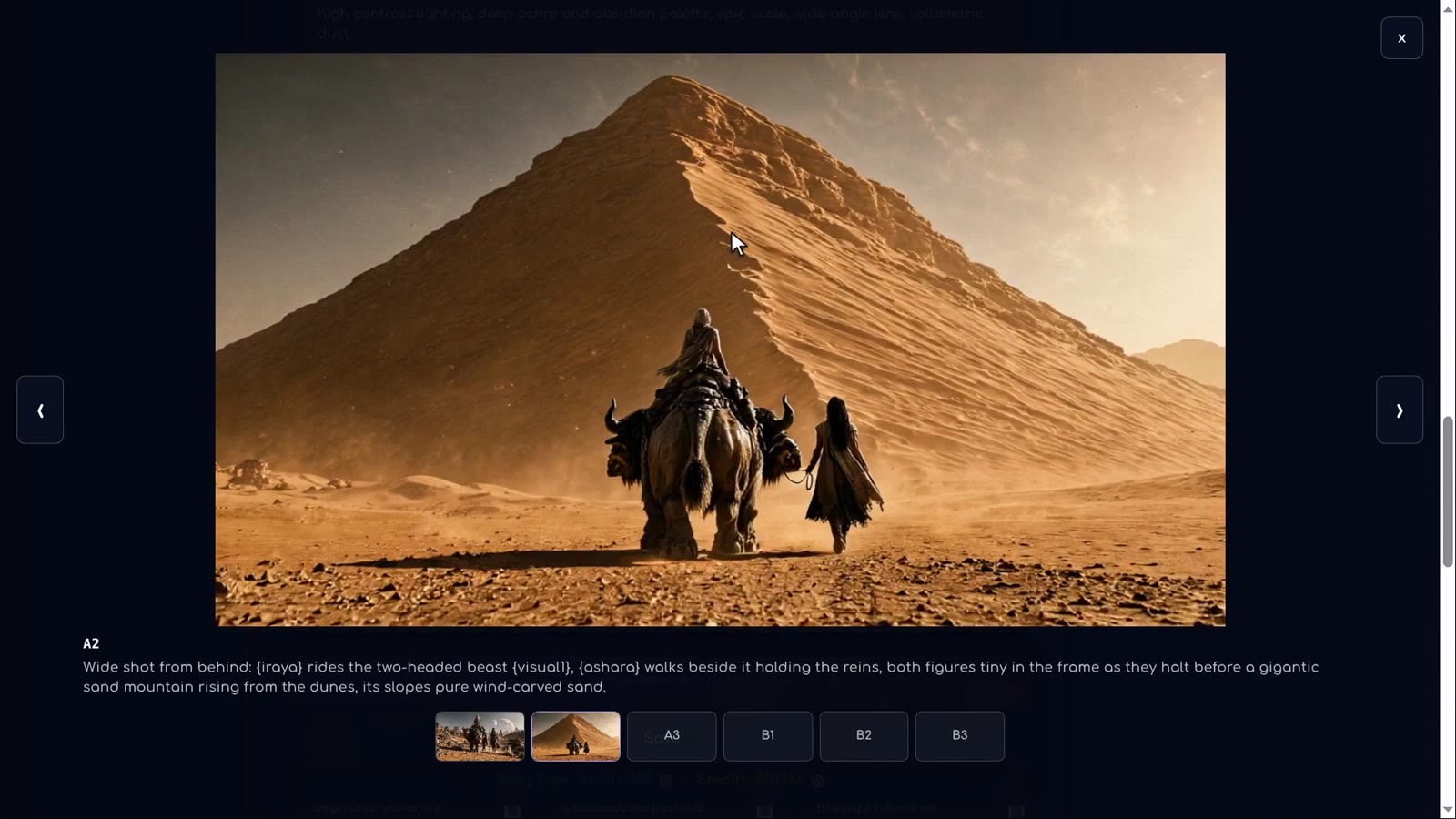
The important lesson is to preserve the story while changing the composition. The characters and destination remain the same; the camera and scale become clearer. Compare the images against that goal, not just against which picture looks prettier.
What mistakes should a beginner avoid?
- Redrawing the entire board to fix one shot. Start with the affected panel.
- Accepting Craft without reading it. The rewritten text can still need correction.
- Forgetting relative scale. Say that the people look tiny if the mountain must look colossal.
- Confusing image approval with video confirmation. Locking a panel image and confirming a generated video scene serve different purposes.
Next, learn to write a panel prompt yourself and compose the board once every panel has an image.
FAQ
Does Craft generate the panel image?
Craft refines the prompt. Review the text, accept it, and use Draw or Redraw to generate the image.
How do I get back to an older panel image?
Use the version arrows shown on the panel to compare available versions. Keep the one that best matches your story.
What should I write when a shot is wrong?
Describe the specific correction: who is visible, where the camera is, what must remain and what must disappear. Avoid changing the entire story to fix one detail.
Try it yourself: Storyboard
Plan your film panel by panel with AI-written prompts.All lessons in this tutorial
- 01:14 Lesson 1 · Generate your heroes, beast and world
- 02:32 Lesson 2 · Make consistent characters with Character Asset Pack
- 05:10 Lesson 3 · Set up the storyboard and let AI write the panels
- 07:30 Lesson 4 · Edit panels with tags, Craft and versions
- 10:17 Lesson 5 · Write your own prompts and compose the board
- 13:17 Lesson 6 · Turn the storyboard into your first video scene
- 16:07 Lesson 7 · Chain scenes into one continuous film
- 21:01 Lesson 8 · Reveal the sandworm, refine details and download